
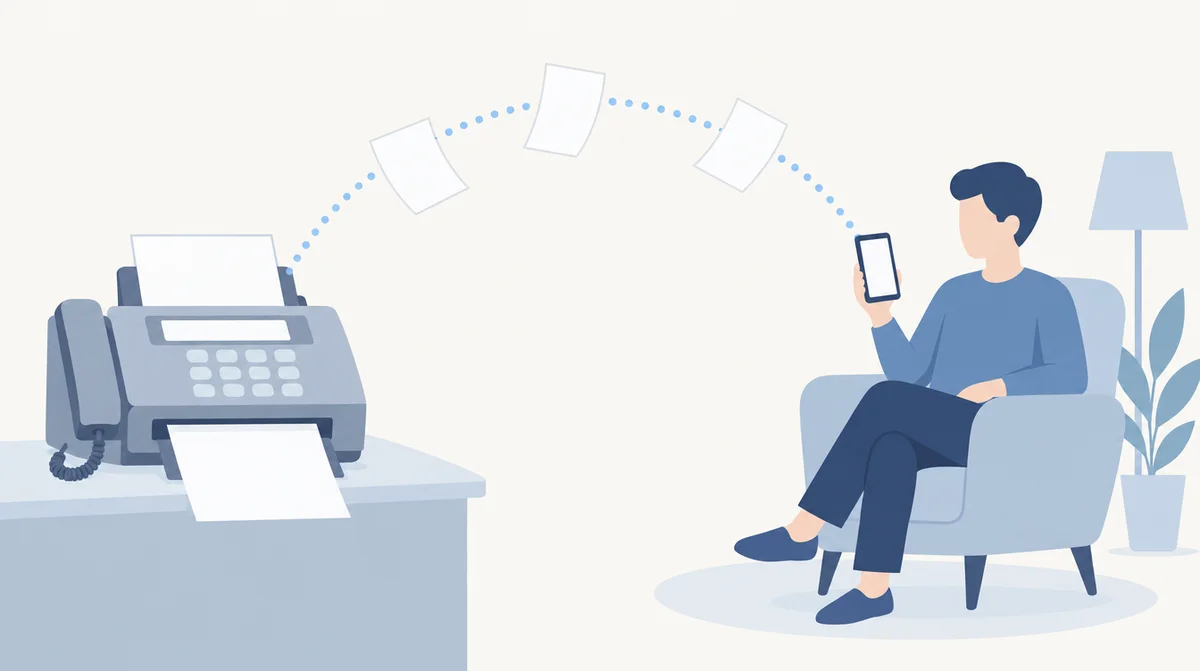
The FaxDash app on your iPhone or Android phone can receive faxes, so you don't need a fax machine when someone asks for your fax number. Add a dedicated fax number on a receive plan, give it to the sender, and the pages turn up in the app's inbox as a document you can open and read.
This guide walks through receiving faxes in the app, what it costs, and what to check before you give your number out. For deeper reads on receiving, see getting a receiving number without a big monthly bill and where to send or receive a fax. If you only need to send a fax, see how to fax from your iPhone or how to fax from Android instead. Sending doesn't need a number of your own.
Short answer
Install the FaxDash app on your iPhone or Android phone and sign in. In the web dashboard, choose a receive plan, then open Fax Numbers and pick a local or toll-free number. Give that number to the sender. FaxDash's receiving help, checked November 17, 2026, says inbound faxes appear in your inbox in the app and the web dashboard, and you get a push notification when one arrives.
Why your phone number can't take a fax
A fax is sent to a fax number, and a fax machine or a fax service has to answer it. Your mobile number is for calls and texts. FaxDash's pricing page says receiving needs a dedicated number, and its receiving help says the number is reserved for you each month.
Step 1: install the app and sign in
Get the FaxDash app from the App Store or Google Play and sign in. When you first sign in, the app asks whether you want to just send faxes or send and receive (getting started help). Choose send and receive.
If you picked "Just send faxes" earlier, turn on the "Receive faxes" switch in the app's Settings. Help says the app also switches back on its own when you buy a fax number or open a received fax notification. Your account and history stay in sync between the app and the web dashboard.
Step 2: choose a receive plan and get a number
Getting a number happens in the web dashboard, on a phone browser or a computer. These steps follow FaxDash's receiving help.
- Pick a receive plan. Open Credits & Billing and choose a plan. Getting a number needs an active receive plan.
- Open Fax Numbers, then Get a Number. Choose the country, an area code if you want one, and local or toll-free. Click Search.
- Pick a number from the results. Once it is active, anyone can send faxes to it.
FaxDash's pricing page lists numbers in the United States, Canada, the United Kingdom, Germany, France, the Netherlands, Sweden, Australia and Israel. Numbers in Australia and Israel need the Premium Fax Number add-on, and toll-free numbers are US and Canada only.
Step 3: give out the number and receive
Send the number to whoever is faxing you. Ask them to dial it exactly as written, including any country code if they are abroad.
When a fax comes in, Help says three things happen:
- It appears in your inbox in the app and in the web dashboard.
- You get a push notification on your phone.
- You get an email saying who sent it, when it arrived and with a link to open it in FaxDash. The fax itself isn't attached. You can turn that email off in Settings.
Tap the fax to open it and read it on screen.
Step 4: read the AI summary, or turn it off
For faxes received on your number, FaxDash can add a plain language summary, a document category, key details such as amounts, dates and names, and searchable text. Help says summaries are made for faxes up to 10 pages; longer faxes arrive without one. AI analysis is on unless you turn it off, so for a fax with private details, check the original as well.
To turn it off, switch off "Summarize received faxes with AI" in Settings, in the app or the web dashboard. New faxes then arrive without a summary, category or extracted details. For more, see AI fax summaries and triage without blind trust.
Things to check before you hand out the number
- The number is active. It shows under Fax Numbers in the web dashboard once your plan is in place.
- Notifications are on. Allow FaxDash to send push notifications in your phone's settings, so you see new faxes without opening the app.
- The sender has the right number. A fax machine dialing a wrong digit reaches someone else's line. Read the number back to them.
- Your plan has room. Each plan has a monthly page allowance. FaxDash's pricing help says you get a push notification and an email at 80% of the allowance and again when it runs out.
- You keep the plan active. If a plan ends, the number goes into a 30 day grace period, and a released number cannot be recovered. Faxes still arrive during the grace period.
Cost
Receiving needs a monthly receive plan tied to your number. Sending stays pay as you go and needs no subscription. FaxDash's pricing help, checked November 17, 2026, lists:
| Plan | Price | Received pages a month | Send credits a month |
|---|---|---|---|
| Starter | $3.99/month | 50 | 10 |
| Standard | $6.99/month | 200 | 25 |
| Business | $12.99/month | 500 | 60 |
On going over the limit, the pricing help says: "Your faxes keep arriving: FaxDash never stops receiving because you went over. Each received page beyond your plan's monthly allowance uses one send credit from your balance." Business also includes the document vault, a BAA for HIPAA and 2 team seats.
Sending a fax back costs 1 credit per page to US (+1) numbers, including Canada, and more credits per page elsewhere. FaxDash offers 2 free pages when you sign up.
How WiseFax handles receiving on a phone, checked November 17, 2026
Other services also let you receive faxes on a phone. This is what WiseFax's own receive a fax on a smartphone page said on November 17, 2026, compared on features only.
| FaxDash | WiseFax | |
|---|---|---|
| Where you get the number | The web dashboard: Fax Numbers, then Get a Number, with a receive plan | Its website, with the "Get your fax number" button, or its Android app |
| How you hear a fax arrived | A push notification on your phone and an email with the sender, time and a link | An email notification each time a new fax arrives |
| Where you read it on a phone | The inbox in the FaxDash iPhone and Android apps, and the web dashboard | Its account portal, on a computer, tablet, iPhone or smartphone |
Sources: FaxDash's receiving help and WiseFax's receive a fax on a smartphone page.
Both give you a dedicated number that a paper fax machine can dial. With FaxDash, received faxes land in the same app you use to scan and send, with a push notification on your phone.
FAQ
Can I receive a fax on my phone without a fax machine?
Yes. With a FaxDash fax number and a receive plan, faxes sent to the number appear in the FaxDash app on your iPhone or Android phone.
Can I use my mobile number to receive faxes?
No. A fax needs a dedicated fax number. Your mobile number stays for calls and texts.
Do I need a subscription to receive faxes?
Yes. Receiving requires an active receive plan tied to your number. Sending is pay as you go.
Will the fax come to my email too?
You get an email for each new fax with who sent it, when it arrived and a link to open it in FaxDash. The fax itself isn't attached.
Can I get a number outside the US?
Yes, in Canada, the United Kingdom, Germany, France, the Netherlands, Sweden, Australia and Israel. Australia and Israel need the Premium Fax Number add-on.
How do I know a fax I sent back was delivered?
The app shows a status for each fax. Delivered means the transmission completed. It does not mean someone at the other end has read the document. See how to confirm a fax was received.