
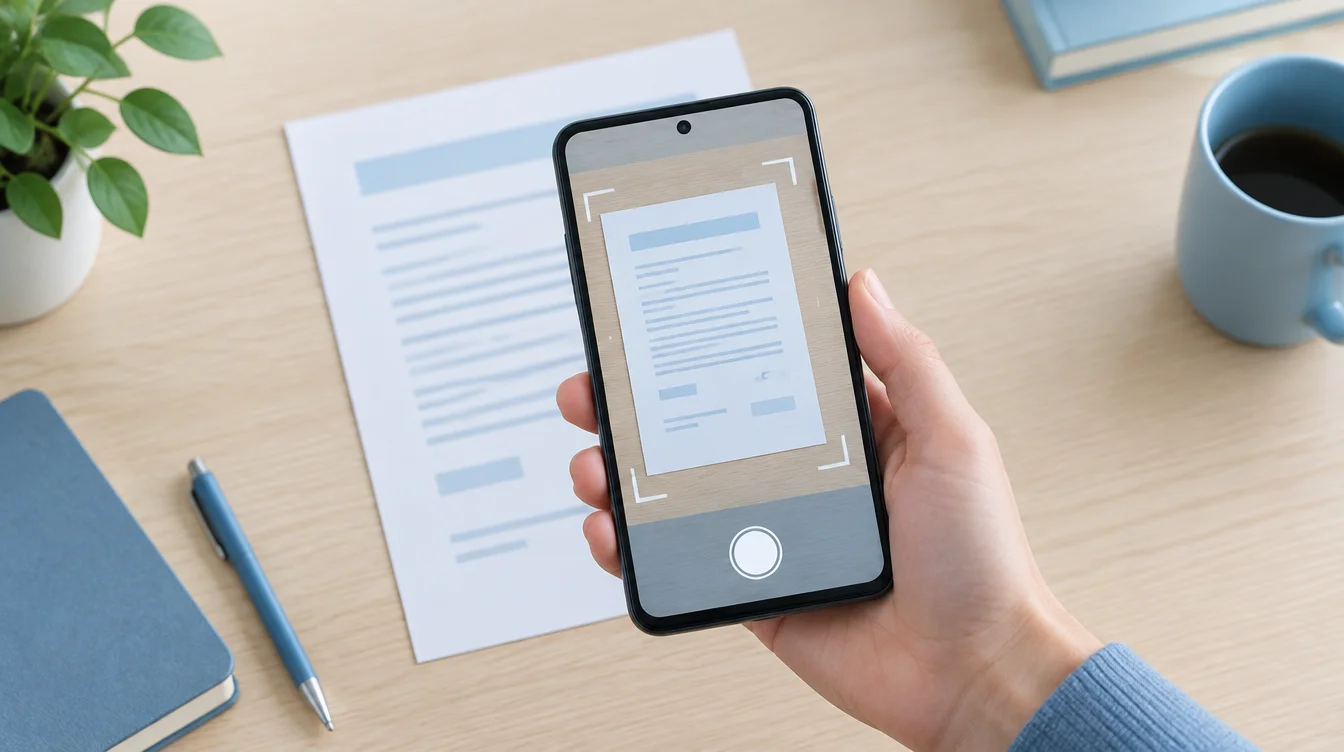
An Android phone can do the job of a scanner and a fax machine. Before you start, decide where the document is now: on paper in front of you, or already saved as a PDF. Both routes go through the FaxDash app, and neither needs a fax number of your own.
This guide covers the Android route from our main guide to how to fax from your computer, phone or email. If you're still choosing an app, our comparison of fax apps for your phone covers that decision.
Short answer
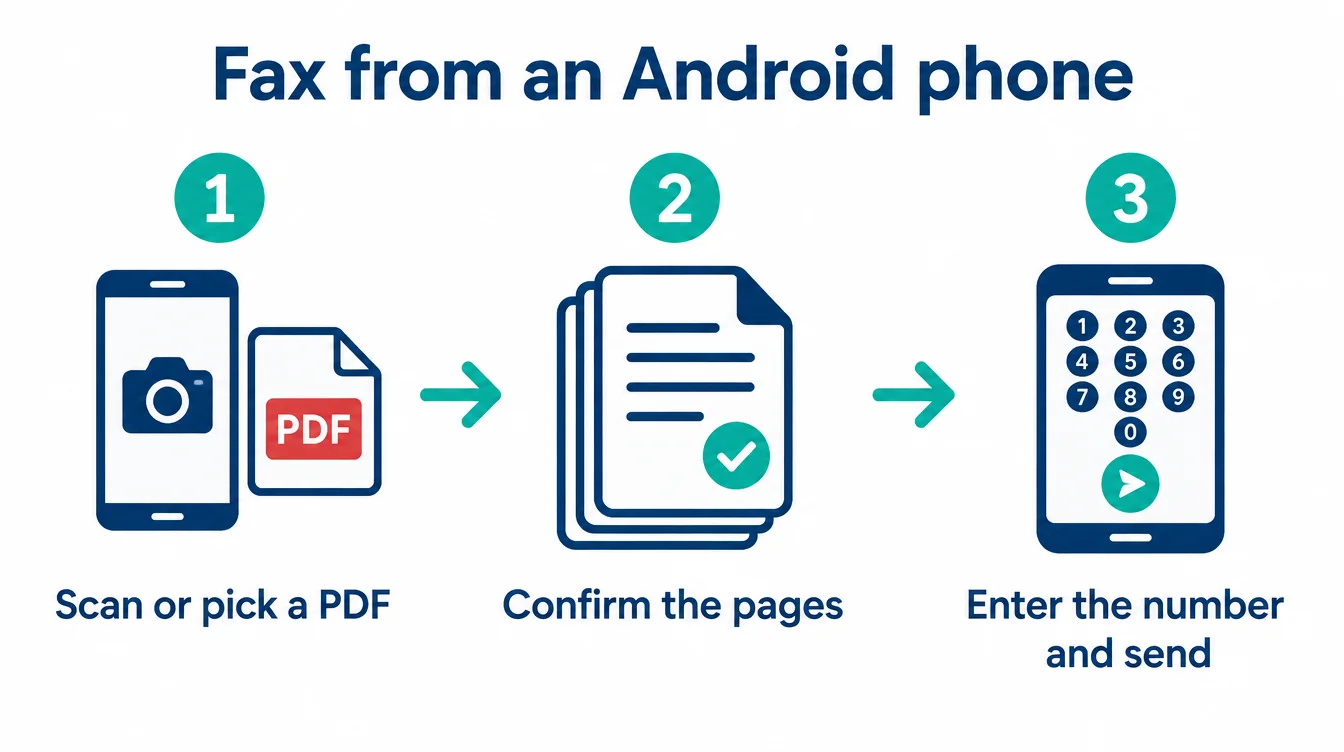
Install FaxDash from Google Play, create a free account, then scan the paper with your camera or pick a PDF. Confirm the pages, enter the destination fax number and send. FaxDash's getting-started help says the mobile app runs on iOS and Android and is best for scanning paper with your camera, and the sending help describes the same scan, confirm, number and send steps.
If you'd rather not install anything, or the app isn't available for your phone, you can send from the web dashboard in your phone's browser instead. Upload the PDF on the Send Fax page, add the number and send.
Steps: scan or pick a PDF, send
These steps follow FaxDash's Help Center, checked on November 8, 2026.
- Get the app and sign in. The FaxDash Google Play listing is named "FaxDash: Fax from Your Phone". You can sign in with Google, Apple or an email address. If you only send faxes, the app asks at first sign-in whether you want to "Just send faxes"; choosing it hides the receiving screens. You can switch with the "Receive faxes" setting later.
- Scan the paper, or pick a PDF. For paper, point the camera at the page. According to the scan, sign and enhance help, FaxDash finds the edges, corrects the perspective and captures a clean page. You can scan more pages into the same fax. For a file, pick the PDF instead.
- If a page needs a signature, add it before you send. Sign the paper before you scan it. FaxDash signing is done in the web dashboard, not the Android app. For a PDF, send from the web dashboard, where the Send Fax page has Finishing touches > Add signature (scan, sign and enhance help).
- Confirm the pages. The sending help includes a step to confirm the pages before you enter the number. Check that every page is there, upright and readable.
- Enter the fax number and send. The app adds your own country's prefix as soon as you start typing, unless you type + first. Start with + and the destination country code to avoid the wrong prefix.
- Check the result. Wait for the status to change from sending to delivered or failed. To see the confirmation, tap the delivered fax. Delivered means only that the transmission completed, not that a person read or accepted the document.
For tips on getting a file fax-ready before you send, see how to prepare a document to fax cleanly.
Common mistakes on Android
- The wrong country prefix. Because the app adds your own country's code as you type, a foreign number typed without + can end up with the wrong prefix. Type + and the country code first.
- Scanning in poor light. A page that's cut off, blurred or partly out of frame still needs a rescan. Scan on a flat surface and keep the whole page in view.
- Missing pages. Scan every page into the same fax, then use the confirm step to count them before you send. A missing signature page means a second fax.
- A password-protected PDF. FaxDash's troubleshooting help lists password protection as a reason a fax can fail. Save an unprotected copy first.
- Treating "sending" as delivered. Wait for the final status. If a fax ends as failed, the credits it used go back to your balance; check that the number is a fax line before you resend. See why a fax fails to connect.
Cost
Sending from an Android phone costs the same as any FaxDash fax: 1 credit per page to US (+1) numbers, including Canada, and more credits per page elsewhere. A cover page has no feature fee but uses 1 send credit.
- Free start: FaxDash offers 2 free pages when you sign up.
- Credits: packs from 5 pages for $0.99 to 150 pages for $9.99, bought from the Credits & Billing screen in the app or dashboard (pricing help). Purchased credits never expire, and no subscription is needed to send.
- Receiving: only if you want faxes back, a receive plan starts at $3.99/month.
How FaxDash compares with Fax.Plus on Android
Both apps can scan paper with an Android camera, review the pages and send a fax. Fax.Plus also describes attaching files from Google Drive in its Android guide. FaxDash lets you scan paper or pick a PDF in its Android app, then confirm the pages before sending.
| If you need… | FaxDash | Fax.Plus |
|---|---|---|
| A camera-to-fax route | Scan in the app and confirm the pages | Scan with Camera, review, then send |
| A saved file | Pick a PDF in the app | Attach files, including from Google Drive |
| Occasional sending | Buy credits without a sending subscription | Buy extra sending credit without a subscription, or choose a paid plan; destination restrictions apply |
For a PDF already on your phone or paper to scan, either app has a documented route. Fax.Plus may fit a workflow that starts with files in its documented cloud-file picker; FaxDash offers the scan-or-PDF route described above. Both offer sending without a recurring subscription, so compare the applicable destination and credit terms rather than assuming Fax.Plus requires a monthly plan. For more services and receiving features, see our phone fax app comparison. Competitor workflow details were checked against Fax.Plus's own guides on November 8, 2026.
FAQ
Is there a FaxDash app for Android?
Yes. Checked November 8, 2026, the Google Play listing is titled "FaxDash: Fax from Your Phone". FaxDash's getting-started help confirms the mobile app is available for Android.
Do I need a fax number to fax from my Android phone?
No. Sending from the app doesn't require one. You need an active receive number on a receive subscription to receive faxes or use email-to-fax. For email-to-fax, send from your account email or verified contact email to your own number, digits only with country code, at @fax.faxdash.io. Put the destination alone in Subject and attach one PDF; only the first PDF is sent if you attach several (integration rules).
Can I scan color documents or an ID?
Yes. The scan help says the scanner handles color documents such as IDs and licenses and enhances them so they stay legible after conversion to black and white.
I bought a plan through Google Play. Where do I cancel it?
In your Play Store subscription settings. FaxDash's pricing help says plans are canceled where they were bought; in the app, your current plan has a "Manage in Play Store settings" button.
Can I send one fax to several numbers from my phone?
Batch sending is documented for the web dashboard, where you add more numbers on the Send Fax page and each recipient is billed by page count.
Next step
If several people in your office fax from their phones, the FaxDash business page explains how a plan with team seats and a shared number fits that workflow.
This guide is general information, not legal or tax advice. Fax numbers, forms and agency rules change, so check the agency's official page before you send. FaxDash isn't responsible for decisions made or actions taken based on this guide. For advice about your situation, talk to a qualified tax professional or attorney.