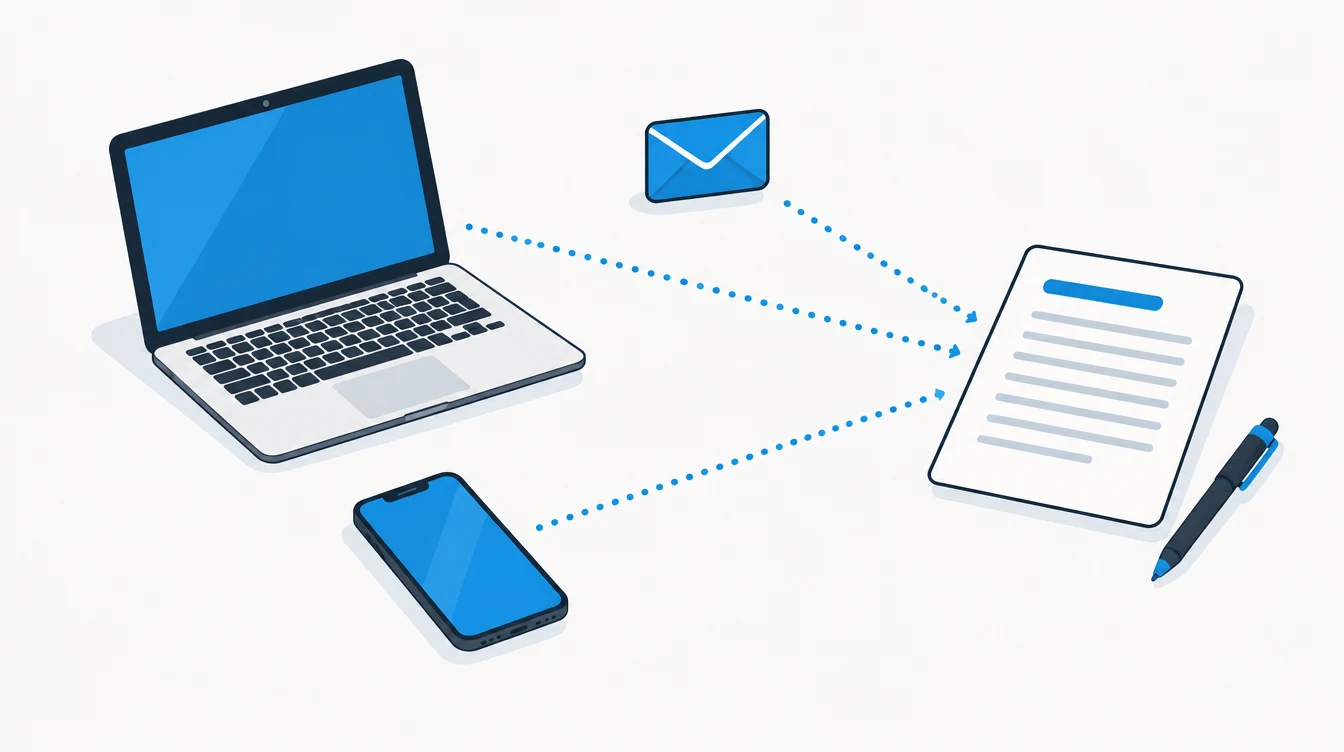
If the document is already on your phone, in a folder on your laptop or sitting in your inbox, you don't need a fax machine to send it. The useful question is which route gets it out correctly with the least setup, and whether that route needs a fax number of your own.
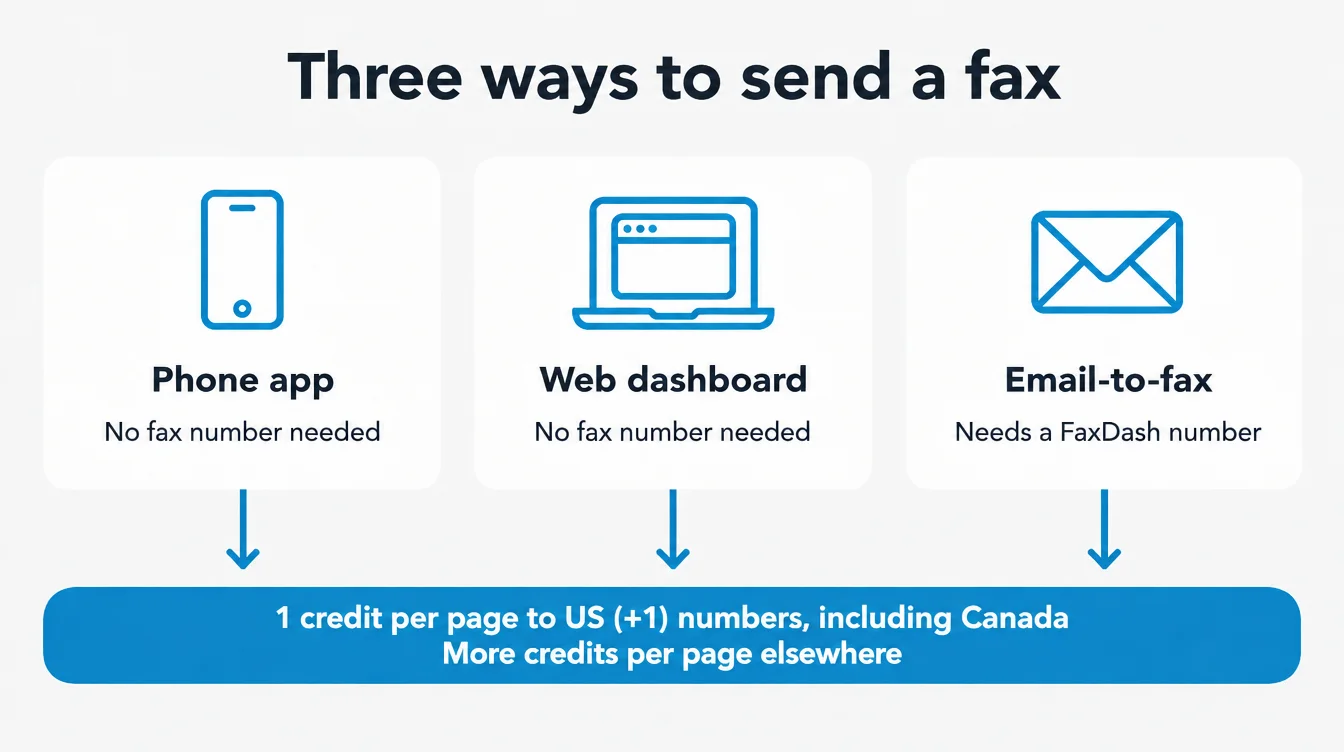
FaxDash has three ways to send: the mobile app, the web dashboard and email-to-fax. Two of them work without a fax number. One doesn't. This guide explains how each route works, what it costs per page, and how to pick one based on where your document is right now.
The short answer
- On a phone: use the FaxDash app. Scan the paper with your camera or pick a PDF, enter the fax number and send. No fax number of your own is needed.
- On a computer (Mac, Windows or any computer with a browser): use the web dashboard at dash.faxdash.io. Drop in a PDF or images and send. No fax number is needed.
- From email (Gmail, Outlook, Apple Mail and others): use email-to-fax. This is the one route that needs an active FaxDash fax number, because the address you send to is your own number.
FaxDash's getting-started help puts it plainly: sending from the app or web dashboard "doesn't require your own number," and email-to-fax "is the one exception." You only need a number if you want to receive faxes or send by email.
Decision table: where your document is, and the route to use
| Where your document is | Best route | Needs a FaxDash number? | Cost |
|---|---|---|---|
| Paper on your desk | App: camera scan | No | 1 credit per page to US (+1) numbers, including Canada, more credits per page elsewhere |
| A PDF on your phone | App: pick the PDF | No | Same |
| A file on your computer (Word, Pages, a Google Doc) | Save or download it as a PDF, then the web dashboard | No | Same |
| A PDF attached to an email | Email-to-fax, or download it and use the dashboard | Email-to-fax: yes. Dashboard: no | Same |
| One document for several fax numbers | Web dashboard (batch send) | No | Each recipient is billed separately by page count |
| A fax that should go out later | Web dashboard (schedule) | No | Same |
Credits are the same on every route. FaxDash's pricing help lists packs from 5 pages for $0.99 up to 150 pages for $9.99, which works out to $0.07 a page. Purchased credits never expire, and no subscription is needed to send.
Route 1: the mobile app (camera scan or PDF)
The app, on iPhone and Android, is the shortest route when the document is paper or already on your phone. FaxDash's sending help describes the flow: scan a document with your camera or pick a PDF, confirm the pages, enter the destination fax number and tap send.
What the camera scan does, according to the scan, sign and enhance help:
- Input: a photo of a paper page.
- Processing: the app finds the page edges, corrects the perspective and rotation, removes shadows and color cast, and balances contrast. A one-tap enhancement converts the page to high-contrast output for fax.
- Output: a clean page, and you can scan more pages into the same fax.
FaxDash documents this scan and enhance step for the phone camera only, so open a PDF yourself and check it before you send it from the dashboard.
If the page needs a signature, use the FaxDash web dashboard: add the document on Send Fax, then choose Add signature under Finishing touches. Signing is done in the web dashboard, not the mobile app. The dashboard also offers a free watermark (CONFIDENTIAL, DRAFT, URGENT, COPY or your own text).
For a side-by-side look at phone fax apps, see our comparison of the best fax apps for scanning, signing and sending.
Route 2: the web dashboard (any computer)
The web dashboard works in a browser on a Mac, a Windows PC or any other computer. It suits documents that already live on your computer, and it has a few tools the other routes don't.
The documented steps, from the sending help:
- Open Send Fax and drop in your PDF or images. Several files are merged into one fax.
- Type the fax number, or search your contacts. Add more numbers to send the same fax to several recipients.
- Check the document, the recipients and the credit cost, then click Send Fax, or schedule it for later.
Under Finishing touches on the same page you can add a signature or a watermark. The built-in cover page builder adds your name and number, the recipient, a subject and a short message. A cover page has no feature fee, but it is a page, so it uses 1 send credit like any other page.
Getting the file into PDF form first:
- Mac: in most apps, choose File > Print, then choose Save as PDF from the PDF menu (Apple's steps).
- Windows 10 or 11: choose Print, select Microsoft Print to PDF as the printer, then pick a folder and file name (Microsoft describes this printer in its Outlook help).
- Google Docs: choose File > Download and pick PDF (Google's steps). FaxDash's help doesn't describe a Google Drive connection, so download the file to your computer first, then add it to the dashboard.
Route 3: email-to-fax (needs a FaxDash number)
Email-to-fax turns an email into a fax. It is the right route when the document already arrives by email and you send it on unchanged. It is also the only route that needs a FaxDash fax number, which comes with a receive plan.
According to FaxDash's integrations help, the email has four parts:
- To: your own FaxDash fax number, digits only with the country code, followed by @fax.faxdash.io. If your number is +1 202 555 0123, you send to 12025550123@fax.faxdash.io.
- From: the email address on your FaxDash account, or your verified contact email. Mail from any other address is refused, including a teammate's.
- Subject: the destination fax number and nothing else. A 10-digit number is read as US or Canadian. For any other country, start with + and the country code.
- Attachment: one PDF. Other file types aren't read, only the first of several PDFs is sent, and the message text is not sent on its own. If your default cover sheet is set to go on every fax, the message becomes its note and the cover adds one charged page.
If FaxDash can't send it, it replies to the address that sent the email and says why, for example no PDF attached or a number it can't read, and nothing is charged. There is no success reply to the sending email; the fax appears in your Sent history with its status, and normal fax notifications still apply.
The subject rule is the easiest one to break. A reply adds "Re:" and a forward adds "Fwd:", and every extra digit, like an invoice number, is read as part of the fax number.
How the routes compare with Fax.Plus
Both services offer a phone and browser route, so choose around the document rather than the device alone. Fax.Plus documents camera scanning in its mobile app and attaching saved files in its web or mobile app. That guide also lists direct DOC, DOCX, XLS and XLSX uploads, a useful fit if you want to attach an office file without exporting it first. With FaxDash, the documented dashboard workflow is PDF or images, with several files merged into one fax. Exporting to PDF first lets you inspect the page layout before uploading.
Email has a different setup tradeoff. Fax.Plus email-to-fax puts the recipient's number in the To address, such as +16692001010@fax.plus; its subject becomes a note in Sent Faxes, and it accepts formats including PDF and DOCX. Its document guide says email-to-fax requires a paid plan, the feature enabled and a registered sender. FaxDash email-to-fax instead needs your own active receive number in the To address, the destination alone in Subject and one PDF. Fax.Plus may suit an existing paid email workflow with mixed file types; FaxDash's app or dashboard suits a sender who does not need a receive number. In either service, check the final document and destination rather than forwarding an email unchanged.
Receiving faxes back
Sending needs no number, but receiving does. The receiving help says you choose a dedicated local or toll-free number and activate it with a receive plan. Plans start with Starter at $3.99/month (50 received pages and 10 send credits a month). Business is $12.99/month (500 received pages and 60 send credits a month) and includes you + 2 team seats.
What happens when a fax arrives:
- It appears in your inbox in the app and the web dashboard, with a push notification.
- You get an email with who sent it, when it arrived and a link to open it in FaxDash. The fax itself isn't attached, and you can turn the email off in Settings.
- AI analysis of received faxes (a summary, a category and key details) is on unless you turn it off; accounts with a signed BAA start with it off and can turn it on. To switch it off, turn off "Summarize received faxes with AI" in Settings, in the app or the web dashboard. Help says summaries are made for faxes up to 5 pages.
- If your office wants paper, FaxDash Connect is a free Mac and Windows app that prints each received fax on a printer you choose. It only prints received faxes; it can't send.
To run sending and receiving through one shared inbox, see our guide to a fax-to-email and email-to-fax workflow for small teams. If you are still weighing whether you need a number at all, where to send or receive a fax compares the options, including office stores.
Prepare the file once
Whichever route you choose, the file you send is the fax. Before you send, open it and check that:
- every page is there, upright and in order;
- it opens without a password;
- the page count matches what you expect, because credits are counted per page.
Our checklist for preparing a document so it faxes cleanly covers fonts, scans and page counts in more detail. If a fax ends up Failed, why a fax fails to connect walks through what to check before you resend.
A small trial is the safest way to choose: send a one-page, non-sensitive test document to a fax number you can check, by the route you plan to use. Confirm it reaches Delivered and that the page is readable on the other end. Delivered means only that the transmission completed, not that someone read or accepted the document. If it does, use that route for routine sends.
FAQ
Can I fax from Gmail for free?
Gmail has no built-in fax feature. To fax from your Gmail inbox with FaxDash, you use email-to-fax, which needs a FaxDash fax number on a receive plan (from $3.99/month), and the Gmail address has to be your FaxDash account email or verified contact email. To send without a plan, download the PDF and send it from the app or the web dashboard. FaxDash offers 2 free pages when you sign up.
Do I need a fax machine?
No. FaxDash's getting-started help says sending needs no fax machine, no phone line and no monthly contract. The app and the web dashboard send over the internet, and the recipient gets an ordinary fax.
Will they know it came from email?
They receive a fax, not an email. FaxDash sends it from your FaxDash number, and only the attached PDF is faxed; the subject supplies the destination. Message text is not sent on its own, but becomes the cover note if your default cover sheet is set to go on every fax. That cover uses 1 send credit. Otherwise, put any note on the PDF itself.
This guide is general information, not legal or tax advice. Fax numbers, forms and agency rules change, so check the agency's official page before you send. FaxDash isn't responsible for decisions made or actions taken based on this guide. For advice about your situation, talk to a qualified tax professional or attorney.