
The short answer
Before you send, open the exact file you plan to fax and check it page by page. Every page should be readable, upright and in order. The file should open without a password. The page count should match what you expect, because credits are charged per page. If you send by email, put only the destination fax number in the subject and attach one PDF.
These checks take a few minutes and change nothing. Fixing a page before sending is simpler than sending a corrected packet afterward.
Start from the right file
FaxDash accepts documents in these forms, according to the Help Center:
- A paper document scanned with your phone's camera in the FaxDash app, or a PDF you pick there.
- From the web dashboard, a PDF or images. Several files are merged into one fax.
- For email-to-fax, one PDF attached to the message. Other file types are not read.
Use the final version of the document. If a form has been signed or initialed, fax the signed copy, not an earlier draft. The Help Center also describes drawing a signature once and placing it on the document before sending. If the recipient has signature requirements, confirm with them that a placed signature is acceptable. Name the file so you can tell it apart from other versions, for example by adding the date or "signed".
Make each page readable
A fax arrives in black and white. Anything that relies on color, faint lines or very small print can be harder to read on the other end.
What the FaxDash app does. The Help Center describes these scanning features:
- Edges are detected and perspective is corrected automatically.
- One-tap enhancement converts the page to high-contrast output and removes shadows and noise.
- Color documents, such as IDs and licenses, are enhanced so they stay legible after the conversion to black and white.
- You can scan several pages into a single fax.
General fax-prep advice. These habits are not FaxDash requirements, but they help most documents fax cleanly:
- Scan on a flat surface with even light, so no part of the page is in shadow.
- Keep the whole page in frame, including text near the edges.
- Prefer dark ink. Pencil, light blue ink and highlighter can fade after conversion to black and white.
- Check small print, such as footnotes or form field labels, at full size on screen.
If you can't read a line comfortably on your screen, the recipient may not be able to read it either. Rescan that page before sending.
Put pages upright and in order
Open the final file and scroll through every page.
- Check that each page is upright. Rotate any sideways or upside-down page in the file before sending, rather than assuming it will be corrected.
- Check the page order against the original, especially for contracts and multi-part forms.
- Remove blank pages and pages that don't belong in this packet.
- Confirm that signature and initial pages are included.
When sending from your phone, the Help Center describes a step where you confirm the pages before entering the number. Use that step to do this check.
Remove password protection
The FaxDash Help Center lists a password-protected document as one of the things to rule out when a fax keeps failing. Before you send, open the file without entering a password. If it asks for one, save or export a copy without password protection and send that copy instead.
Keep the original protected file where it is. Only the copy you send needs to open freely.
Check the page count and credits
Sending is charged per page.
- One credit per page to a +1 number, two per page anywhere else.
- The exact per-page cost is shown before you confirm the send.
- If you send one document to several recipients, each recipient is billed separately by page count.
- For email-to-fax, an always-on default cover sheet adds one page to the packet and the charge.
- Credits you buy never expire. Receive plans also add monthly send credits to your balance.
Before you confirm, compare the pages and cost shown with what you expect. If there are more pages than expected, look for blank or duplicate pages. If there are fewer, look for a missing page.
Check the packet before you send
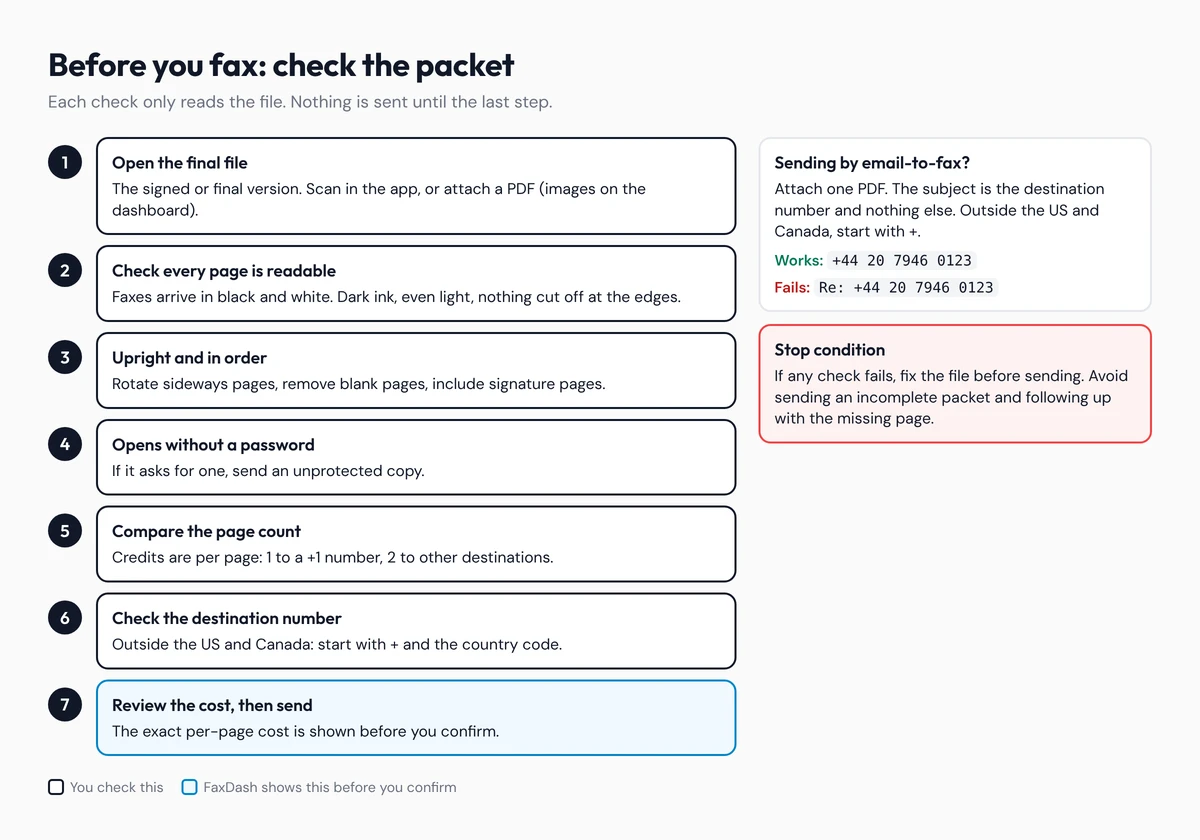
Run through this list in order. Each step only reads the file or the form, so nothing is sent until the last step.
- Open the final file. Confirm it is the signed or final version.
- Scroll every page. Check that each page is readable, upright and in order.
- Confirm the file opens without a password.
- Compare the page count with what you expect.
- Check the destination number. For numbers outside the US and Canada, start with + and the country code.
- Review the cost shown before you confirm.
- Send.
If any check fails, stop and fix the file before sending. Avoid sending a packet you know is incomplete and following up with the missing page, because the recipient then has two faxes to match.
How FaxDash compares on file preparation
If your packet mixes scans, PDFs and office documents, check the sending interface as well as the service name. We make FaxDash. Here is what five providers document, checked November 7, 2026; no side-by-side transmission test was performed.
| Service and interface | Document handling | Preparation detail to check |
|---|---|---|
| FaxDash web dashboard | PDF and images; several uploads merge into one fax | Preview the packet before sending. Email-to-fax instead reads one PDF |
| Fax.Plus email-to-fax | Paid plans accept PDF, DOC/DOCX, XLS/XLSX, PNG/JPG, RTF and TIFF | Its separate transmission optimization offers text-oriented Standard and paid HD; HD may take longer and consume more pages |
| eFax MyPortal Message Center | Documents up to 10 attachments, 18MB maximum | Has a quality selector. These are MyPortal instructions, not verified limits for every eFax interface |
| MyFax | Documents support for PDF, Word and Excel files | Useful when the source is an office document; confirm attachment and page limits for your sending route |
| FaxZero | Accepts common document and image formats, including PDF, DOCX and JPG | Cannot convert password-protected PDFs |
Our advice: Fax.Plus or MyFax may suit a workflow that sends office files without first exporting them to PDF. FaxZero can fit a short packet. FaxDash's web route merges PDFs and images, while its email route needs one finished PDF. More supported formats or a larger upload allowance does not establish clearer output. Check page order, small print and the final page count whichever route you use.
If you send by email-to-fax
Email-to-fax needs a FaxDash fax number on your account. From the email address on your FaxDash account, or your verified contact email, send a message to your FaxDash number at fax.faxdash.io. Mail from any other address is refused.
Rules for the message:
- Subject. Put the destination fax number and nothing else. A 10-digit number is read as US or Canadian. For any other country, start with + and the country code. Examples the Help Center gives include +14155550142 and (415) 555-0142.
- Attachment. Attach one PDF. Other file types are not read. If there are several PDFs, only the first is sent.
- Body and cover sheet. The email text is not sent on its own. If your default cover sheet is set to go on every fax under Settings → Cover sheet, FaxDash adds it as page 1 and uses the email text as its note, leaving out your email signature and quoted replies. Long notes are shortened to fit; an empty email uses your saved default note. The cover counts as one extra charged page. Check the body and your default cover settings before sending, and keep anything the recipient needs in the attached PDF. See the email-to-fax rules.
A subject such as "Re: +44 20 7946 0123" fails the subject rule, because the subject is not the destination number alone. The same applies to a subject that adds a reference number or a date. Start a new email with a clean subject rather than replying to an earlier thread.
If FaxDash cannot send the fax, it replies to the address that emailed it and says why, and nothing is charged. There is no reply when the send goes through. The fax appears in your Sent history with a live status.
After you send
Check the status of that specific fax in your history. A Delivered status means the transmission completed. It does not establish that the intended person has read the document. Wait for the final status before you act. If the fax ends as Failed, check the number and the file before sending it again.
If several people prepare packets
When more than one person in an office prepares and sends documents, it helps to see who sent what. FaxDash Business teams are set up from the web dashboard. The Help Center says everyone works from one shared inbox and sent history, and every fax in the sent history shows who sent it, so a teammate can check before sending the same packet again. See how FaxDash Business works for small teams.