
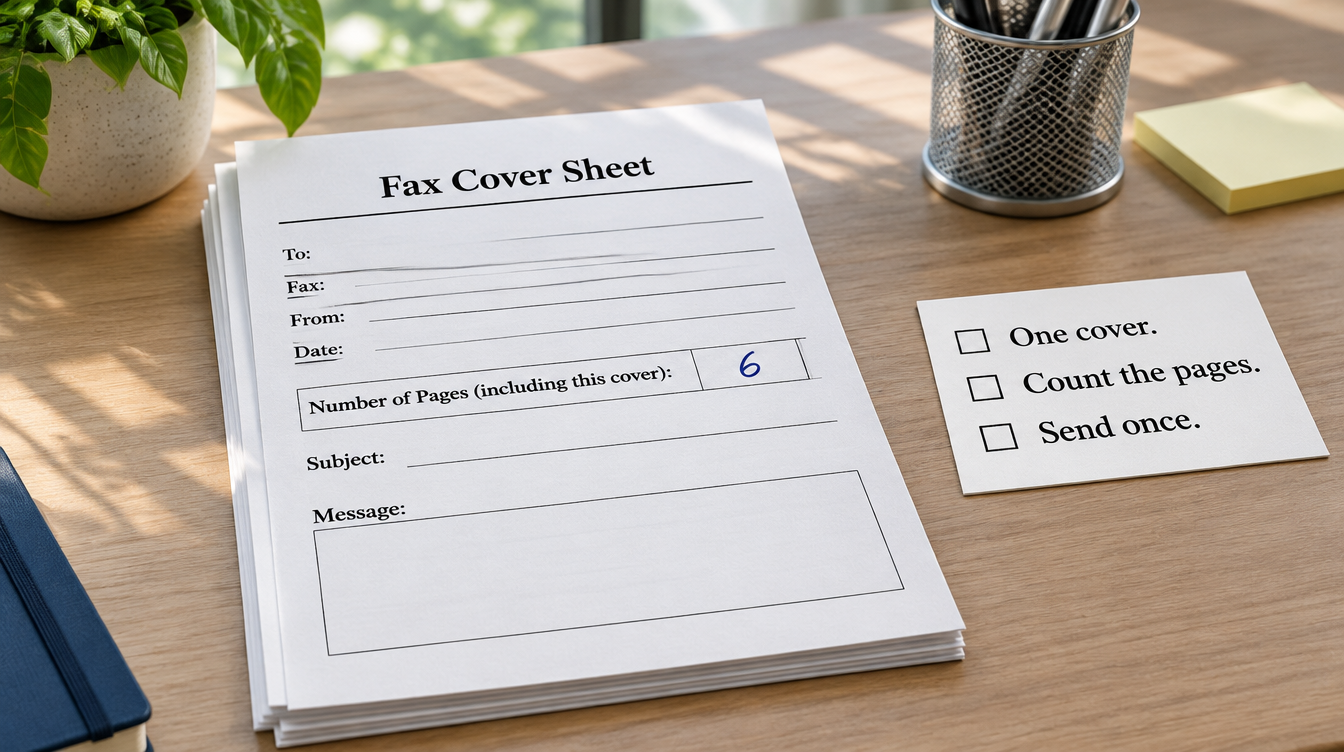
A fax packet often comes from several places: a downloaded form, a scanned attachment, and a newly created cover sheet. Each file may look correct on its own. Problems appear when you combine them.
You can end up with two routing covers, an old recipient number, or a cover that says "4 pages" when the finished PDF contains six.
The most reliable place to check these details is the final PDF you intend to send. Count and inspect that file after assembly, rather than relying on the original documents.
Identify what is already in the packet
Open each source file before adding a cover sheet. Look at the first page and any pages that appear to be introductions or dividers.
A page titled "Cover" could be:
- A fax routing sheet containing sender and recipient details.
- A document title page that belongs with a report.
- A required submission checklist.
- An old cover left in a previously faxed copy.
These pages serve different purposes. A report's title page is not automatically a duplicate fax cover. A required checklist may need to stay even if it repeats some information.
Remove or replace a page only when you have confirmed it is unnecessary and you are permitted to change the packet. For signed or official documents, avoid altering the document itself just to simplify presentation.
Choose one current routing cover
If you need a new fax cover, decide which page will carry the current destination, sender details, subject, and message. Our guide to what to put on a fax cover sheet (and what to leave off) covers those fields.
For a fictional repair business, the source materials might contain:
- An old one-page fax cover.
- A three-page service form.
- A two-page inspection report.
If the old cover is unnecessary and may be removed, replacing it with one new cover produces a six-page packet: one cover, three form pages, and two report pages.
Keeping both covers would produce seven pages. More importantly, the old cover could point to a different department or contain outdated contact details.
FaxDash's built-in cover page builder is optional. It can add your name and number, the recipient, a subject, and a short message to the front of the fax. If your PDF already starts with a routing cover and you also add a cover in the builder, both pages go out. Choose one current routing cover, then inspect the final preview.
Count the pages that will actually be transmitted
The FaxDash cover sheet maker labels its count field Number of pages (including this one). For that field, include the cover itself.
Total pages = cover page + every remaining page in the final PDF.
Count PDF pages, not physical sheets. A two-sided paper sheet normally becomes two PDF pages when both sides are scanned. A blank page that remains in the PDF also contributes to its page count.
Do not use a printed label such as "Page 1 of 3" to determine the whole fax length. That label may refer only to one document within the packet.
If you add, remove, or replace a page after calculating the total, update the cover and check the count again. Count a cover page in the page total when you send. A cover page uses 1 send credit.
Build the final PDF in the intended order
Choose a layout from our free fax cover sheets for the IRS, Social Security, title payoffs and more, or create a basic cover in the FaxDash cover sheet maker. Review its PDF and Fax previews, then download it. The maker does not require an account.
Assemble the cover and supporting documents with your chosen PDF tool. Put the current routing cover first, followed by the documents in the order the recipient expects.
Open the combined file, not just the separate downloads. Confirm that:
- The first page has the current recipient and fax number.
- No second routing cover remains.
- Required title pages and checklists are present.
- Pages are upright and readable.
- The PDF's actual page count matches the cover.
For scanning and layout tips, see how to prepare a document so it faxes cleanly.
Be especially careful with email-to-fax attachments
FaxDash email-to-fax needs an active FaxDash receive number. Help documents sending a message to your-fax-number@fax.faxdash.io with the destination fax number in the subject line and the document attached as a PDF. The subject should hold only the destination number.
Do not assume that attaching a cover PDF and a document PDF as two separate files will create the intended packet. Combine the cover and documents into one PDF, then attach that file.
Finally, open the actual attachment from the prepared email if your email application allows it. This helps catch an older file selected by mistake.
The goal is one clearly addressed packet whose cover describes what is really inside. Once the final file is checked, avoid last-minute edits without repeating the page-count check.
How a few other services document covers and page counts
Checked November 16, 2026, on each service's own pages. This is a short feature read, not a plan or price comparison. Check what each service offers for cover pages and page counts.
- How to Create and Fill a Fax Cover Sheet on Fax.Plus says to enter the total pages, including the cover. It also documents adding a cover in the app from Send Fax, then Add Page, then Cover Sheet, and reviewing the destination number, attachment order and final page count before you send.
- iFax Online Fax Configuration says the iFax app includes a default fax cover letter page in your fax message by default. Its custom fax cover sheets page describes default cover pages that are included when you send a standard fax or fax by email.
FaxDash's documented path is an optional built-in cover page builder on the send flow, or a cover you prepare first and place at the front of the PDF. A cover page uses 1 send credit. Credits for the send itself still apply: 1 credit per page to +1 numbers. Destinations outside +1 use more credits per page, with the exact cost shown before you confirm.