
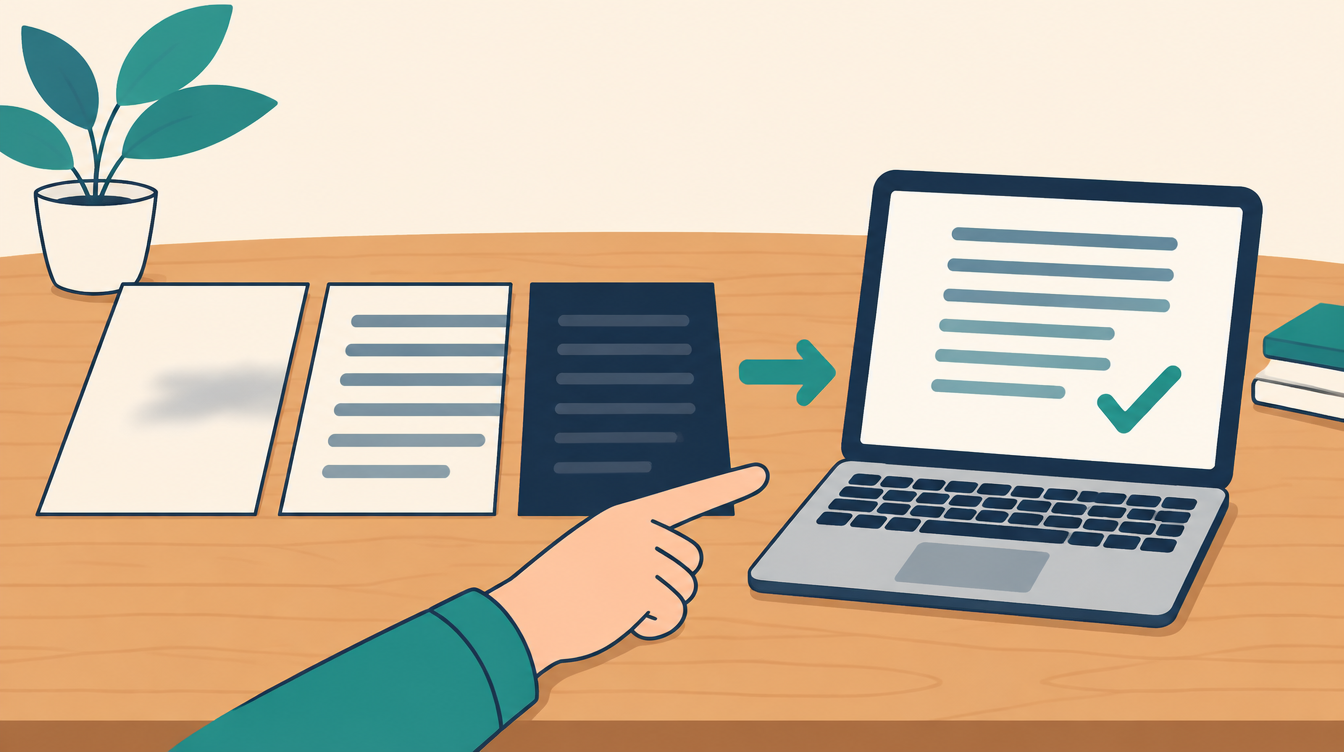
The recipient says the fax arrived, but the pages are blank, cut off at the edge, or too dark to read. Start with a copy of what you sent, not a second send. A "Delivered" status only means the transmission completed. It does not tell you how the pages look on their end, or that anyone has reviewed them.
This is a troubleshooting guide for after someone reports a bad page. For checks to run before you send, see how to prepare a document so it faxes cleanly.
Short answer
Open your own copy of that fax first. If the page is already blank, cropped or hard to read in what you sent, fix the file and send once. If your copy looks fine, ask the recipient to check their printout or paper settings before you send a duplicate. If the fax shows Failed, that is a different problem: see why a fax fails to connect.
Step 1: Check the status, then look at your copy
- Find that specific fax in your history. Every fax shows a live status: sending, delivered or failed. Do not send again while it is still sending.
- If it shows Failed, record the result and follow the failed-fax checks. You are not looking at a readability problem until a later send completes.
- If it shows Delivered, save the receipt from history (in the app, tap the delivered fax; on the web dashboard, open it on the Sent Faxes page and choose Download Receipt), then open the file you sent or the pages you checked before sending.
- Look at every page at a normal size, in black and white if you can. A fax arrives in black and white. Color, pale ink and content right at the edge can disappear.
If you cannot read a line on your own screen, the recipient probably cannot either. Fix that page before you send it again. For what Delivered does and does not prove, see how to confirm a fax was received.
Step 2: If the pages came out blank
Work through these checks, starting with the file you already have.
- Confirm you sent the right file, not an earlier draft or an empty scan.
- Scroll the whole packet. A leftover blank page, or the blank back of a card, will arrive as a blank page. FaxDash Help counts credits by the page and says to count the pages before you send, so a blank page left in the packet counts toward the credits the fax uses.
- Check whether the content relied on color. Light text on a colored background, or pale ink, can fade after conversion to black and white.
- If you scanned the page with the FaxDash app, check the scan on your screen before you send again. FaxDash Help says one-tap enhancement converts the page to high-contrast, fax-optimized output and removes shadows and noise.
If your copy already shows the content clearly, the blank result may be on their end. Ask them whether they printed the pages, and whether another page in the same fax is readable, before you resend.
Step 3: If the pages are cut off
- Check that each page is upright. Rotate a sideways or upside-down page in the file, then send that corrected file.
- Look at text and signatures near the edges. Our advice is to keep important content a little in from the edge, then scan or export the page again so the whole page is in view.
- If you photographed or scanned the page, check that nothing was cropped out of the frame. Hold the camera square to the page and capture the full sheet, including the margins.
- If the content is on a wide or landscape page, our advice is to rotate it onto a portrait letter- or A4-size page in the file before you send.
If your sent copy shows the full page, and only their printout is clipped, ask them to check their paper size and any "fit to page" setting before you send a second copy.
Step 4: If the pages are too dark or too faint
- Look for shadows, a dark desk, or a glare across the page. Scan again on a flat surface with even light.
- Check contrast. Colored backgrounds, grey text and pencil can go muddy or vanish in black and white.
- For a paper page, scan it with the FaxDash app's camera and check the result on your screen. Help says the scanner balances contrast and enhances color documents so they stay legible after the conversion to black and white. Help describes enhancement as part of the camera scan and does not describe it for uploaded files, so check an uploaded file yourself.
- If only a photo of a face or a stamp is dark, and the text is readable, ask the recipient whether that is enough before you resend the whole packet.
Step 5: Resend only when you know what you are fixing
If your copy was the problem, fix the page, check it again, and send once. See how to resend a failed fax if the first attempt failed, and say so on a cover page if the recipient may get both. A cover page has no feature fee but uses 1 send credit.
If your copy looks fine, wait for the recipient to check their end. A second send can mean a duplicate on their desk. When you do need to send again, keep the new receipt with a copy of the corrected file.
How Fax.Plus and iFax describe page layout and scan quality, for comparison
Other services publish their own checks for pages that arrive cropped, faded or hard to read.
- Fax.Plus has a help article on faxes that come out shrunk, sideways or cropped. It advises formatting the document for A4 or US Letter, using portrait orientation where possible, and leaving margins of at least 10 to 15 mm. If the preview in its Sent folder looks correct but the recipient reports a layout problem, Fax.Plus says the issue may be on the recipient's side, such as paper size or a printer trimming the margins. A separate quality article says color is converted to monochrome, and that faded output can come from light text: increase contrast or darken the text before sending.
- iFax lets you adjust fax image quality in the compose window, and offers quality options there. Its configuration page also lets you set the page size to Letter, A4 or Legal when you create the fax. In its iPhone app, it says you can use filters so the fonts are black and the background is white, and adjust brightness and contrast. Its FAQ likewise advises dark fonts on a white background, and mentions an HD setting in fax settings.
FaxDash Help describes camera scanning that finds edges, straightens the page, balances contrast and enhances color documents so they stay legible after conversion to black and white, and it tells you to check the document (or confirm the pages in the app) before you send. Our advice: check what each service offers for page size, scan adjustments and quality settings. Then look at your own copy of the fax before you send it again.
Common mistakes
- Resending as soon as the recipient complains. Check your copy first. If it already looks wrong, fix it. If it looks fine, a second send may only add a duplicate.
- Trusting color on your screen. The fax will be black and white. Check the page that way before you send.
- Leaving content at the very edge of the page. Text and signatures there are the first things to get clipped.
- Sending a photo of a poor photo. Each generation loses detail. Scan the original page if you have it.
- Treating Delivered as proof the pages are usable. Delivered means the transmission completed. Only the recipient can say the copy is readable.
FAQ
The fax shows Delivered, but they say the pages are blank. Should I resend right away? Check your copy first. If the pages are already blank or unreadable there, fix the file and send once. If your copy looks fine, ask them to check their printout before you send a second copy.
I scanned the page with my phone and it looks dark. What should I try? Scan again on a flat surface with even light, and check the result on your screen. FaxDash Help says enhancement removes shadows and noise and balances contrast on camera scans. If a line is still unreadable, fix the scan before you send.
Do I need a fax number to send a corrected page? Not from the app or the web dashboard. You need an active FaxDash receive number only for email-to-fax.
How much does a corrected resend cost? 1 credit per page to US (+1) numbers and to Canada, and more credits per page elsewhere. The exact international cost is shown before you confirm the send. A cover page uses 1 more credit. FaxDash offers 2 free pages when you sign up.