
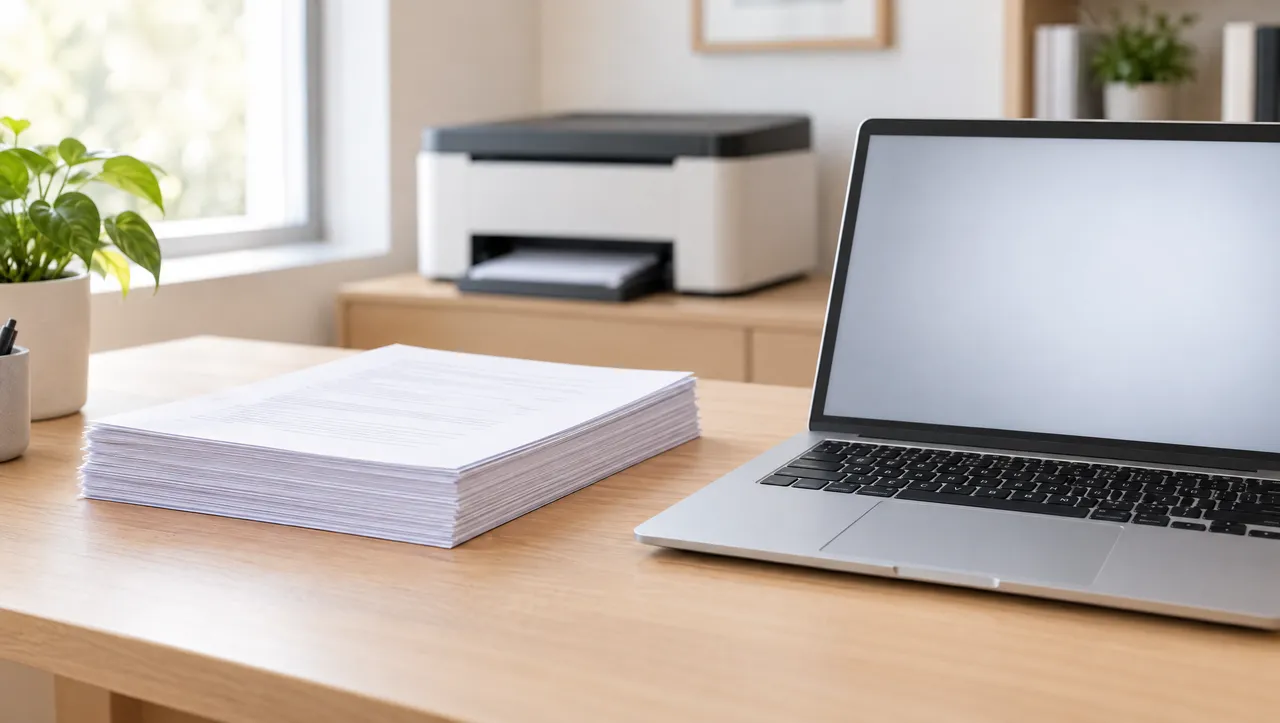
Suppose your office still wants a paper fax on the desk when something arrives. Not a PDF to chase later. A page you can initial, file or hand to the person who needs it. You do not want to rent a fax machine, keep a phone line just for fax or open an app every time a document lands.
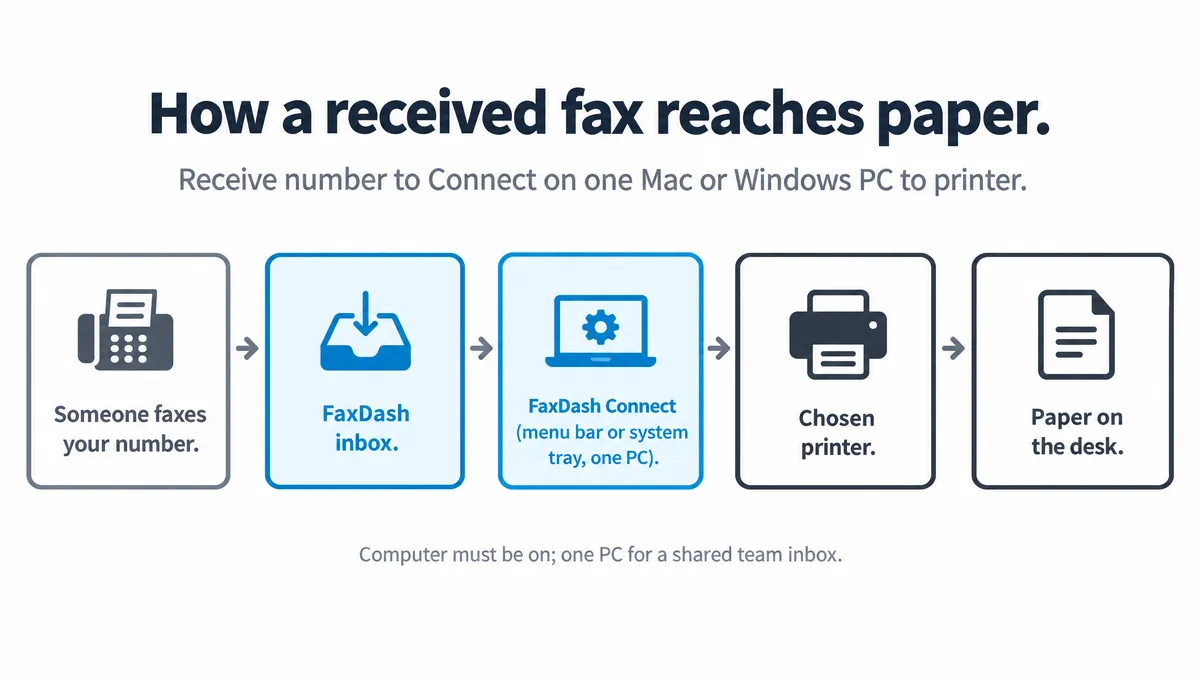
The plain answer is a receive number plus FaxDash Connect. Connect is a free desktop app for Mac and Windows that prints each newly received fax to a printer you pick, the way a traditional fax machine did. Once it is running, it sits in the menu bar on a Mac or the system tray on Windows. You do not need to keep the window open.
This guide walks through what you need, how to set it up and the catches that matter for a small office. For install screenshots and troubleshooting, see FaxDash Connect Help.
What FaxDash Connect is (and is not)
FaxDash Connect prints received faxes. That is its job.
It needs a FaxDash receive number. Without a number, there is nothing for it to print. Connect can only read the faxes you receive. It cannot send faxes, and it cannot see billing or settings.
It is not the FaxDash AI connector at faxdash.io/ai/. That product is for Claude or ChatGPT over MCP. Connect is a print agent for your desk. Keep them separate.
Connect needs Windows 10 or 11 (64-bit), or macOS 12 or later. The Windows installer is per-user, so you should not need an admin password for a typical install.
What you need before you start
- A FaxDash account with a receive number (local or toll-free on a receive plan).
- A Mac or Windows PC that stays on during the hours you want paper to print, plus a printer that computer can reach (USB or network).
- About ten minutes for install, sign-in and a test fax.
If you only need to send an occasional outbound fax, you do not need Connect. Connect is for inbound paper on the desk.
Step 1: Confirm you have a receive number
Open your FaxDash dashboard and confirm a receive number is active. Connect has nothing to print without one.
If you are still choosing a plan for inbound faxes, start with how many pages you actually receive in a typical month, not the biggest feature list. Connect does not change your plan. It only prints what arrives on your number.
Step 2: Install Connect on one computer
Download FaxDash Connect for Mac or Windows from the download page.
On Windows, run the installer. Leave the usual options checked if you want a desktop shortcut, then finish and launch the app. On a Mac, open the disk image, drag FaxDash Connect into Applications, then open it from there.
Install it on one computer only if you share a team inbox. Every running copy of Connect prints every shared-inbox fax. Two computers mean two printouts of the same document.
Step 3: Sign in, allow access and pick a printer
The first time Connect opens, it sends you to the browser to sign in the way you usually do (email and password, Google or a passkey). Click Allow when FaxDash asks. Connect asks only to verify who you are and to read faxes you receive, including their content. It still cannot send, and it still cannot see billing or settings.
Back in the app:
- Choose your printer under Printer.
- Leave Start at login checked so Connect starts with the computer. Faxes print only while Connect is running.
- Leave Stamp sender and time on printed pages on unless you have a reason to turn it off. On by default, it adds a small footer with the sender’s number, the time the fax arrived and the page number, similar to a fax machine header.
Closing the window does not stop printing. Connect keeps running in the menu bar on a Mac, or in the system tray next to the clock on Windows. Click the icon to open the window again.
Step 4: Know which faxes print (and which do not)
A few behaviors matter more than the feature list:
- No backlog on first sign-in. Faxes already in your inbox when you first sign in do not print. You will not get a pile of old pages the first day.
- New faxes print once. Each new fax prints once, usually within a minute or two of arriving. It prints even if you already opened it on your phone or in the dashboard.
- Offline catch-up. Faxes that arrive while the computer is off or Connect is closed print the next time Connect starts.
- Printer retries. If the printer is off or missing, Connect waits and retries a failed print up to three times.
- Teams: one computer. On a shared team inbox, run Connect on one computer only.
Step 5: Send yourself a short test fax
From another number (or a colleague), send a one-page test to your FaxDash receive number. Wait a couple of minutes. Confirm the page comes out of the printer you chose, with the stamp footer if you left that on.
If nothing prints, check that Connect shows as signed in, that the printer name still matches a working printer and that you are not looking at an old inbox fax from before the first sign-in.
Honest catches
The computer has to be on. Connect is not a cloud print service. If the PC is asleep or off during the day, paper will wait until Connect starts again. Plan for that the same way you planned for a fax machine that needed power.
Paper is a choice, not a requirement. If your office is fine with a digital inbox and email notices, you can skip Connect entirely. The receive number still works in the app and web dashboard.
Pause when you need to. You can pause printing from the window or from the tray or menu-bar icon. Faxes that arrive while paused print when you resume. Sign out or quit when you need the computer to stop printing for a while.
How this compares to a couple of big names
This is not a full competitor roundup. It is a short check on desk auto-print, which is the whole point of Connect.
| Need | FaxDash Connect | SRFax | Fax.Plus |
|---|---|---|---|
| Dedicated receive number | Yes (receive plan) | Yes (paid plans) | Yes (paid plans) |
| Free desktop auto-print agent to a chosen printer | Yes (Mac and Windows). Receive-only permissions. | Public Downloader page describes auto-download to a folder, not print to a printer (checked Oct 25, 2026). | Desktop app page lists send/receive and team features; pages checked Oct 25, 2026 do not list auto-print to a desk printer. |
| Extra hardware | Ordinary PC + printer | Ordinary PC for Downloader | Ordinary PC for desktop app |
Sources checked Oct 25, 2026 (America/Los_Angeles): SRFax Downloader, SRFax receiving FAQs, Fax.Plus Desktop. Soft-qualified where a page does not list the feature; this draft does not claim those vendors can never add it.
Note: RingCentral’s support docs describe an “Automatically print incoming faxes” toggle in their desktop app, and eFax lists an enterprise eFax Router that can print. Those are different product shapes (full phone/fax suite, or enterprise router with API keys). This box sticks to names whose public pages, on the date checked, do not describe a simple free receive-only desk print agent like Connect.
One next step
If paper on the desk still matters for your office, get a receive number, download Connect on one Mac or Windows PC and run one test fax. Confirm the print before you tell clients the new number is “like the old machine.”
When you want plan details for a receive number and small-team seats in one place, see the FaxDash business page.