
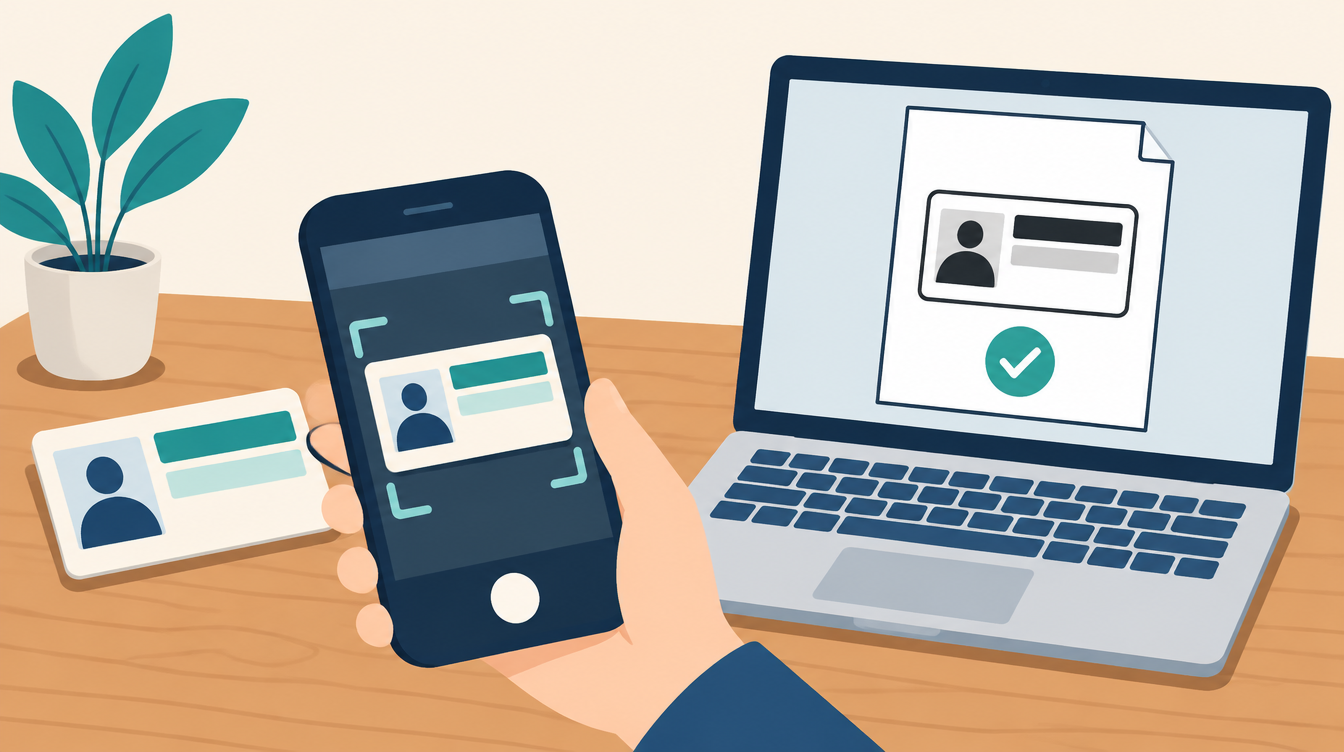
A bank, a clinic or an office sometimes asks you to fax a copy of a photo ID, or a photograph of a page. The catch is simple: a fax arrives in black and white. Color, shiny plastic and small print can disappear if you don't check the page first.
This article is general information, not legal, tax or compliance advice. Agency rules and fax numbers change, so confirm with the agency or a qualified professional before you send.
This guide sits under how to fax from a computer, phone or email. For general contrast, margins and file checks, see how to prepare a document so it faxes cleanly.
Short answer
If you have the physical card or photo in hand, scan it with the FaxDash app's camera. FaxDash Help says the scanner handles color documents such as IDs and licenses and enhances them so they stay legible after the conversion to black and white. If the file is already on your computer, upload it in the web dashboard and check every line yourself. Then send, and keep the receipt when the fax shows Delivered. Delivered means the transmission completed, not that anyone has reviewed or accepted the copy.
Why a photo or ID is harder than a typed page
A fax is a black-and-white page at fax resolution. Holograms, colored backgrounds, faint signatures and photos of faces can lose detail. The goal is a page the recipient can read, not a perfect color copy of the original.
Our advice: send only what the recipient asked for, and ask them what they will accept. This guide does not tell you whether a faxed copy is valid for a particular office.
Step 1: Decide what you are sending
- A physical card or printed photo. Use the FaxDash app and scan it with the camera, so enhancement can run.
- A photo or PDF already on your computer or in email. Open it, check that the text is readable, then upload it in the web dashboard. FaxDash Help describes enhancement as part of the camera scan and does not describe it for uploaded files, so check those yourself.
- Both sides, if they asked for both. Scan each side as its own page. You can scan multiple pages into a single fax.
Leave plastic sleeves, lanyards and fingers out of the frame. If a glare hides a number or a date, shift the card or the light and scan again.
Step 2: Scan with the FaxDash app
These steps follow FaxDash's scanning help, checked November 10, 2026.
- Open the FaxDash app and point the camera at the card or photo.
- Let FaxDash find the edges. It straightens the page, corrects rotation and perspective, and balances contrast.
- Check the result on your screen: name, number, dates, signature and any photo of a face. FaxDash Help says one-tap enhancement converts the page to high-contrast, fax-optimized output and removes shadows and noise. If a line is unreadable, scan again before you send.
- Scan a second side if you need it, then enter the destination fax number and send.
Step 3: If the file is already on a computer
- Open the photo or PDF and look at it at normal size, in black and white if you can. If you cannot read it, the recipient probably cannot either.
- Crop away table, floor or background. Keep the card or photo filling the page, with a little margin.
- In the FaxDash web dashboard, open Send Fax and drop in the file. You can add a cover page if you want one. It has no feature fee but uses 1 send credit, because it is a page.
- Check the document, the fax number and the credit cost, then click Send Fax.
The dashboard and the app do not need a fax number of your own to send. Email-to-fax does, and it takes the document as a PDF attachment. The web dashboard accepts PDFs or images, and the app scans with the camera or picks a PDF, so the dashboard is the simplest route for a standalone photo file.
Step 4: Keep a record, then stop or retry for the right reason
When the fax shows Delivered, save the delivery confirmation from your history. On the web dashboard, open the fax on the Sent Faxes page and choose Download Receipt. It lists the destination number, the page count, and when the fax was sent and completed.
If the recipient says the page is unreadable, check a copy of what you sent against what they describe, then scan again and send once. If the fax shows Failed, see why a fax fails to connect before you resend. For what Delivered does and does not prove, see how to confirm a fax was received.
How Fax.Plus and iFax handle a phone scan, for comparison
Other online fax apps also let you scan a page with your phone camera, and they differ in the adjustments they give you.
- Fax.Plus lets you scan with the camera in its mobile app: choose Add File, then Scan with Camera, then crop, rotate or add color filters before you send. Its scan-to-fax guide also tells you to check that text is readable and no edges are cut off. Fax.Plus says faxes to numbers outside Fax.Plus go in black and white, so pale text, colored backgrounds and detailed images may lose clarity. If both sides use Fax.Plus, its color-fax article says the fax is transmitted in full color.
- iFax has a built-in scanner in its iPhone app. After you tap Scan Document, it says you can use filters so the fonts are black and the background is white, and adjust brightness and contrast. Its FAQ also advises you to "Only fax text documents, not photos or pictures," and mentions an HD setting in fax settings.
FaxDash Help describes camera scanning that finds edges, straightens the page and enhances color documents such as IDs and licenses so they stay legible after conversion to black and white. Whichever service you use, check the result before you send, and ask the recipient what they will accept.
Common mistakes
- Photographing the card at an angle, under a lamp. Glare and skew hide numbers. Hold the camera square to the card, then let the app straighten what is left.
- Sending a color file and assuming color will survive. It will be converted to black and white. Check the preview or the file as a black-and-white page first.
- Faxing a photo of a photo, or a screen picture of an ID. Each generation loses detail. Scan the original if you have it.
- Sending more than they asked for. If they asked for one side of an ID, don't add the rest of a wallet. Extra pages cost credits and add information you may not need to send.
- Treating Delivered as acceptance. Delivered means the transmission completed. Only the recipient can say the copy is usable.
FAQ
Can I fax a color ID or license? Yes. FaxDash Help says the app scanner handles color documents such as IDs and licenses and enhances them so they remain legible after the conversion to black and white. Still check the result before you send.
Does enhancement work on a photo I already saved? FaxDash Help describes enhancement as part of the camera scan in the app. It does not describe it for a file you upload from a computer, so check readability yourself before sending.
Do I need a fax number to send a photo or ID copy? Not from the app or the web dashboard. You need an active FaxDash receive number only for email-to-fax.
How much does a one-page ID copy cost? 1 credit per page to US (+1) numbers and to Canada, and more credits per page elsewhere. The exact international cost is shown before you confirm the send. A cover page uses 1 more credit. FaxDash offers 2 free pages when you sign up.
The recipient says the photo of the face is too dark. Should I resend right away? Check the copy you sent first. If the face or a line of text is already hard to read, scan again in better light, check the new page, then send once.