
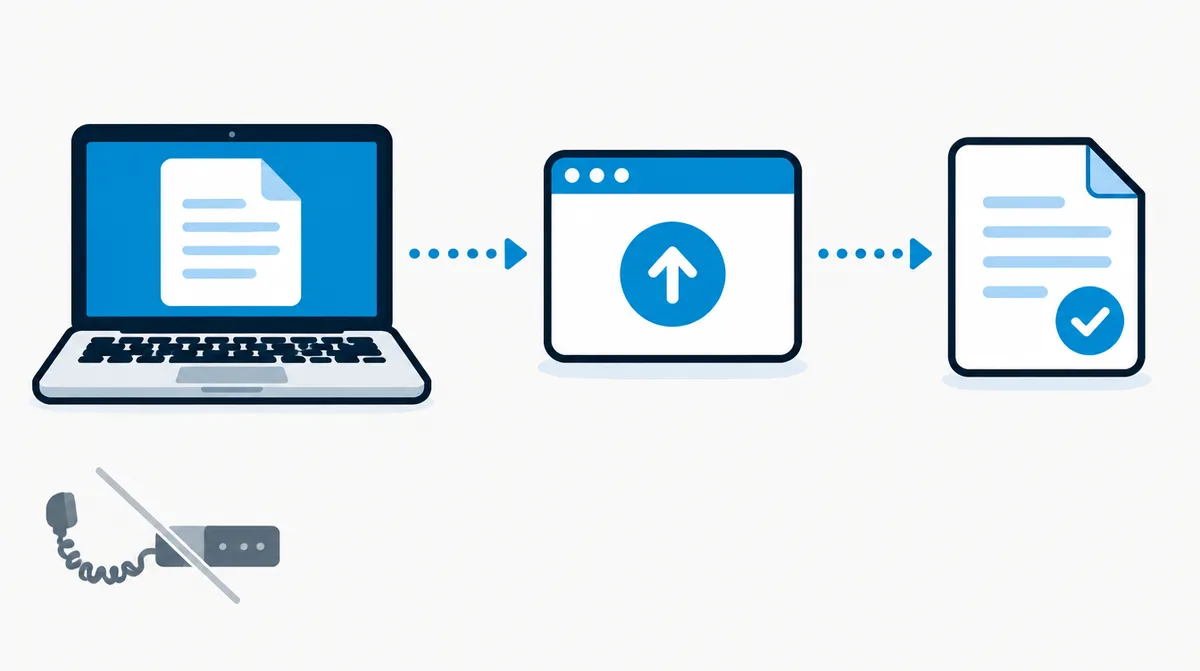
Say a vendor wants a signed W-9 back by fax, the PDF is on your Windows laptop, and the office hasn't had a fax line in years. You don't need one. Windows has its own fax tool, but it generally needs hardware most offices no longer have. The simpler route is the FaxDash web dashboard in your browser, which sends with no subscription and no fax number of your own. For the other routes, see how to fax from your computer, phone or email.
The short answer
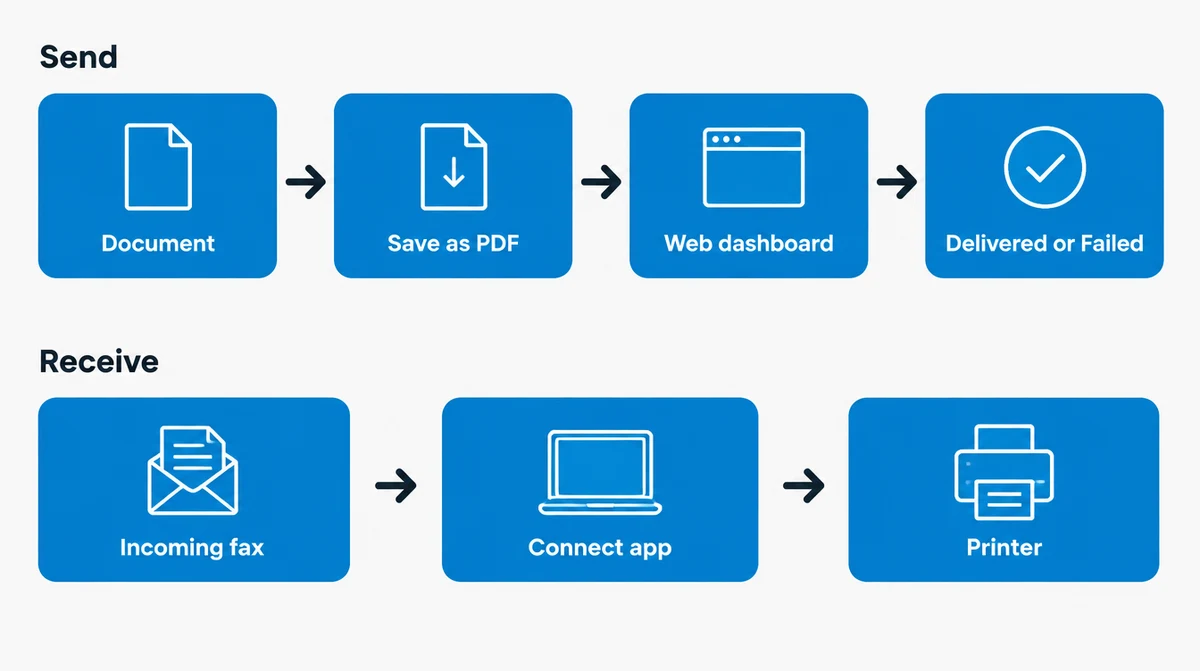
Save the document as a PDF (Print, then choose Microsoft Print to PDF works in most Windows apps). Open the FaxDash web dashboard in Edge, Chrome or another browser, drop the PDF into Send Fax, enter the fax number, check the document, recipient and credit cost, and click Send Fax. Then check your history for Delivered or Failed.
Why not Windows Fax and Scan?
Windows Fax and Scan is generally set up to dial out through a fax modem on a phone line, and an answer on Microsoft's Q&A forum says it doesn't send over your internet connection, so plan on needing both (Microsoft Q&A, checked October 31, 2026).
It may not be on your PC either:
- Arm-based PCs: Microsoft says Windows Fax and Scan isn't available on Windows 11 or Windows 10 Arm-based PCs (Microsoft Support).
- Windows protected print mode: turning it on removes fax. Microsoft's steps to add it back go through Settings > System > Optional features (Microsoft Learn).
If you already have a modem and a phone line, it can still work. If you don't, buying both for a few faxes is more effort than the task deserves.
Step 1: Save the document as a PDF
Microsoft Print to PDF is included in Windows 10 and Windows 11 (Microsoft Support, checked October 31, 2026):
- Open the document and choose Print (Ctrl+P in most apps).
- In the Printer list, choose Microsoft Print to PDF.
- Choose Print.
- In the Save Print Output As box, pick a folder, enter a file name and choose Save.
If the document is already a PDF, skip this step. Open it once and check that every page is there, upright and readable. For fonts and scans that fax well, see how to prepare a document so it faxes cleanly.
If the page is on paper and you have a scanner, Microsoft's Windows Scan app saves scans as JPEG, PNG, TIFF or Bitmap files (Microsoft Support). The dashboard takes images as well as PDFs.
Step 2: Send it from the FaxDash web dashboard
- Sign in to the FaxDash web dashboard and open Send Fax.
- Drop in your PDF, or images. If you add several files, they're merged into one fax.
- Type the destination fax number or search your contacts. To send the same fax to more than one number, add more numbers.
- Check the document, recipients and credit cost. You can send now or schedule it for later.
- Click Send Fax.
These steps follow FaxDash's sending help, checked October 31, 2026.
Step 3: Check the result and keep a receipt
Your fax history shows Delivered or Failed when the fax finishes, and you get a notification. For a delivered fax, open it on the Sent Faxes page and choose Download Receipt. It lists the destination number, the page count and when the fax was sent and completed.
If every attempt fails, the credits the fax used go back to your balance. Check that the number is a fax line before you resend. See why a fax fails to connect.
Common Windows mistakes
- Picking the wrong printer. If Windows Fax and Scan is installed, the print dialog may list a fax printer. That one sends through Windows' own fax service, which generally needs a fax modem. Choose Microsoft Print to PDF instead.
- Using Office's fax option. Microsoft says Internet Fax in Office relies on the Windows Fax and Scan feature, which is available only in certain Windows editions and configurations (Microsoft Support). Saving a PDF and uploading it avoids that dependency.
- Printing a web page as is. Browser printing can add headers, footers and extra pages. Check the preview and keep only the pages you need, because every page costs a credit.
- Forgetting the cover in the page count. If you add a cover page, it has no feature fee but uses 1 send credit. See what to put on a fax cover sheet.
- Expecting Connect to send. FaxDash Connect for Windows only prints faxes you receive. Sending happens in the dashboard or the app.
Prefer to send from Outlook?
You can also fax from Outlook or any email app with email-to-fax, but that route needs an active FaxDash receive number. You send from your account's email address to your FaxDash number at fax.faxdash.io, with only the destination number in the subject and the document attached as a PDF. An international number has to start the subject line. Only the first attached PDF is sent, and the message text isn't, so put any cover page on page one of that PDF. The rest of the rules are in how to fax from Outlook.
Printing faxes you receive on Windows
If you have a FaxDash number and want incoming faxes on paper, FaxDash Connect is a free Windows app that prints each fax you receive, once, on the printer you choose. It works on 64-bit Windows 10 and 11 and installs for your Windows user only, so you don't need an administrator password.
- Setup: download the installer from the FaxDash download page and open it. If Windows shows "Windows protected your PC", stop and verify that the installer came directly from the official FaxDash download page and that its identity matches the vendor. Do not bypass the warning if you cannot verify it; contact FaxDash support for guidance. Sign in through your browser and pick a printer.
- Keep it running: it sits in the system tray next to the clock. Leave Start at login checked, because faxes print only while Connect is running. Faxes that arrive while the PC is off print the next time Connect starts.
- On a team: it prints the shared inbox. Run it on one computer only, because every copy prints every fax.
Details are in FaxDash Connect help and our auto-print workflow guide.
What it costs
Sending from the dashboard has no subscription. It's 1 credit per page to US (+1) numbers, including Canada, and more credits per page elsewhere. Packs start at 5 pages for $0.99, and credits you buy never expire. FaxDash offers 2 free pages when you sign up. That's enough for a two-page test.
A receive number, which you need for email-to-fax and for getting faxes back, starts at $3.99 a month (Starter) and includes 10 send credits a month. Connect itself is free.
FAQ
Can Windows 11 send a fax without a phone line? Not with Windows Fax and Scan, which generally needs a fax modem and a phone line. An online fax service sends over the internet instead. With FaxDash you upload the PDF in the web dashboard.
Do I need a FaxDash number to fax from Windows? Not to send from the dashboard. You need one for email-to-fax and to receive faxes.
Is there a FaxDash app for sending on Windows? Send from the web dashboard in your browser. FaxDash Connect, the Windows app, only prints received faxes.
Can I schedule a fax from my PC? Yes. When you compose the fax in the dashboard, choose a future date and time.