
Say a signed PDF is sitting in your Outlook inbox and the recipient wants it by fax. You can send it from Outlook itself with FaxDash email-to-fax, but there's one condition to check first: email-to-fax needs an active FaxDash receive number, because that number is the address you send to. If you don't have one, the FaxDash app or web dashboard sends the same fax with no number and no subscription. For the full picture of routes, see how to fax from your computer, phone or email.
The short answer
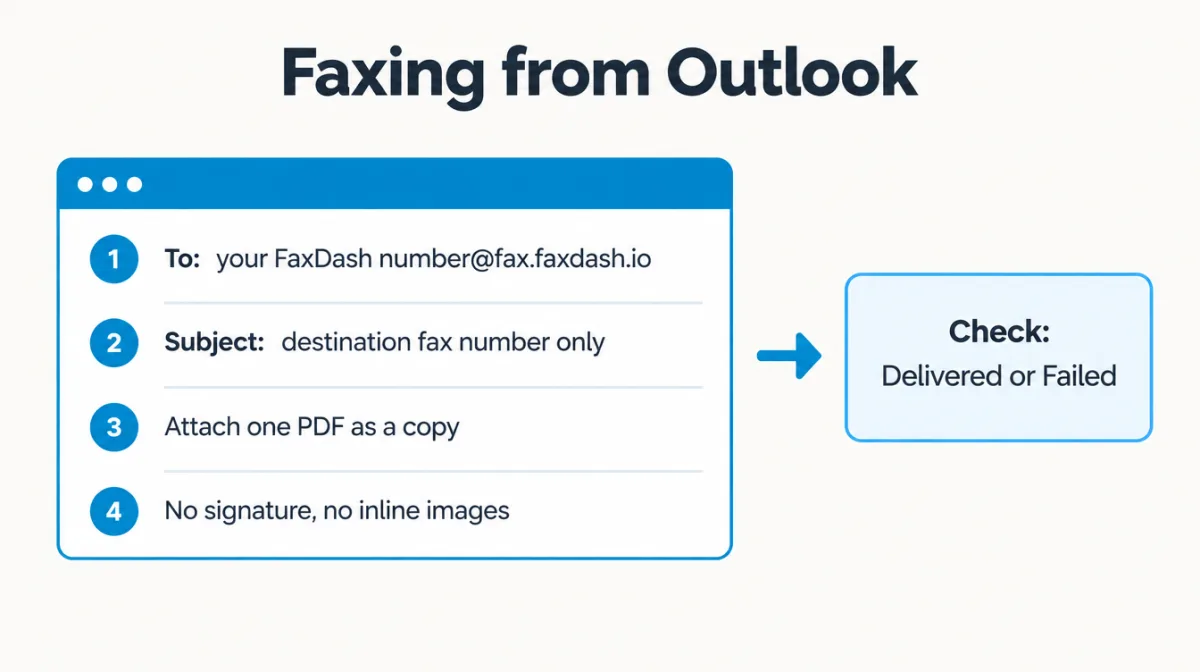
In any version of Outlook, start a new email from the address on your FaxDash account. Send it to your FaxDash number at fax.faxdash.io, put only the destination fax number in the subject, and attach the document as a PDF. Leave the signature off. Then check your FaxDash history for Delivered or Failed.
Before you start
- A FaxDash receive number. Starter is $3.99 a month and includes 10 send credits a month.
- The right From address. Send from the email address on your FaxDash account. If Outlook has more than one account set up, check the From line before you send.
- Your document as a PDF. In Word, use File > Save As (or Save a Copy) and pick PDF. Open the PDF once to check every page is there and readable. For fonts and scans that fax well, see how to prepare a document so it faxes cleanly.
Steps in new Outlook for Windows and Outlook on the web
- Select New mail.
- In To, type your FaxDash number followed by @fax.faxdash.io. FaxDash's homepage shows the format as 1 plus the 10-digit number, for example
12025550123@fax.faxdash.io(a made-up number). - In Subject, type only the destination fax number. For US (+1) numbers, including Canada, use 10 digits, or 1 plus 10 digits. For an international number, use + and the full number, and make sure it starts the subject.
- Select Attach file and choose the PDF. If you pick it from OneDrive or SharePoint, open the attachment's menu and choose to attach it as a copy, not a link.
- If a signature appeared in the body, delete it. Then send.
Steps in classic Outlook for Windows
- Select New Email.
- Fill in To and Subject the same way as above.
- Select Attach File and choose the PDF from Browse This PC. For OneDrive or SharePoint files, choose Attach as copy.
- Delete any signature from the body, and send.
Classic Outlook can attach cloud files as copies every time: File > Options > General > Attachment Options, then "Always attach them as copies."
Steps in the Outlook mobile app
- Start a new message and check the From account.
- Fill in To and Subject the same way.
- Tap the attachment icon and pick the PDF from your files.
- Delete the signature line from the body. The app adds "Get Outlook for iOS" or "Get Outlook for Android" by default. You can remove it for good under Settings > Signature.
- Send.
If the document is still on paper, the FaxDash app's camera scan is usually simpler than making a PDF just to email it.
Common Outlook mistakes
- Sending a OneDrive link instead of the file. Outlook can share cloud files as links, and a link isn't a document that can be faxed. In new Outlook and Outlook on the web, you may need to choose to attach a copy each time, so check the attachment before you send.
- Replying to an old thread. A reply adds "RE:" to the subject. With an international number, anything before the number makes the fax fail. Start a new email instead.
- Reference numbers in the subject. Every digit in the subject is read as part of the fax number. Put invoice or claim numbers on a cover page inside the PDF.
- Signatures and pasted images. FaxDash's instructions say to attach the document as a PDF. They don't say what happens to a signature logo or an image pasted into the body, so the predictable send is one PDF, no signature and no pasted images.
- Sending from the wrong account. If your FaxDash account uses your work address, a message from your personal Outlook account won't match.
- Replying to a FaxDash notification email. Those come from a no-reply address. A reply goes nowhere useful and never sends a fax. Write to support@faxdash.io instead.
What it costs
Sending uses credits: 1 per page to US (+1) numbers, including Canada, and more credits per page elsewhere. A cover page has no feature fee but uses 1 send credit. Credits come with your receive plan each month (10 on Starter, 25 on Standard, 60 on Business), and you can buy more in packs from 5 pages for $0.99. Credits you buy never expire. If a fax fails after FaxDash's automatic retries, its credits go back to your balance.
For more on the email side, including the subject-line rules with more examples, see how to send a fax from Gmail. The rules are the same in Outlook.
FAQ
Can I fax from Outlook without a fax number? Not with email-to-fax, which needs an active FaxDash receive number. You can send the same PDF from the FaxDash web dashboard or app without one.
Does Outlook have a built-in fax feature? Outlook doesn't fax by itself. The fax goes out through your fax service. With FaxDash, it's the email-to-fax address.
Will the recipient see that it came from email? They receive an ordinary fax from your FaxDash number.
Can received faxes come to Outlook too? Fax-to-email sends you a notice with a link to view each received fax; the PDF isn't attached. See fax-to-email and email-to-fax for a small team.
Can I send to several fax numbers from one email? The subject holds one destination number. To send one document to several numbers, use batch send in the web dashboard.
How do I know it went through? Check your FaxDash history for Delivered or Failed. A delivered fax has a confirmation you can download. If it failed, why a fax fails to connect walks through the checks.