
Gmail can't send a fax by itself. It can send an email that a fax service turns into a fax. With FaxDash, that works only when the From address, the To address, the subject and the attachment are right. This guide covers the Gmail side: where each of those lives in Gmail, and the Gmail habits that break a fax.
For the full field rules, including subject formats and why FaxDash refuses an email, see our guide to email-to-fax, step by step.
Short answer
To fax from Gmail with FaxDash, compose a new email from the Gmail address on your FaxDash account, send it to your own FaxDash fax number at fax.faxdash.io, put only the destination fax number in the subject, and attach the document as one PDF.
This needs an active FaxDash fax number on a receive subscription. FaxDash's sending help says email-to-fax "requires an active FaxDash receive number," while in-app and dashboard sending don't. If you don't have a number, use the no-number alternative further down.
Steps in Gmail
The FaxDash fields below come from FaxDash's email-to-fax help, checked on November 8, 2026.
- Start a new email. In Gmail, click Compose. Don't reply to or forward an old thread (see the mistakes below).
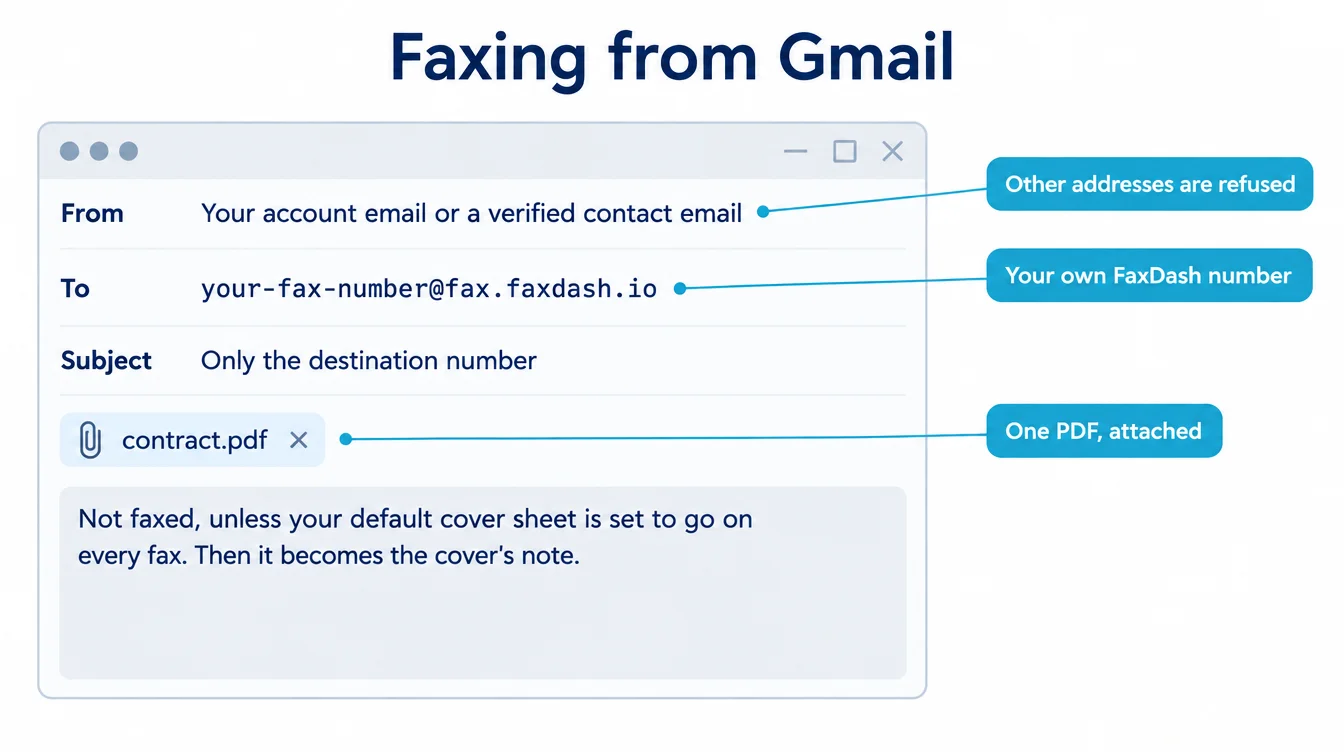
- Check the From address. It has to be the email address on your FaxDash account, or your verified contact email. FaxDash refuses mail from any other address, a teammate's included. If you use Gmail's "Send mail as" with several addresses, pick the right one in the From menu.
- Address it to your own number. In To, type your FaxDash fax number, digits only with the country code, then @fax.faxdash.io. FaxDash's example: if your number is +1 202 555 0123, send to 12025550123@fax.faxdash.io.
- Put only the destination number in the subject. Use + and the country code, for example +14155550142.
- Attach one PDF. Click Attach and choose the file (Gmail's steps). Other file types aren't read, and if you attach several PDFs only the first is sent. Your message text isn't faxed on its own. If your default cover sheet is set to go on every fax, the message becomes its note and the cover uses 1 send credit. Otherwise, put notes on the PDF itself.
- Send, then check FaxDash. There is no success reply to the sending email, but normal fax notifications still apply. The fax appears in your Sent history with a live status. A Delivered status means only that the fax transmission completed, not that a person read or accepted it.
If FaxDash rejects the email, for example because no PDF is attached or the number cannot be read, it replies to the sending address and says why. Nothing is charged. Mail that fails sender checks is dropped without a reply.
Gmail workflow comparison: FaxDash and Fax.Plus
The To and Subject fields are not interchangeable between services. Fax.Plus documents addressing the email to the destination number followed by @fax.plus, such as +16692001010@fax.plus. Its subject becomes a note in Sent Faxes, rather than the destination. It accepts email attachments including PDF, DOCX and XLSX. Its document guide says email-to-fax requires a paid plan, the feature enabled and a registered sender address.
FaxDash's email setup instead uses your own active receive number in To, the destination alone in Subject and one PDF. Only the first PDF is sent if you attach several. Fax.Plus may fit an existing paid email workflow that needs those office-file attachments; FaxDash fits a workflow standardized on one checked PDF. If you do not need a receive subscription, download the attachment and use FaxDash's app or dashboard instead of email-to-fax. Whichever you choose, compose a fresh email and check that service's field rules before sending.
Common mistakes in Gmail
- Forwarding the email that holds the PDF. Gmail keeps attachments on a forward but puts "Fwd:" and the old subject in the subject line. Delete all of it and type only the number.
- Replying instead. Gmail adds "Re:" to the subject and, per Gmail's help, doesn't include the original attachments in a reply unless you choose to.
- A large file that becomes a link. Gmail's attachment limit for personal accounts is 25 MB; over it, Gmail removes the attachment and adds a download link instead (Gmail's help). FaxDash requires an attached PDF, not a download link. Shrink the file, or use the dashboard.
- Confidential mode. Gmail's help says recipients in another email client must open a viewing link and enter a passcode. Use an ordinary email with the PDF attached for FaxDash, not confidential mode.
- Sending from the wrong Gmail address. A work Gmail that isn't on your FaxDash account is refused. FaxDash also drops mail that fails the standard sender checks (SPF, DKIM and DMARC) without a reply.
No number? Send the Gmail PDF from the dashboard
If the PDF arrived in Gmail but you don't have a FaxDash number, the web dashboard sends it without one:
- In Gmail, open the message, hover over the attachment and click Download (Gmail's steps).
- In the FaxDash web dashboard, open Send Fax and drop in the PDF.
- Type the fax number, check the document, recipients and credit cost, and click Send Fax.
The dashboard shows the credit cost before you send. Email-to-fax has no confirmation screen, so count the PDF's pages first.
FAQ
Can I fax from Gmail for free?
Not by email. Email-to-fax needs a FaxDash number on a receive plan. FaxDash offers 2 free pages when you sign up. To use them on a PDF from Gmail, download it and send it from the dashboard or app.
Does it work in the Gmail app on my phone?
The rules are about the email, not the mail app, so the same four fields apply in the Gmail app.
What does the recipient see?
A fax, sent from your FaxDash number. The attached PDF is faxed. Your subject line supplies the destination, and your message text only appears if you've set a default cover sheet to go on every fax, as that cover's note.
Can I test it first?
Yes. Send a one-page, non-sensitive PDF to a fax number you can check, and confirm it reaches a final status and reads clearly. For an office routine, see our fax-to-email and email-to-fax workflow for small teams. If several people share the fax work, the FaxDash business page explains how team seats fit, and teams are managed in the web dashboard, not the app.
This guide is general information, not legal or tax advice. Fax numbers, forms and agency rules change, so check the agency's official page before you send. FaxDash isn't responsible for decisions made or actions taken based on this guide. For advice about your situation, talk to a qualified tax professional or attorney.