
You can fax from a printer or scanner without a phone line by scanning the document to a PDF and sending that file from the FaxDash web dashboard. You don't need a fax number or a subscription to send that way. A printer's built-in fax generally needs a phone line, so check your printer's manual; its scanner works either way. For every other way to send, see how to fax from a computer, phone or email.
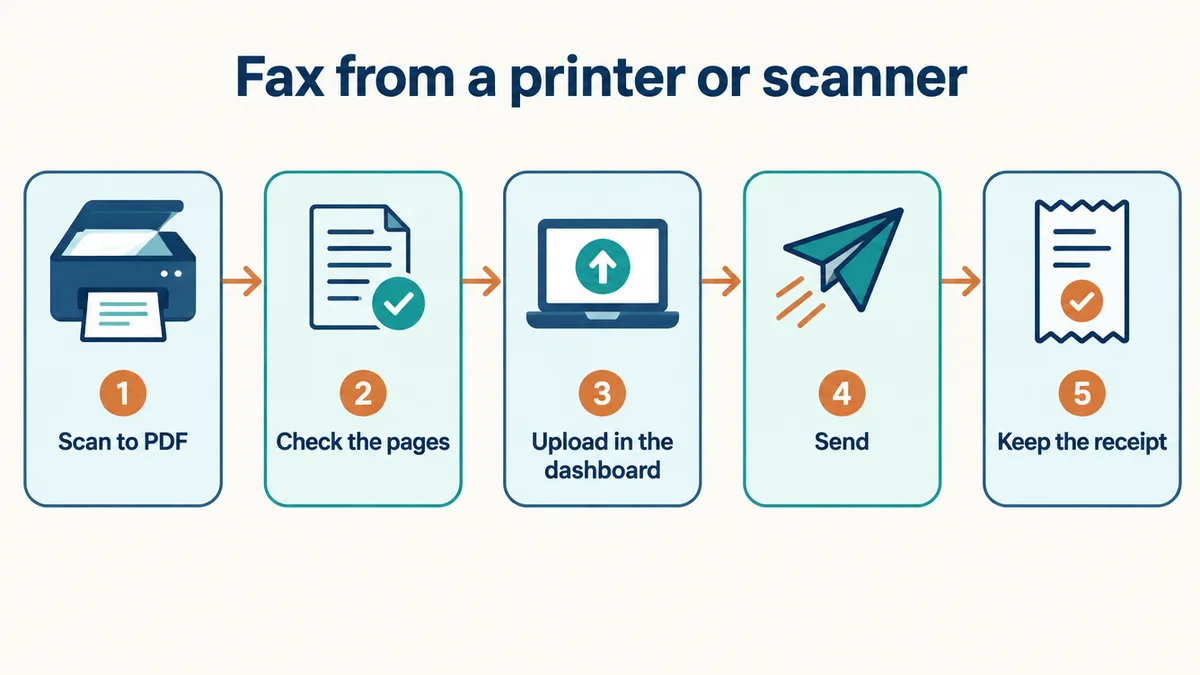
Step 1: Scan the pages to a PDF
Start with the scanner you already have. Many printers and scanners can save a scan to a computer, a USB drive or an email inbox, but the menu names differ by model, so check your printer maker's manual or support page for "scan to PDF."
Our advice:
- Scan as PDF, in black and white or grayscale, unless the page has color you need to keep readable.
- Put a multi-page document in one PDF if your scanner offers that. If it saves one file per page, that is fine too; see Step 3.
- Use the flatbed for thin, torn or stapled pages, and the document feeder for clean stacks.
Step 2: Check the scan before you send
Open the file and check:
- Every page is there, in the right order and the right way up.
- The text is readable at normal size, including signatures, dates and small print.
- The page count. A fax to a U.S. (+1) number uses 1 credit per page, so the page count is the cost. Count a cover page too if you add one.
See how to prepare a document so it faxes cleanly for more on contrast, margins and shadows.
Step 3: Send it from the web dashboard
- In the FaxDash web dashboard, open Send Fax and drop in your PDF or images. Several files are merged into one fax, so separate page scans become one fax.
- Type the fax number, or search your contacts. You can add more numbers to send the same fax to several recipients.
- Check the document, recipients and credit cost, then click Send Fax. You can also schedule it for later there.
Need a cover page? The built-in cover page builder adds your name and number, the recipient, a subject and a short message to the front of the fax.
For more on files, see how to fax a PDF and how to fax multiple pages or files as one fax.
If the scanner is awkward: use your phone instead
If the scanner is busy, slow or out of reach, the FaxDash app can do the scanning. Point your phone's camera at the page; FaxDash finds the edges, straightens the page and removes shadows, and you can scan several pages into one fax.
If your scanner emails scans: the email-to-fax route
Email-to-fax needs an active FaxDash receive number. You send from the email address on your FaxDash account to your-fax-number@fax.faxdash.io, with the destination fax number in the subject line and the document attached as a PDF.
Our advice: a printer's scan-to-email often sends from the printer's own address, not yours. Send the scan to yourself first, then forward it from your account's email address, or upload it in the dashboard instead.
Common mistakes
- Scanning in color or at a very high resolution when the page is plain text. Our advice: smaller, black-and-white files are easier to check and send.
- Pages out of order after a feeder jam. Check the PDF before you send.
- Forgetting the cover page when you check the cost. A cover page has no feature fee but uses 1 send credit.
- Trying the printer's fax button with no phone line connected. A built-in fax generally needs a phone line (check your printer's manual), so use the scanner and the dashboard instead.
After you send
Every fax shows a live status, sending, delivered or failed, in your history. When the fax shows Delivered, you can download its receipt from the Sent Faxes page; it lists the destination number, the page count, and when the fax was sent and completed. Delivered means the transmission completed, not that someone has read it; see what a fax confirmation proves. If it fails, see why a fax fails to connect.
Want received faxes to come out of the printer?
Sending covers half of what the old machine did. If your office also wants incoming faxes on paper, FaxDash Connect prints each fax you receive on the printer you choose. It needs a FaxDash fax number and can't send faxes. See how to keep the paper fax workflow without a fax machine.
Already have a fax machine on a phone line?
If your phone company is retiring the copper line your fax machine uses, see what happens to the office fax machine when the landline goes.
FAQ
Can my printer send a fax without a phone line? Generally not through its own fax feature, which usually needs a phone line; check your printer's manual. Scan to PDF and send the file from the FaxDash web dashboard instead.
Do I need a fax number to send from a scanner? No. Sending from the web dashboard or the app doesn't need one. Email-to-fax does.
Can I upload several scanned files as one fax? Yes. In the dashboard's Send Fax page, several files are merged into one fax.
Can FaxDash Connect send faxes from my printer? No. Connect only prints the faxes you receive.
How do I check the fax was sent? Watch the status in your history. When it shows Delivered, download the receipt from the Sent Faxes page.
Product details checked October 31, 2026, against FaxDash Help: sending faxes; scanning, signing and enhancing; FaxDash Connect; pricing and billing.