
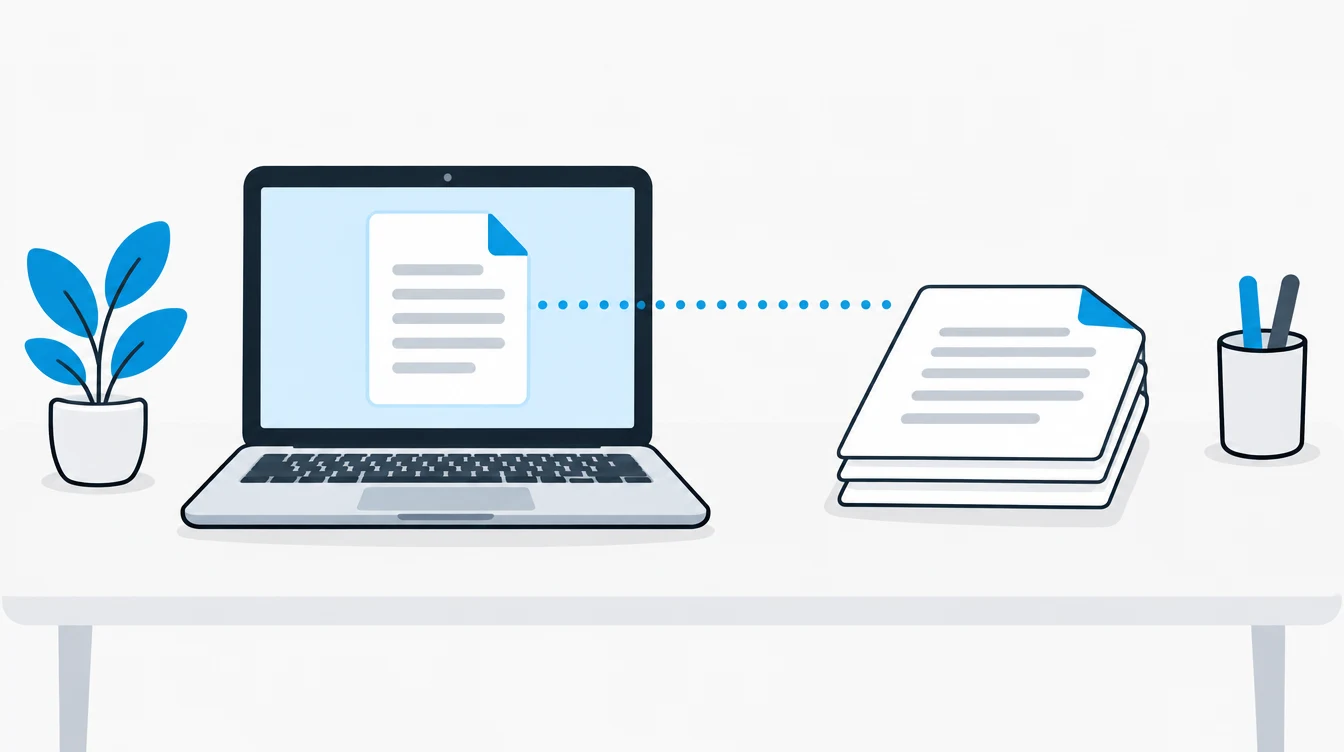
Every FaxDash send route takes a PDF, so faxing one is mostly about choosing a route and checking the file before it goes. The question to settle first is whether you need a fax number of your own. For a PDF, you usually don't.
This is one of the file-type guides that sit under our main guide to how to fax from your computer, phone or email.
Short answer
Upload the PDF to the FaxDash web dashboard, or pick it in the FaxDash phone app, enter the destination fax number, check the document and the credit cost, then send. Neither route needs a fax number of your own; FaxDash's getting-started help says only email-to-fax does.
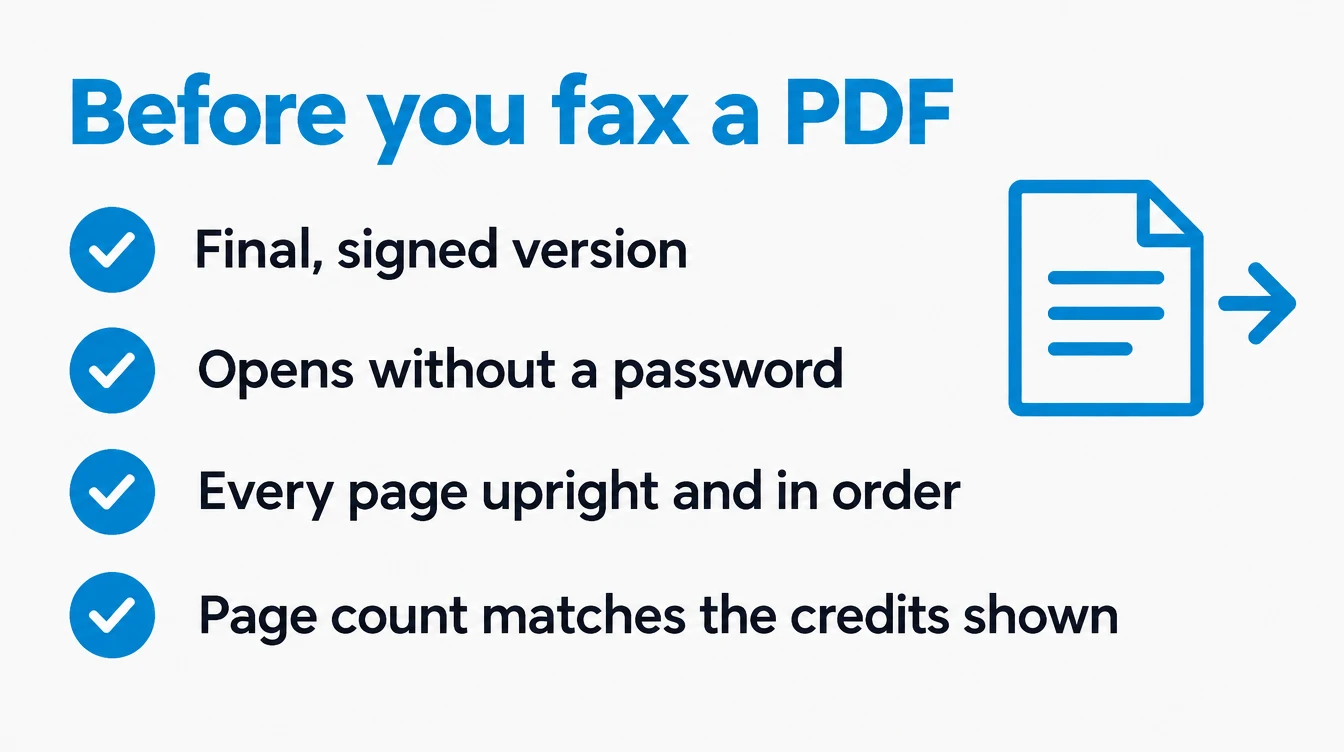
Before you send, open the PDF and confirm it's the final version, it opens without a password, and the page count is what you expect. Credits are charged per page.
Steps: the web dashboard (any computer)
These steps follow FaxDash's sending help, checked on November 8, 2026.
- Open the final PDF and scroll every page. Check that it's the signed or final version, every page is upright and in order, and nothing is blank or left over.
- In the web dashboard, open Send Fax and drop in the PDF. If you drop in several files, they're merged into one fax.
- Type the fax number, or search your contacts. Help recommends international format: + and the country code, then the number (+1 for the US and Canada). You can add more numbers to send the same fax to several recipients; each recipient is billed separately by page count.
- Add finishing touches if you need them. In the web dashboard, under Finishing touches, you can add a signature or a watermark. FaxDash signing is done in the web dashboard, not the phone app. The cover page builder adds your name and number, the recipient, a subject and a short message. A cover page has no feature fee but uses 1 send credit, because it's a page.
- Check the document, recipients and credit cost, then click Send Fax, or schedule it for later.
- Watch the status. The fax shows a live status in your history. When it's Delivered, you can download a receipt from the Sent Faxes page. Delivered means only that the transmission completed, not that a person read or accepted the document.
Steps: the phone app, or email-to-fax
- Phone app (iPhone or Android): pick the PDF, confirm the pages, enter the destination fax number and send. No fax number of your own is needed.
- Email-to-fax: send the PDF from your FaxDash account email or verified contact email to your own FaxDash number, digits only with the country code, followed by @fax.faxdash.io. Put only the destination number in the subject, using + and the country code. This route needs an active FaxDash receive number on a receive subscription. Attach one PDF: other file types are not read, and if there are several PDFs, only the first is sent. Message text is not faxed on its own; if your default cover sheet is set to go on every fax, it becomes the cover's note, and that cover uses 1 send credit (integrations help).
PDF workflow comparison: FaxDash and Fax.Plus
For a finished PDF, both services offer an upload route. FaxDash's dashboard steps merge several PDF or image files into one fax. Fax.Plus's document guide lets you attach up to 10 supported files and arrange their order; it also accepts office formats including DOCX and XLSX. Fax.Plus may suit a mixed-format bundle, while exporting everything to PDF first gives you a fixed set of pages to inspect regardless of service.
Email has different attachment rules. Fax.Plus email-to-fax accepts formats including PDF and DOCX and addresses the destination number at @fax.plus; its document guide says the email route requires a paid plan and an enabled feature with a registered sender. FaxDash email-to-fax sends to your own active receive number at @fax.faxdash.io, with the destination alone in Subject and one PDF attached. Use FaxDash's dashboard, not several email attachments, when you need files combined. Before either service sends, check the final page order, signatures and form entries; Fax.Plus also recommends reopening the saved final document to check changes.
Common mistakes with PDFs
- A password on the file. FaxDash's troubleshooting help lists a password-protected document as something to rule out when a fax keeps failing. If the PDF asks for a password when you open it, save a copy without one and send that copy.
- Paying for pages you didn't mean to send. Instruction pages, blank pages at the end and duplicate pages all count. Remove them, or export only the pages you need, before you upload.
- The unsigned version. It's easy to grab the PDF from before it was signed. Name the signed file clearly, for example with "signed" and the date, and check the signature page before you send.
- Form entries or signatures that don't show. If the PDF was filled in or signed in another app, open the final file and confirm the typed entries and signature appear on the page. If they don't, export a fresh copy from the app you used and check again before you upload.
- Color or faint content. A fax arrives in black and white. Light gray text, colored highlights and pale stamps can fade. FaxDash's enhancement is documented for phone-camera scans, so for an existing PDF, check readability yourself before you send.
- Several PDFs in one email. Email-to-fax sends only the first PDF. To combine files, use the dashboard, which merges them into one fax.
For more on fonts, scans and page order, see our checklist for preparing a document so it faxes cleanly.
Cost
A PDF costs the same as any other fax: 1 credit per page to US (+1) numbers, including Canada, and more credits per page anywhere else. A cover page, if you add one, has no feature fee but uses 1 send credit. The dashboard shows the credit cost before you send. Help doesn't describe a cost check for email-to-fax, so count the pages first.
FaxDash's pricing help lists credit packs from 5 pages for $0.99 to 150 pages for $9.99 ($0.07 a page). No subscription is needed to send from the app or dashboard, and purchased credits never expire. Email-to-fax needs a receive subscription. FaxDash offers 2 free pages when you sign up. If a fax fails after its last attempt, the credits go back to your balance automatically.
FAQ
Can I fax a PDF without a fax machine or phone line?
Yes. The web dashboard and the phone app send over the internet, and the recipient gets an ordinary fax. You don't need a fax number of your own to send.
Can I fax several PDFs as one fax?
In the web dashboard, yes: drop in several files and they're merged into one fax. Check the page order before you send. By email, only the first PDF is sent.
Does the recipient get my PDF file?
No. They receive a fax: the pages of your PDF, sent over the phone network, on their fax machine or fax service. Keep your PDF as your own copy, along with the delivery receipt.
Is there a page or file-size limit?
Yes. A file can be up to 50 MB, measured after it's converted to fax quality, and up to 350 pages. A file over the limit is rejected automatically. For a long document, count the pages first so you know the credit cost.
This guide is general information, not legal or tax advice. Fax numbers, forms and agency rules change, so check the agency's official page before you send. FaxDash isn't responsible for decisions made or actions taken based on this guide. For advice about your situation, talk to a qualified tax professional or attorney.