
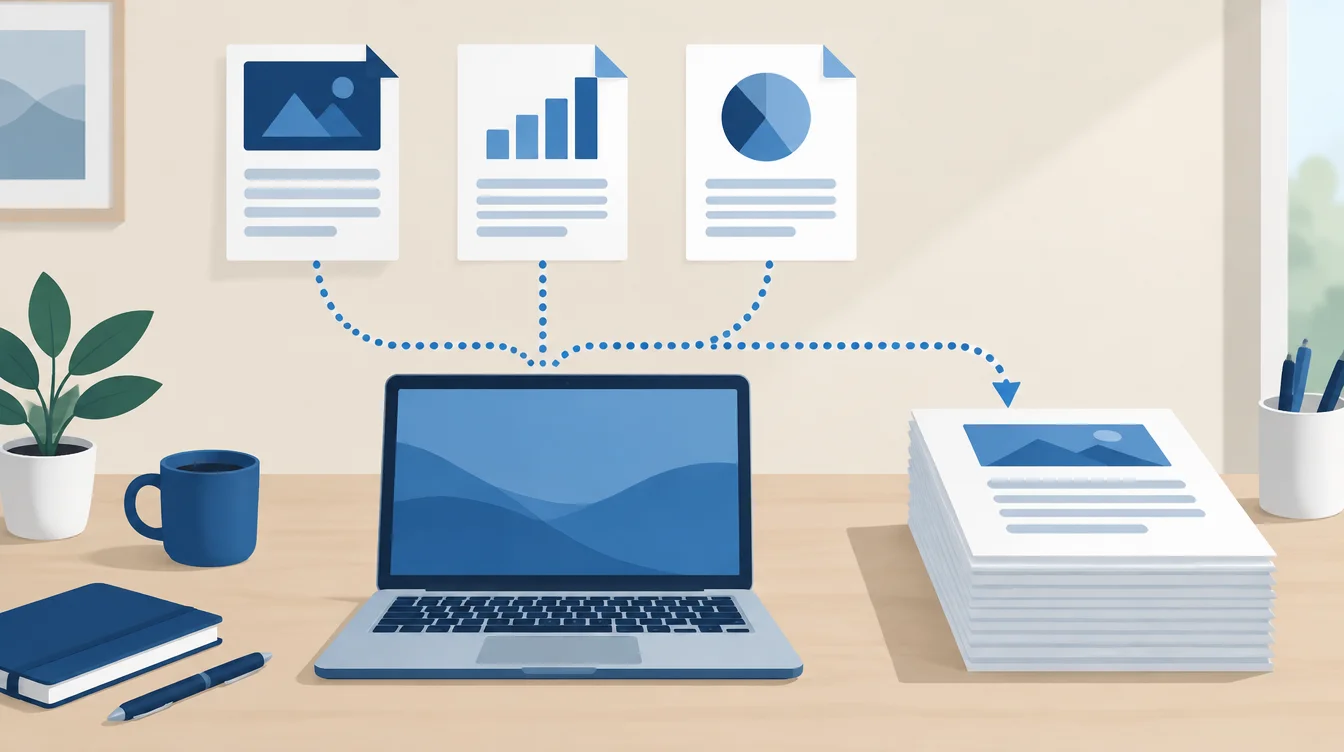
A fax can be one page or many, and one file or several. The real question is how to get the pages into one send in the right order, without paying for pages you didn't mean to include. With FaxDash, the answer depends on which route you use: the web dashboard and the phone app both combine pages into one fax, and email-to-fax doesn't.
This guide sits under our main guide to how to fax from your computer, phone or email. If your pages are already in a single PDF, the steps in how to fax a PDF cover it.
Short answer
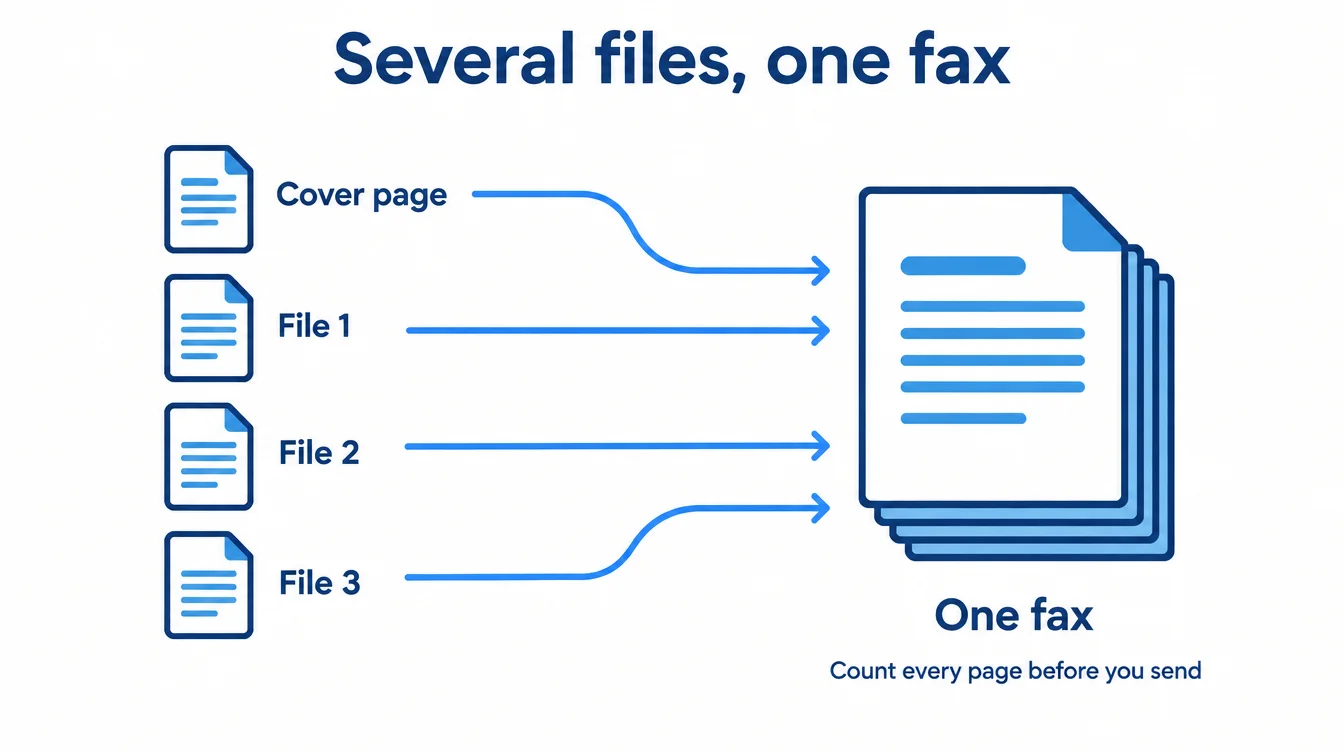
- Several files on a computer: drop them all into Send Fax in the FaxDash web dashboard. FaxDash's sending help says several files are merged into one fax.
- Paper pages: scan them one after another in the FaxDash phone app. The scanning help says you can scan multiple pages into a single fax, and they're sent together.
- Email-to-fax: combine everything into one PDF first. Only the first PDF attached is sent.
Neither the dashboard nor the app needs a fax number of your own. Every page counts toward the cost, including a cover page.
Steps: several files in the web dashboard
These steps follow FaxDash's sending help, checked on November 9, 2026.
- Collect the final files in one folder. Name them with a number first, such as "1 cover letter", "2 form", "3 records", so the order you want is obvious when you pick them.
- Open each file and count its pages. Write down the total. Include any cover page in your total; the destination's per-page credit rate also affects the cost.
- In the web dashboard, open Send Fax and drop in your PDFs or images. Several files are merged into one fax.
- Type the fax number, or search your contacts. FaxDash Help uses international format in its examples: + and the country code, then the number (+1 for the US and Canada).
- Add a cover page if you want one. The cover page builder adds your name and number, the recipient, a subject and a short message to the front of the fax. It has no feature fee but uses 1 send credit, because it's a page.
- Check the document, recipients and credit cost, then click Send Fax. Before sending, compare the document's page count with your total from step 2, including any cover page, and check the destination's credit rate. If the count or cost differs from what you expected, review the files, cover and destination before sending.
Our advice: if the page order matters, as it usually does for a signed form plus attachments, combine the files into one PDF yourself first and upload that single file. On a Mac, Apple's guide to combining PDFs in Preview shows how to display thumbnails, drag pages between documents and reorder them. Preview saves changes automatically, so use File > Duplicate first if you want to preserve the original PDFs.
Steps: paper pages in the phone app
- Put the pages in order on the desk before you start.
- Open the FaxDash app and scan the first page. FaxDash finds the edges, straightens the page and balances the contrast.
- Scan the next page, and the next. The scanning help says the extra pages are sent together as one fax.
- Check the pages, enter the destination fax number and send.
Enhancement applies to these phone-camera scans. For files you upload from a computer, check readability yourself before sending.
Steps: email-to-fax
Email-to-fax needs an active FaxDash receive number on a receive subscription. Send from your account email or verified contact email to your own number, digits only with its country code, at @fax.faxdash.io. Put only the destination number in Subject, using + and its country code. FaxDash's integrations help says the attachment must be one PDF: other file types aren't read, only the first PDF is sent if there are several, and the message text isn't sent on its own. If your default cover sheet is set to go on every fax, the email text becomes the note on that cover page, which has no feature fee but uses 1 send credit. So combine your pages into one PDF before you attach it.
How Fax.Plus and iFax handle several files
Other online fax services also let you send several files as one fax, with their own limits.
- Fax.Plus says in its multiple-pages guide that you can attach several files, review the preview and arrange the files or pages in the order the recipient should get them. Its sending FAQ allows up to 10 files per fax, and the guide lists a maximum pages-per-fax figure that depends on the plan.
- iFax says in its multiple-pages guide that you can select up to 10 files at a time in the web dashboard and reorder the pages after you upload a multi-page file. It also notes upload limits that depend on the plan.
Our advice: if you often put together faxes from many files and want to arrange pages inside the send screen, those reorder tools are a real convenience. With FaxDash, the dashboard merges the files you drop in. Our advice is to combine and inspect one PDF before uploading when order matters, so you can review the intended sequence in one place. Check each service's current limits for your plan before a very long fax.
Common mistakes with multi-page faxes
- Attaching several PDFs to one email. Only the first goes; the rest aren't faxed. Combine first, or use the dashboard.
- Pages in the wrong order. A signature page that lands after the attachments can confuse the person filing it. Number your files, or merge them yourself so the order is fixed.
- Paying for pages nobody needs. Instruction pages, blank backs from a double-sided scan and duplicate copies all count. Remove them before you upload.
- Sending one long fax that should be two. If the pages go to different departments, or one part is optional, two smaller faxes can be easier for the recipient to route. Each send is billed by its own page count.
- Resending the whole stack after a failure. If a fax fails after its last attempt, FaxDash returns its credits automatically. Before resending, check with the recipient if some pages may have arrived, and read why a fax fails to connect, so a long fax doesn't fail the same way twice.
For fonts, scan quality and page setup, see our checklist for preparing a document so it faxes cleanly.
Cost
A multi-page fax costs its page count in credits: 1 credit per page to US (+1) numbers, including Canada, and more credits per page anywhere else. A cover page has no feature fee but uses 1 send credit. If you send the same multi-page fax to several numbers, each recipient is billed separately by page count.
FaxDash's pricing help lists credit packs from 5 pages for $0.99 to 150 pages for $9.99 ($0.07 a page). No subscription is needed to send from the app or dashboard, and purchased credits never expire. Email-to-fax needs a receive subscription. FaxDash offers 2 free pages when you sign up.
FAQ
Is there a page limit on one fax?
Yes. One fax can be up to 350 pages, and the file can be up to 50 MB after it's converted to fax quality. A file over the limit is rejected automatically. For a long fax, count the pages first so you know the credit cost.
Can I mix PDFs and photos in one fax?
In the web dashboard, the sending help says you can drop in your PDF or images and several files are merged into one fax. By email, only a PDF is read.
Will the recipient see where one file ends and the next begins?
Do not rely on the receiving machine or service to explain how you assembled the files. Our advice: label sections or list the enclosures in your cover page message, such as "Form, 3 pages; records, 8 pages," and check the final page order before sending.
Can I send the same multi-page fax to several people?
Yes. In the dashboard, add more numbers to the same fax. Each recipient is billed separately by page count.