
Say a client needs a signed form back by fax, the PDF is on your MacBook, and there's no fax machine anywhere in the office. You don't need one, and you don't need a fax modem or a phone line either. The simplest route from a Mac is the FaxDash web dashboard in your browser, which sends with no subscription and no fax number of your own. For the other routes, see how to fax from your computer, phone or email.
The short answer
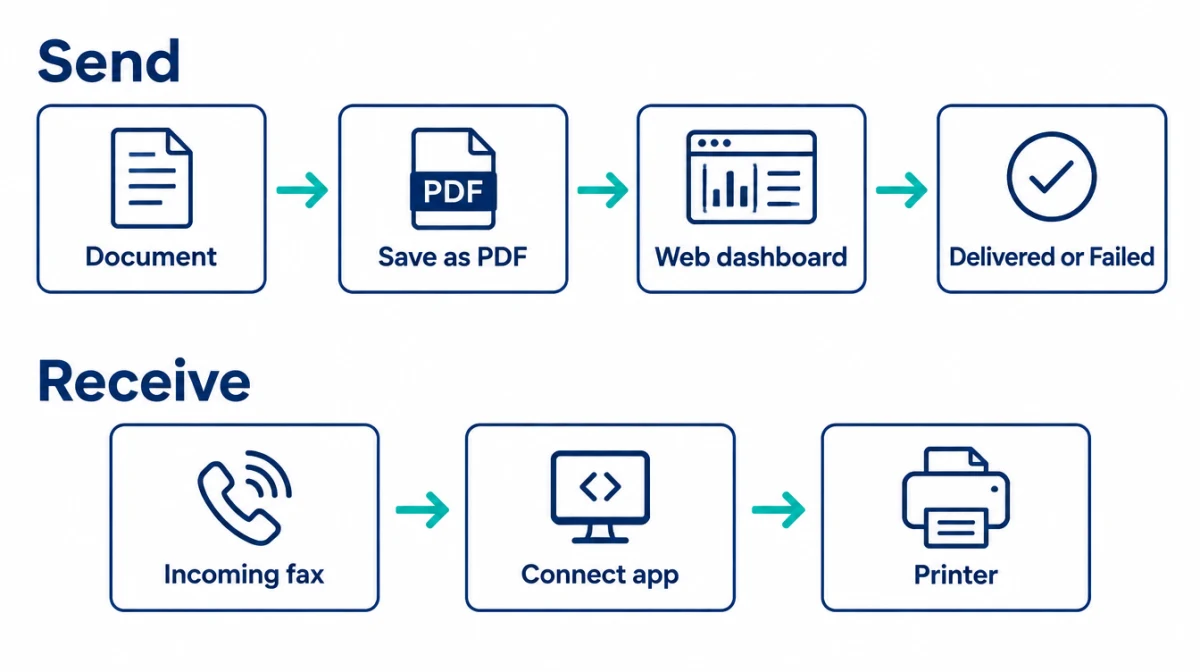
Save the document as a PDF (File > Print > PDF > Save as PDF works in most Mac apps). Open the FaxDash web dashboard in Safari or another browser, drop the PDF into Send Fax, enter the fax number, check the document, recipient and credit cost, and click Send Fax. Then check your history for Delivered or Failed.
Step 1: Save the document as a PDF
Apple's steps for saving a PDF from most apps (Apple Support, checked October 31, 2026):
- Open the document and choose File > Print.
- Click the PDF button or open the PDF pop-up menu, then choose Save as PDF.
- Enter a name and choose where to save it, such as Desktop.
If the document is already a PDF, skip this step. Open it once in Preview and check that every page is there, upright and readable. For fonts and scans that fax well, see how to prepare a document so it faxes cleanly.
Step 2: Send it from the FaxDash web dashboard
- Sign in to the FaxDash web dashboard and open Send Fax.
- Drop in your PDF, or images. If you add several files, they're merged into one fax.
- Type the destination fax number or search your contacts. To send the same fax to more than one number, add more numbers.
- Check the document, recipients and credit cost. You can send now or schedule it for later.
- Click Send Fax.
These steps follow FaxDash's sending help, checked October 31, 2026.
Step 3: Check the result and keep a receipt
Your fax history shows Delivered or Failed when the fax finishes, and you get a notification. For a delivered fax, open it on the Sent Faxes page and choose Download Receipt. It lists the destination number, the page count and when the fax was sent and completed.
If every attempt fails, the credits the fax used go back to your balance. Check that the number is a fax line before you resend. See why a fax fails to connect.
Common Mac mistakes
- Password-protecting the PDF. Apple's print dialog offers Security Options for a password. Skip them for a fax. The recipient receives faxed pages, which may be viewed digitally or printed; the original PDF's password is not carried over as protection for those pages. A locked file can prevent conversion for sending.
- Printing a web page as is. Browser printing can add headers, footers and extra pages. Check the preview in the print dialog and keep only the pages you need, because every page costs a credit.
- Combining files first when you don't need to. You can combine files into one PDF in Preview, but the dashboard already merges several files into one fax. Check the page order before you send.
- Forgetting the cover in the page count. If you add a cover page, it has no feature fee but uses 1 send credit. See what to put on a fax cover sheet.
- Expecting Connect to send. FaxDash Connect for Mac only prints faxes you receive. Sending happens in the dashboard or the app.
Prefer to send from Mail?
You can also fax from Apple Mail or any email app with email-to-fax, but that route needs an active FaxDash receive number. You send from your account's email address to your FaxDash number at fax.faxdash.io, with only the destination number in the subject and the document attached as a PDF. Only the first attached PDF is sent, and the message text isn't, so put any cover page on page one of that PDF. The rest of the rules are in how to fax from Outlook.
Printing faxes you receive on a Mac
If you have a FaxDash number and want incoming faxes on paper, FaxDash Connect is a free Mac app that prints each fax you receive, once, on the printer you choose. It runs on macOS 12 (Monterey) or later and keeps running in the menu bar.
- Setup: download it from the FaxDash download page, drag it into Applications, open it, sign in through your browser and pick a printer.
- Keep it running: leave Start at login checked, because faxes print only while Connect is running. If macOS asks, turn FaxDash Connect on under System Settings > Login Items. Faxes that arrive while the Mac is off print the next time Connect starts.
- On a team: it prints the shared inbox. Run it on one computer only, because every copy prints every fax.
Details are in FaxDash Connect help and our auto-print workflow guide.
What it costs
Sending from the dashboard has no subscription. It's 1 credit per page to US (+1) numbers, including Canada, and more credits per page elsewhere. Packs start at 5 pages for $0.99, and credits you buy never expire. FaxDash offers 2 free pages when you sign up. That's enough for a two-page test.
A receive number, which you need for email-to-fax and for getting faxes back, starts at $3.99 a month (Starter) and includes 10 send credits a month. Connect itself is free.
FAQ
Can a Mac send a fax without a phone line? Yes, through an online fax service. With FaxDash you upload the PDF in the web dashboard and FaxDash sends the fax.
Do I need a FaxDash number to fax from a Mac? Not to send from the dashboard. You need one for email-to-fax and to receive faxes.
Is there a FaxDash app for sending on a Mac? Send from the web dashboard in your browser. FaxDash Connect, the Mac app, only prints received faxes.
Can I schedule a fax from my Mac? Yes. When you compose the fax in the dashboard, choose a future date and time.