
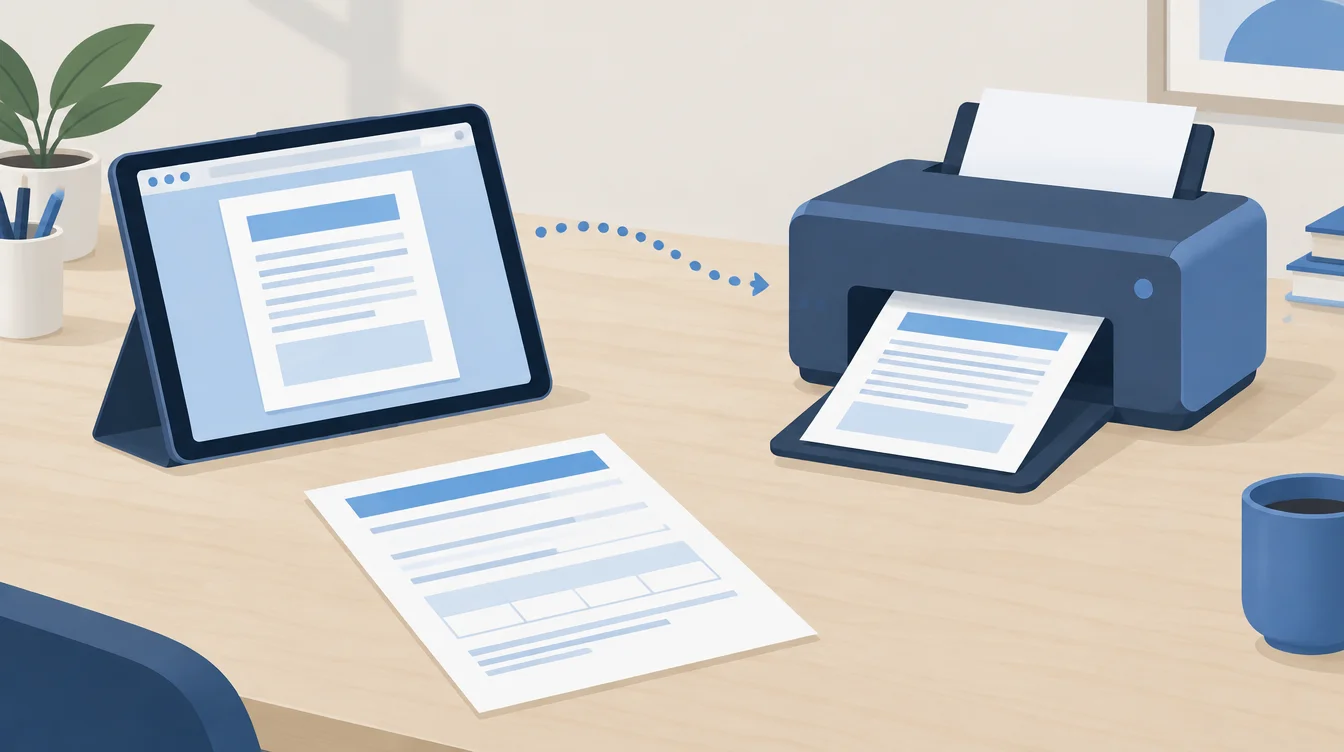
An iPad has a good camera, a big screen for checking pages, and a browser. That's enough to send a fax without a fax machine or a phone line. The practical question is how you get the document into a file the fax service can read, and where you add a signature if the page needs one.
This guide covers the iPad route from our main guide to how to fax from your computer, phone or email. It uses the FaxDash web dashboard in Safari, so there's nothing to install. If you mostly fax from a phone, see how to fax from an iPhone.
Short answer
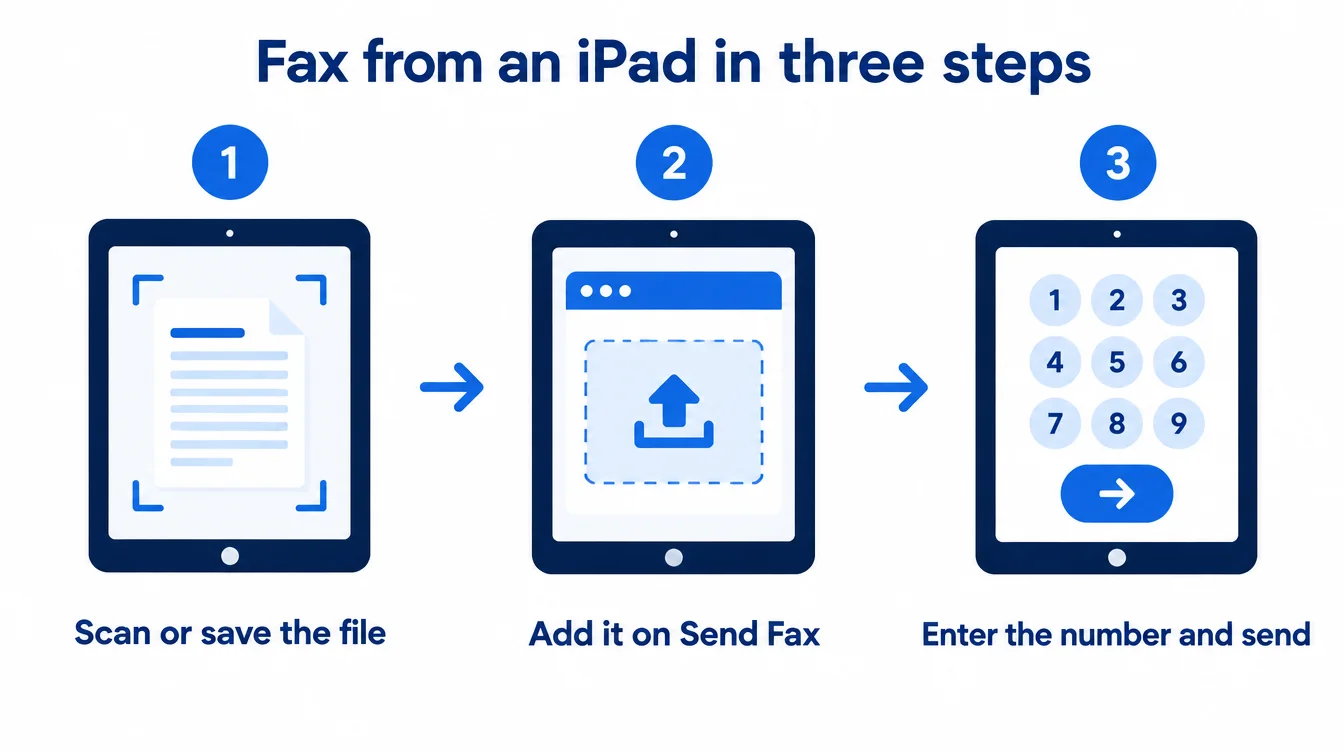
Scan the paper with the iPad's Files app, or save the PDF you already have to Files. Then sign in to the FaxDash web dashboard in Safari, open Send Fax, add the file, enter the destination fax number, check the credit cost and send. FaxDash's getting-started help says sending from the web dashboard doesn't need a fax number of your own.
FaxDash Help describes the web dashboard as working "from any computer" and doesn't mention the iPad by name, so try a one-page fax first before you rely on it for something important.
Steps: get the document into Files
Apple's guide to scanning documents on your iPhone or iPad, checked on October 31, 2026, covers two built-in options:
- Files app: tap More, then Scan Documents. Hold the page in view of the camera; in Auto mode it scans on its own. Drag the corners to fit the page, tap Keep Scan, add more pages if you need them, tap Done, then choose a location and tap Save.
- Notes app: tap the Attachment button, then Scan Documents. Notes can also add a signature with Markup, using a saved signature or your finger or a compatible Apple Pencil.
If the document is already a PDF, for example an email attachment or a download, save it somewhere in Files you'll find again.
Steps: send it from the web dashboard
These steps follow FaxDash's sending help, checked on October 31, 2026.
- Sign in to the web dashboard in Safari. Use the Web app link on faxdash.io. You can sign in with Google, Apple or an email address and password.
- Open Send Fax and add your file. Help says the dashboard takes a PDF or images, and several files are merged into one fax.
- Add a signature if the page needs one. On the Send Fax page, choose Finishing touches > Add signature, draw it, pick the page and position, and click Apply signature (scan, sign and enhance help). Or sign the paper before you scan it.
- Type the fax number, or search your contacts. Help recommends international format: + and the country code, then the number (+1 for the US and Canada).
- Add a cover page or watermark if you want one. The cover page builder has no feature fee but uses 1 send credit, because it's a page. A watermark such as CONFIDENTIAL or DRAFT is free.
- Check the document, recipients and credit cost, then send, or schedule it for later.
- Watch the status. Every fax shows a live status: sending, delivered or failed. When it's delivered, open it on the Sent Faxes page and choose Download Receipt for your record.
Common mistakes on an iPad
- Losing track of the scan. A Files scan is saved to the location you choose, so pick a folder you'll find again before tapping Save. A Notes scan stays inside the note.
- A missing or crooked page. Scan on a flat surface with the whole page in view, drag the corners to fit before Keep Scan, and count the pages before you send. Each page costs a credit.
- The wrong country prefix. Type + and the country code at the start for any number outside the US and Canada.
- Signing in the wrong place. If the page needs a signature, add it before you send: on paper before scanning, in Notes, or with Add signature on the web Send Fax page. A fax can't be signed after it's sent.
- A password-protected PDF. FaxDash's troubleshooting help lists a password-protected document as something to rule out when a fax keeps failing. Send a copy without the password.
For fonts, contrast and scan quality, see our checklist for preparing a document so it faxes cleanly.
Cost
Faxing from an iPad costs the same as any FaxDash fax: 1 credit per page to US (+1) numbers, including Canada, and more credits per page elsewhere. A cover page has no feature fee but uses 1 send credit. The dashboard shows the credit cost before you send.
FaxDash's pricing help lists credit packs from 5 pages for $0.99 to 150 pages for $9.99 ($0.07 a page). No subscription is needed to send, and purchased credits never expire. FaxDash offers 2 free pages when you sign up.
How Fax.Plus and iFax handle an iPad, checked November 12, 2026
Other online fax services also work on an iPad, but they get there differently. This is what each company's own pages said on November 12, 2026.
| FaxDash | Fax.Plus | iFax | |
|---|---|---|---|
| Where you send on an iPad | The web dashboard in Safari | A web app for any browser, and an iOS app | Its iOS app, which it describes for iPhone and iPad |
| Scanning paper | Scan in the iPad's Files or Notes app, then add the file on Send Fax | Scan with Camera in its mobile app, with cropping, rotating and color filters | A built-in scanner in its app, with filters and brightness and contrast controls |
| Paying to send | Credit packs that never expire, with no subscription needed to send | Monthly or annual plans with a set number of pages a month | Monthly or annual plans with a set number of pages a month |
Current prices are on each company's pricing page: Fax.Plus and iFax. FaxDash's are on Pricing, credits and billing.
FAQ
Is there a FaxDash app for iPad?
FaxDash's download page lists the app under "iPhone & iPad". The App Store listing we read on October 31, 2026 showed "Only for iPhone" and listed iPhone under Compatibility. Check the listing on your iPad. The web dashboard steps above don't depend on the app.
Do I need a fax number to fax from an iPad?
No. Sending from the web dashboard doesn't need one. You need a number only to receive faxes or to use email-to-fax.
Can I fax a photo of a document?
The dashboard takes images as well as PDFs. A scan from the Files app is usually easier to read than a plain photo, because you can fit the corners to the page before saving it.
Can I send one fax to several numbers?
Yes. On the Send Fax page, add more numbers. Each recipient is billed separately by page count.