

If your office is opening without a landline, moving, or finally retiring the fax machine, the fax question is practical. Which number do referrers, payers and labs use? Who sees each incoming fax? And how does paper still reach the people who chart from paper?
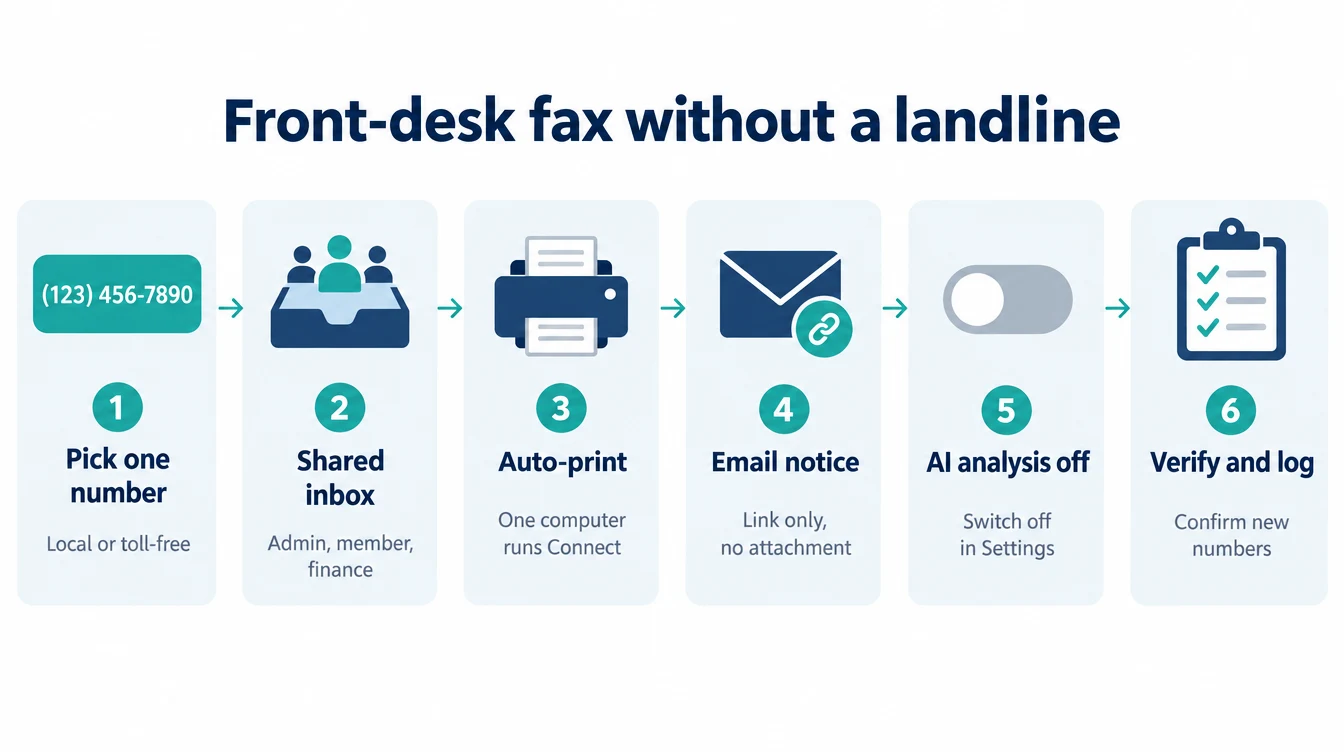
The short answer: one online fax number, a shared inbox with named roles, one computer that prints new faxes automatically, email notices that point to the fax instead of attaching it, and AI analysis switched off before patient faxes start arriving. This guide walks through each piece in the order you would set it up, using FaxDash as the worked example.
Who this is for: the owner or office manager of a small dental, chiropractic or physical therapy office that needs a fax number the outside world can use, without a phone line or a machine.
This is a setup guide, not legal or compliance advice. For what HHS allows when you fax patient information, read our guide to faxing patient information in a small practice.
The setup at a glance
- Pick one number that referrers, payers and labs can use.
- Set up a shared inbox with roles so each person signs in as themselves.
- Print new faxes automatically at the front desk with FaxDash Connect.
- Route email notices, not documents, to a front-desk mailbox.
- Turn AI analysis off before patient faxes arrive.
- Write a short routine for verifying numbers and handling a fax that goes to the wrong place.
What a small healthcare office actually needs from fax
Start with the traffic, not the tool. In a small practice, fax usually carries two streams:
- Incoming: referrals, records from other providers, prior authorization decisions, lab results and signed forms coming back.
- Outgoing: records to other providers, referral letters, forms to payers and requests for records.
Each stream needs an owner. The setup question is whether every incoming fax lands somewhere a named person checks, and whether every outgoing fax leaves a record someone can find later.
| Job | Who often owns it in a small office | What the setup has to give them |
|---|---|---|
| Watch for new faxes | Front desk lead | One inbox, a notice when a fax arrives, paper if they want it |
| Route each fax to the right chart or person | Front desk or office manager | A way to see who sent it and when |
| Send records and forms | Front desk, billing | A sent history that shows who sent each fax |
| Check costs | Owner or bookkeeper | Visibility into credits and billing without sending rights |
Hypothetical example (synthetic): a two-provider chiropractic office has a front desk lead, a part-time biller and the owner. The front desk lead watches the inbox and the printer. The biller sends payer forms. The owner checks the bill once a month.
Step 1: pick one number
You can choose a local number or a toll-free number. FaxDash numbers are US (+1) numbers. In the FaxDash web dashboard, open Fax Numbers → Get a Number, choose the country, an area code if you want one, and local or toll-free, then pick a number from the results. Getting a number needs an active receive plan.
One number is easier for the outside world. Referrers and payers keep your fax number on file, so every extra number is another one to keep current. If you do need separate routing, for example a billing line, extra numbers are $2.99 a month each on any receive plan.
Once the number is live, update it everywhere it appears: letterhead, referral forms, your website, and the contact details payers and labs hold for you.
Step 2: a shared inbox with roles
A shared inbox is the online version of the tray everyone checks. In FaxDash it is part of a team, and team seats are on Standard and above.
- Seats: Business is you + 2 team seats. Each extra seat is $2.99 a month. The owner who pays for the plan doesn't use a seat.
- Roles: an admin invites and removes people, changes roles and sets page limits. A member sends from the team's credits and works the shared inbox. Finance sees the team's faxes, inbox, credits and billing, but doesn't send faxes or manage members.
- One inbox, one sent history: faxes to the team's numbers land in the shared inbox, and every fax in the sent history shows who sent it.
- Page limits: an admin can set a monthly page limit for any member. Limits count pages sent, not received, and reset on the 1st of each month (UTC).
- Where you manage it: teams, members and roles are managed only in the web dashboard at dash.faxdash.io, not in the mobile app. Members can still use the app to send, receive and view faxes.
A reasonable starting map for a small office: the office manager as admin, the front desk and billing staff as members, and a bookkeeper as finance. Because the finance role can see the team's faxes and inbox, give it only to someone who should see every incoming fax.
When someone leaves, an admin removes them from the Team page, which frees their seat. An admin can also suspend a seat and restore it later. See how teams work for the full role list.
Step 3: paper at the front desk, automatically
Some staff will want paper. FaxDash Connect is a free desktop app for Mac (macOS 12 or later) and Windows (64-bit Windows 10 and 11). It prints each fax you receive, once, on the printer you choose, with no print dialog and nobody opening anything.
How it behaves, according to the Help page:
- Each new fax prints once, even if someone already opened it on a phone.
- A footer stamp (on by default) adds the sender's number, the time the fax arrived and the page number to each printed page, like a fax machine's header.
- On a team, it prints the shared inbox. Run it on one computer only, because every copy of Connect prints every fax.
- It only prints while it runs. Leave Start at login checked. Faxes that arrive while the computer is off print the next time Connect starts.
- Old faxes don't print. Faxes already in the inbox when you first sign in are skipped.
- It can't send faxes, and it can't see your billing or settings.
Where the printer sits matters. HHS gives placing the fax machine in a secure location as an example of a reasonable safeguard for faxed patient information. With auto-print, the front-desk printer is the new fax machine, so put it where people in the waiting room can't read the tray.
For the full setup, see keep the paper fax workflow without a fax machine.
Step 4: notices without the document
Every new fax triggers a push notification in the app and an email. The email says who sent the fax, which number it came to, the page count and when it arrived, with a link that opens it in FaxDash. The fax itself is not attached, so its pages stay out of the mailbox.
Two settings to decide:
- Who gets the email. You can add up to five more addresses, such as a shared front-desk mailbox, in Settings. A mailbox the office owns is easier to hand over than someone's personal address.
- Whether you want it at all. If the printer and the app are enough, turn the email off in Settings.
The notice is a pointer, not the record. Someone still has to open the fax, decide which chart or person it belongs to and route it. For a fuller routine, see fax-to-email and email-to-fax for small teams.
Step 5: turn AI analysis off for patient data
Keep AI analysis off for patient data. AI analysis is on by default for accounts without a signed BAA, so this is a switch you change, not one you leave alone.
What the switch controls. With AI analysis on, a received fax (up to 5 pages) gets a plain-language summary, a document category, key details pulled from the page and searchable text. With it off, new faxes arrive without a summary, category or extracted details.
What to do: For faxes with patient information, turn off AI analysis in Settings. FaxDash signs a BAA on the Business plan only. To request one, email FaxDash support at support@faxdash.io. Accounts with a signed BAA start with AI analysis off and can turn it on; analysis runs on Amazon Bedrock, inside FaxDash's AWS BAA.
- In the web dashboard, open Settings → General and switch off the AI analysis setting. In the app, it is the Summarize received faxes with AI switch in Settings.
Turning AI analysis off is not by itself a HIPAA compliance guarantee. It is one setting inside a larger set of decisions your practice owns.
Do it before you hand out the number. The HIPAA page says that with AI analysis off, no fax content is sent to the AI provider. A fax that arrives while it is still on is analyzed, so switch it off first and hand out the number second.
Want to know how summaries work on non-patient paperwork? See AI fax summaries: triage without blind trust.
Step 6: a routine for verifying numbers and handling misdirected faxes
Software doesn't replace the routine. HHS says covered providers may fax patient information for treatment as long as they use reasonable safeguards, and gives two examples that map straight onto a front desk: confirm a fax number you don't use regularly with the intended recipient, and pre-program frequently used numbers to avoid misdirecting the information.
A short routine that follows those examples:
- Confirm new numbers. Call the receiving office on a number you already trust and confirm its fax number before the first send.
- Save verified numbers as contacts. FaxDash keeps contacts for the places you fax every week, so staff pick a saved number instead of retyping it.
- Read the destination on screen before you send, especially when you reuse a recent number.
- Add a cover page when the recipient expects one. FaxDash's built-in cover page adds your name and number, the recipient, a subject and a short message. A cover page has no feature fee but uses 1 send credit, because it counts as a page. A cover page is a courtesy and a prompt; it doesn't fix a wrong number.
- Wait for the final status. A fax shows Delivered or Failed in the sent history. Delivered means the transmission completed, not that the right person read it. Delivered faxes include a confirmation you can download.
- Plan for the wrong fax. If a fax goes to the wrong number, log it and bring in whoever owns privacy at your practice; our HIPAA guide walks through what HHS says about misdirected faxes. If a fax meant for someone else lands in your inbox, tell the sender and follow your office policy for the pages.
By specialty: where to go next
The hub setup above is the same for every specialty. What changes is the paperwork that rides on it.
- Dental offices: start with our guide to faxing patient information in a small practice, which covers the ADA's points on paper fax versus computer fax.
- Medical practices with referrals and prior authorizations: the job is tracking. Every outbound request needs an owner, a delivery record, the payer's reference number and a next check date, and the decisions should come back to the shared inbox.
- Physical therapy offices: plans of care often travel by fax to a referring provider and back with a signature, so the useful question is who watches for the signed copy and where it goes.
- Chiropractic offices: personal-injury cases can add attorney and insurer paperwork to the usual referral traffic, so a shared inbox with a clear routing owner matters more than usual.
Whatever the specialty, before you print or send anything, check that a document faxes cleanly with how to prepare a document so it faxes cleanly.
What it costs
Sending needs no subscription: you buy credit packs, and credits you buy never expire. Receiving needs a plan with a dedicated number.
| What you buy | Price | What it includes |
|---|---|---|
| Credit pack, smallest | $0.99 | 5 pages ($0.20/page) |
| Credit pack, largest (Pro) | $9.99 | 150 pages ($0.07/page) |
| Starter receive plan | $3.99/month | 1 dedicated number, 50 received pages and 10 send credits a month |
| Standard receive plan | $6.99/month | 1 dedicated number, 200 received pages and 25 send credits a month |
| Business receive plan | $12.99/month | 1 dedicated number, 500 received pages and 60 send credits a month, you + 2 team seats, document vault |
| Extra team seat | $2.99/month | One more person on the team |
| FaxDash Connect | Free | Auto-print on one Mac or Windows computer |
One credit covers one page to a +1 number (US and Canada). If you receive more pages than your plan includes, faxes keep arriving and each extra page uses one send credit; you get an alert at 80% of the allowance and again when it runs out.
If your practice needs a BAA, FaxDash signs one on the Business plan only. To request one, email FaxDash support at support@faxdash.io.
Hypothetical cost (arithmetic only): an office with the owner and three staff on one team would pay $12.99 for Business plus $2.99 for one extra seat, $15.98 a month before any send credits beyond the 60 included.
How this compares with eFax and Documo
Both show up when offices search for healthcare and dental fax services. Prices below are from each company's own pricing page, checked October 29, 2026.
| FaxDash Business | eFax Business | Documo Solo | |
|---|---|---|---|
| Listed price | $12.99/month | $39.99/month (billed monthly) | $25/month (billed annually) |
| Pages included | 500 received + 60 send credits | 500 pages/month | 300 pages/month |
| People included | You + 2 team seats | 5 user licenses | 1 user |
| Extra people | $2.99/seat/month | $10/user/month | $3/user/month |
| Extra fax number | $2.99/month | $5/month | $3/month |
| Pay-per-page sending with no plan | Yes, credit packs that never expire | Not listed on the pricing page | Not listed on the pricing page |
Where they win: eFax Business includes five users before you pay for more, and Documo's larger plans include far more pages and users (its Business plan lists 1,500 pages, 10 users and 5 numbers) plus add-ons for EHR integration. eFax's smaller Personal plan is $18.99 a month for 200 pages to the US and Canada and one user. eFax lists a BAA on its Business plan but not on Personal, and Documo says it signs a BAA for healthcare customers. Page counting and what counts as a page differ by provider, so compare against your own monthly volume.
Where FaxDash fits: a smaller office that wants a low monthly plan, sending without a subscription, and free auto-print at the front desk.
FAQ
Do we need a landline or a fax machine? No. The number lives online, faxes arrive in the app and web dashboard, and FaxDash Connect prints them if you want paper.
Can staff use their phones? Yes. Admins and members can send, receive and view faxes in the mobile app; the finance role can view but doesn't send. Inviting people and changing roles happens only in the web dashboard.
Is AI analysis on by default? AI analysis is on by default for accounts without a signed BAA. Accounts with a signed BAA start with AI analysis off and can turn it on; analysis runs on Amazon Bedrock, inside FaxDash's AWS BAA. For faxes with patient information, turn it off in Settings; turning it off is not by itself a HIPAA compliance guarantee.
The decision rule
Before you switch, write down four names: who watches the inbox, who owns the printer, who gets the email notice and who handles a fax that went to the wrong place. If you can fill all four, the setup above takes one number, one team and one computer. If you can't, settle the names first.
Set up your front-desk fax: see the FaxDash Business plan (you + 2 team seats).
Sources
Checked October 29, 2026:
- HHS, Does the HIPAA Privacy Rule permit a doctor, laboratory, or other health care provider to share patient health information for treatment purposes by fax, e-mail, or over the phone?
- HHS, Can a physician's office fax patient medical information to another physician's office?
- FaxDash Help: receiving faxes, teams and seats, FaxDash Connect, pricing and billing, sending faxes, and the HIPAA page
- eFax pricing and Documo pricing
This guide is general information, not legal or tax advice. Fax numbers, forms and agency rules change, so check the agency's official page before you send. FaxDash isn't responsible for decisions made or actions taken based on this guide. For advice about your situation, talk to a qualified tax professional or attorney.