
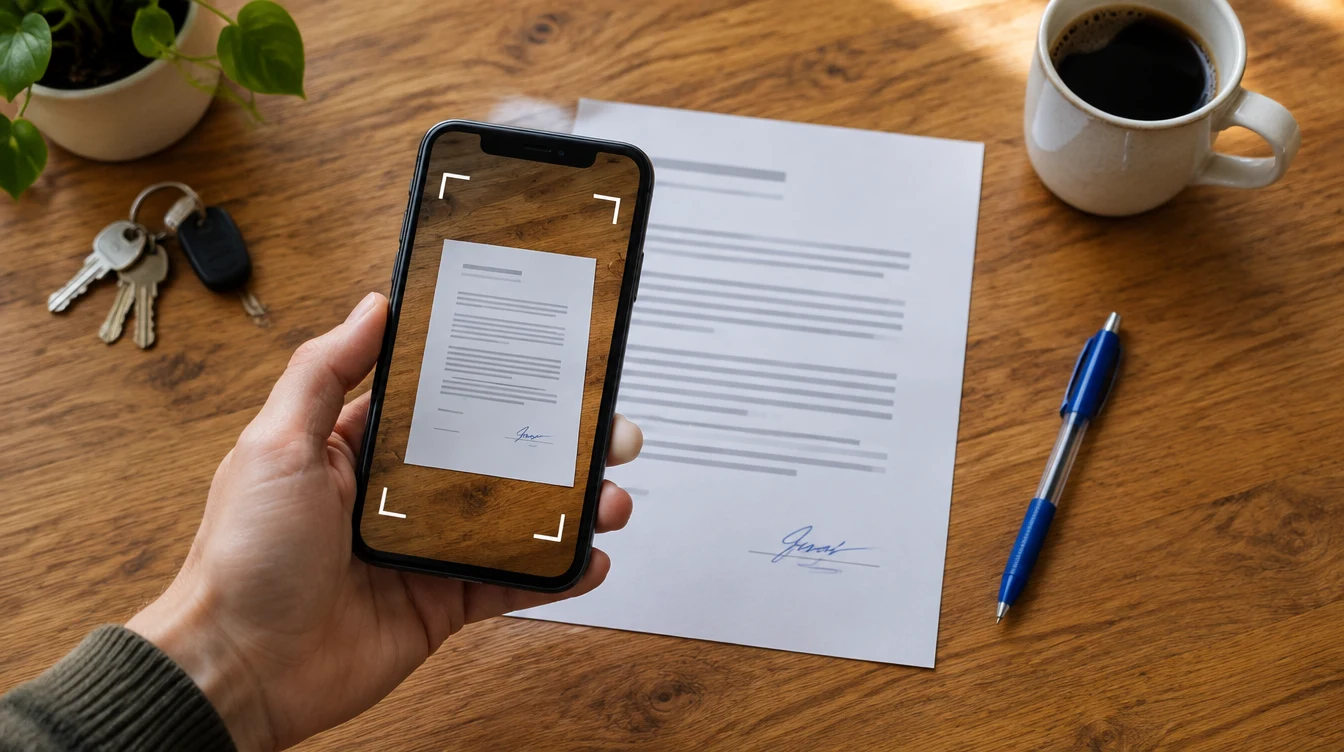
Suppose your insurance agent needs a signed claim form back by fax this afternoon. You're between jobs, the form is in your truck, and the nearest office store is twenty minutes away. Your phone is already in your pocket.
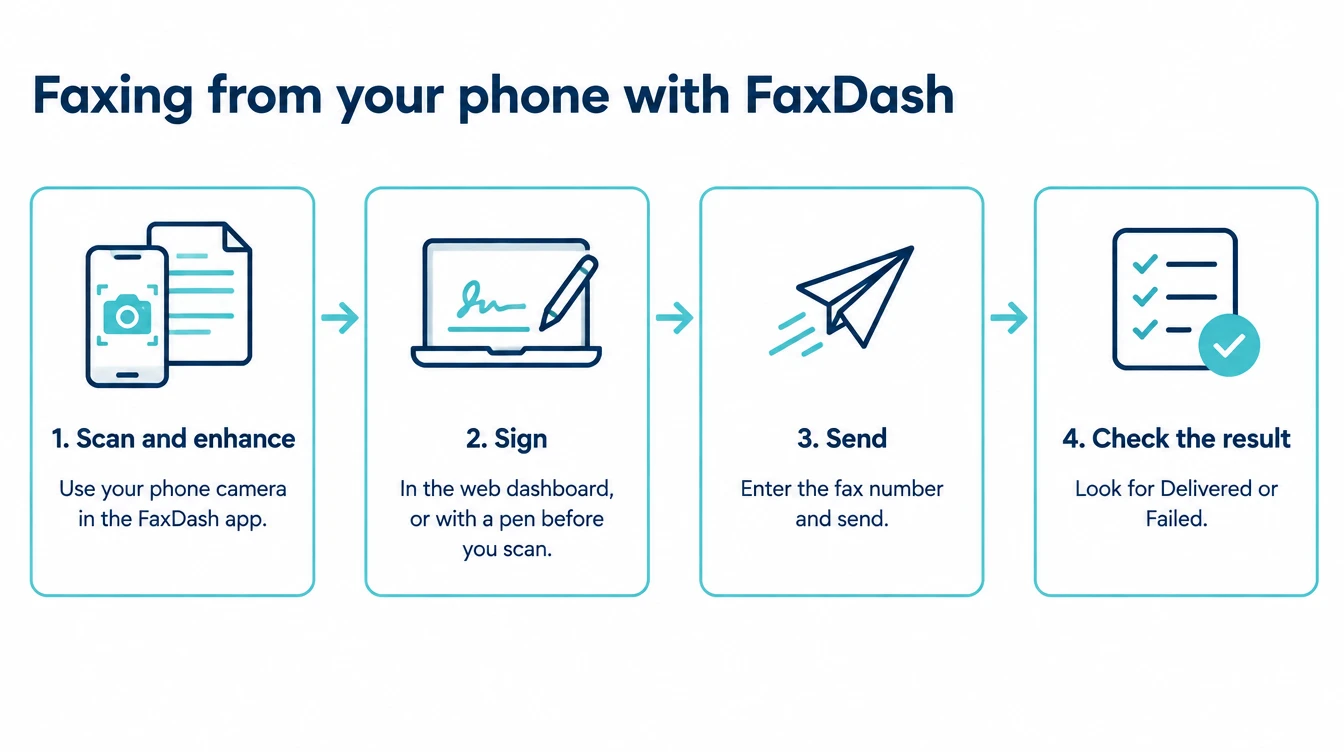
You can send the fax from your phone. In the FaxDash app for iPhone or Android, you scan the paper with your camera or pick a PDF, confirm the pages, enter the recipient's fax number and send. The recipient gets an ordinary fax. You don't need a fax machine, a phone line or a fax number of your own to send.
The main cost is credits. A page to a US (+1) number uses 1 credit, and international faxes use more credits per page. FaxDash shows the exact cost before you confirm the send. FaxDash offers 2 free pages when you sign up. After that, credit packs start at 5 pages for $0.99, and purchased credits don't expire.
What you need before you start
- The FaxDash app on an iPhone or Android phone, and a FaxDash account.
- The document, either on paper or as a PDF on your phone.
- The recipient's fax number, confirmed with them or taken from their letterhead or website.
- Enough credits for every page you're sending, including a cover page if you add one.
- A signature plan. If the form needs signing, decide now whether you'll sign the paper with a pen before you scan, or add a drawn signature later in the web dashboard. The app scans and enhances pages, but signing isn't done in the app.
Step 1: Count your pages and check your credits
Before you scan anything, count the pages and look at your credit balance. A four-page form to a US number needs four credits. The same form to another country needs more, and the exact number shows before you send.
If you're short, buy a credit pack first. You don't need a subscription to send.
Step 2: Scan the paper with your camera
Sign any paper form with a pen first, then choose to scan and point your camera at the page. FaxDash finds the edges, straightens the page and balances the contrast. You can scan several pages into a single fax.
A flat surface and even light make the job easier. A curled corner or a dark shadow can still cut into text at fax quality, so retake a page if it looks uneven. One-tap enhancement converts the page to high-contrast output for faxing. The scan, sign and enhance guide walks through each part.
If the document is already a PDF, pick the file instead of scanning a printout. A PDF from the sender is usually cleaner than a photo of the same page.
Step 3: Confirm the pages, and sign in the web dashboard if needed
Go through every page before you send. Check the order, make sure nothing extra slipped in, and zoom in on small print. A fax is sent in black and white, so faint text and pale ink are the first things to suffer.
If you'd rather add a drawn signature than sign on paper, that happens in the web dashboard, not the app. Add your document on the Send Fax page, then under Finishing touches click Add signature, draw it, place it and apply it. You can save it to your account to reuse next time. The same Finishing touches section is where you add a free watermark such as CONFIDENTIAL or DRAFT.
Step 4: Enter the number and send
Type the recipient's fax number. For an international fax, dial with +, then the country code and the number, and leave off the national trunk prefix. For example, use +44 20 7946 0123 rather than +44 020 7946 0123. If you're outside the US and sending to a US number, type +1 yourself, because the app adds your own country's prefix as you type unless you start with +.
FaxDash supports international fax numbers. The exception is countries under comprehensive US sanctions (currently Cuba, Iran and North Korea): FaxDash can't send faxes there, and a send to one of them is refused before any credits are used. The sending faxes guide has the details.
Step 5: Check for Delivered or Failed
After you send, check for Delivered or Failed in your fax history. When the fax completes, you get a push notification and, unless you turn it off, an email.
FaxDash retries automatically when a failure looks temporary, such as a busy line. A wrong number won't fix itself. If every attempt fails, the fax shows as Failed and its credits go back to your balance. Check that the number is a fax line, then resend.
Delivered means the fax transmission completed. Delivered faxes include a confirmation you can download, so tap the delivered fax in the app and save the confirmation with the document if the fax matters for a deadline or a claim. Delivered doesn't tell you anyone has read it, so a quick call is worth it when timing matters.
A checklist you can reuse
Before you start
- Count the pages and check your credit balance.
- Confirm the fax number with the recipient.
- Sign any paper form with a pen before you scan it.
- For an international number, dial with + and the country code.
While you're sending
- Scan on a flat surface in even light, or pick the original PDF.
- Check every page for order, missing pages and readable small print.
- Read the number back before you tap send.
Afterward
- Check for Delivered or Failed.
- If it failed, confirm the number is a fax line and resend.
- Save the delivery confirmation with the document.
How FaxDash compares with other phone fax apps
If you're choosing an app for this, here is how four online fax services describe these features on their own pages, checked November 5, 2026.
| FaxDash | iFax | CocoFax | Fax.Plus | |
|---|---|---|---|---|
| Scan with your phone | Yes, with the phone camera in the app; enhance works on camera scans | Yes; its mobile app page says "Scan, sign, and fax from phone and tablet" | Not listed on the app pages checked; see their site | Yes, camera scanning in the mobile app |
| Sign the document | In the web dashboard only, not the phone app | Yes, per the same page | Not listed on the app pages checked | Its mobile app page says you can sign documents and send them |
| Send from your phone | Yes, iPhone and Android app | Yes, mobile fax apps for Android and iOS | Android and iOS mobile apps listed on its pricing page | Yes, an Android and iOS app for registered users |
| Get a fax number | Only needed to receive; US (+1) numbers on receive plans from $3.99/month | Included from its Plus plan; see their pricing page | A local or toll-free number listed with each plan; receiving is for paid accounts only; see their pricing page | One fax number listed with paid plans; see their pricing page |
| Pay as you go or subscription | Pay as you go: 2 free pages when you sign up, credit packs from $0.99 for 5 pages, and credits never expire | Monthly or annual plans, plus a separate pay-per-fax option with no monthly subscription; see their pay-per-fax page | Subscription plans of 1, 3 or 12 months, see their pricing page | Monthly or annual plans; see their pricing page |
Features and prices change, so check each service's own page before you decide.
The honest catch
A phone is a good scanner for a few pages, but it isn't a flatbed. Long packets, thin paper and small print take more care, and a PDF from the original source is often the better file to send. Signing is the other snag: if you want a drawn signature instead of pen on paper, you'll need the web dashboard at dash.faxdash.io.
Sending from your phone also doesn't give you a way to receive a reply. Receiving needs a receive plan with a dedicated fax number, and every receive plan includes monthly send credits. If you're weighing FaxDash against other phone apps, our guide to which mobile fax app to choose lays out features and prices side by side. On Android, see the Android fax app comparison.
Your next step
Count your pages, check your credits and send one document from the app. If you'll also need replies, look at the receive plans before the next request arrives. To send from a computer or by email instead, see how to fax from a computer, phone or email, and where can I send or receive a fax compares office stores, libraries and online services.