
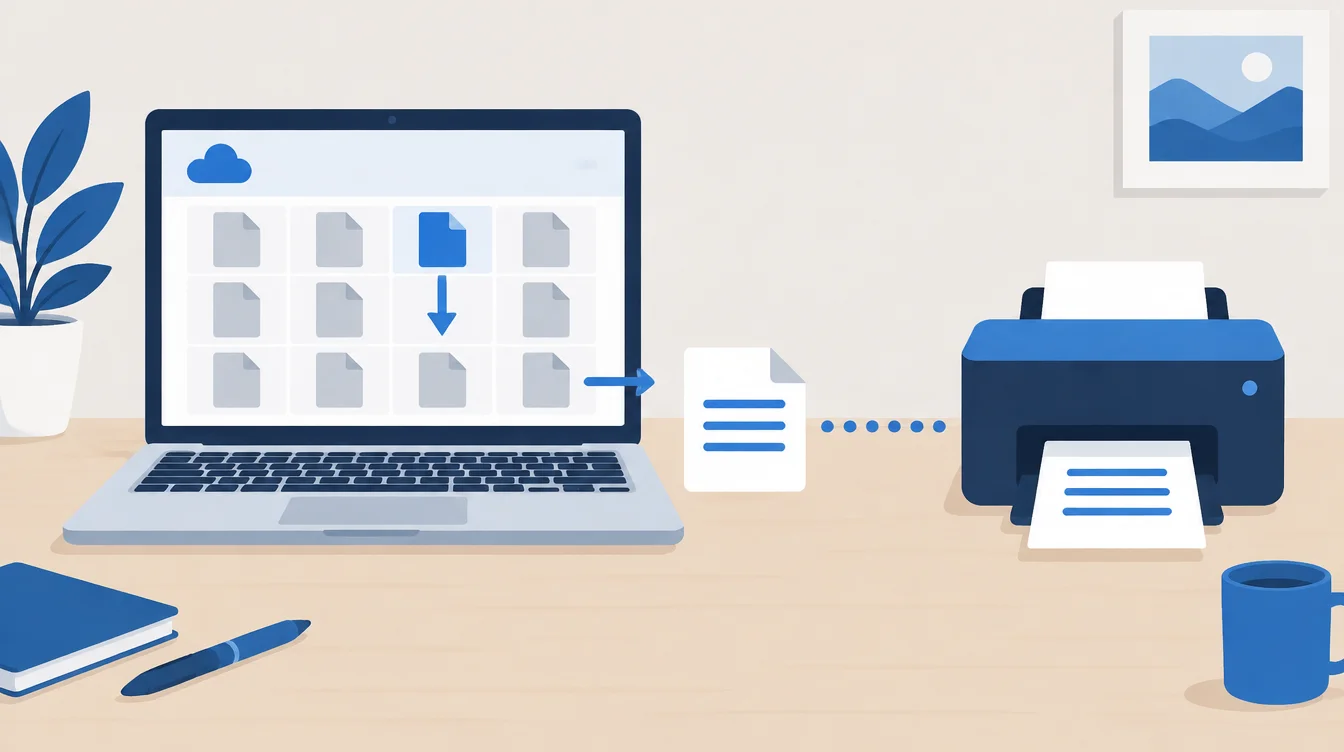
A Google Doc lives in your browser, and a fax machine can't open a link. So faxing a Google Doc, or any file stored in Google Drive, comes down to one step before the fax: get a PDF copy of the file onto your computer or phone. Google documents that step; after that, it's an ordinary fax.
This guide sits under our main guide to how to fax from your computer, phone or email, and the upload part follows how to fax a PDF.
Short answer
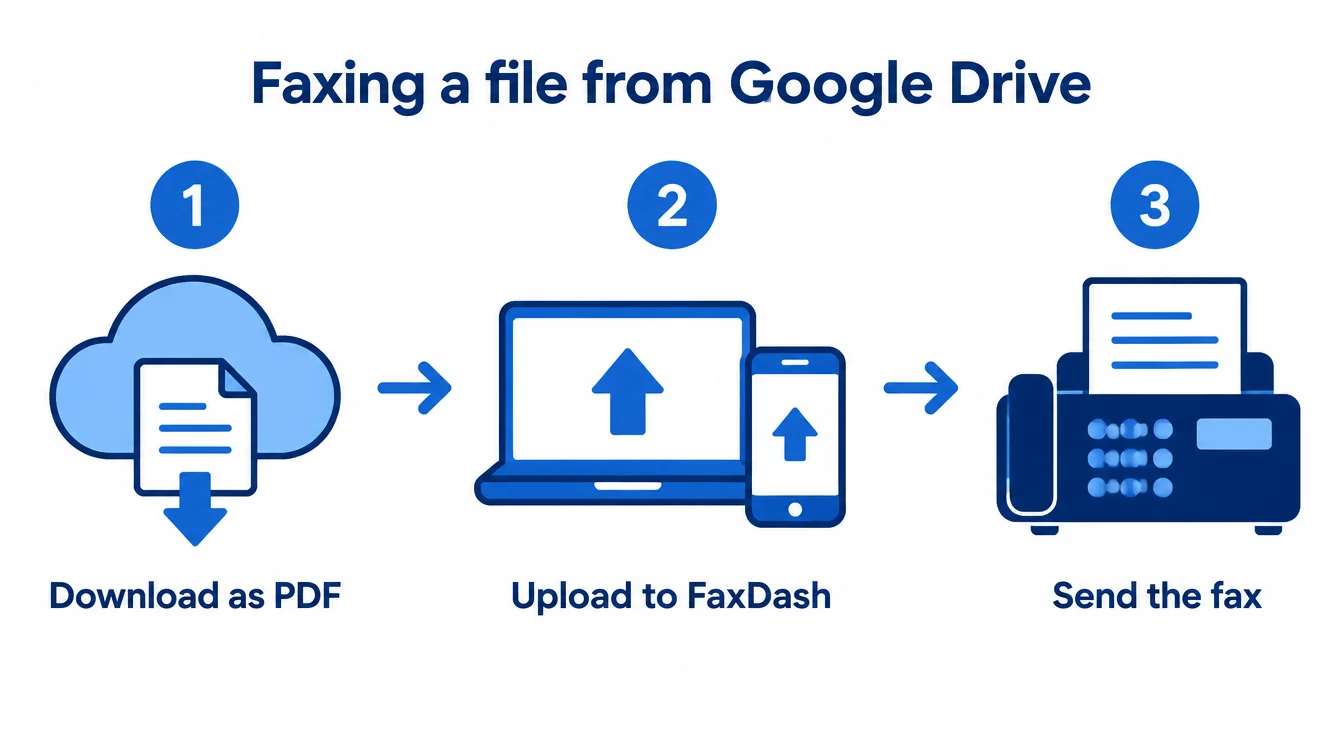
- Download the file as a PDF using Google's own steps: in a Google Doc, Sheet or Slides file, choose File, then Download, then the PDF format. For a file that's already a PDF in Drive, download it as is.
- Upload that PDF in the FaxDash web dashboard, or pick it in the FaxDash phone app.
- Enter the fax number, check the credit cost and send.
You don't need a fax number of your own for the dashboard or the app. FaxDash's sending help says only email-to-fax needs one.
Steps: a Google Doc, Sheet or Slides file on a computer
The Google steps come from Google's Drive help on downloading a file and Docs Editors help, checked on October 31, 2026.
- Open the file from drive.google.com in Docs, Sheets or Slides.
- Click File, then Download, and pick PDF Document (.pdf). The PDF downloads to your computer.
- Open the downloaded PDF and scroll every page. Check the page count and that nothing is cut off at the edges.
- In the FaxDash web dashboard, open Send Fax and drop in the PDF. If you add several files, they're merged into one fax.
- Type the fax number, or search your contacts. Help recommends international format: + and the country code, then the number (+1 for the US and Canada).
- Check the document, recipients and credit cost, then click Send Fax, or schedule it for later.
For a very large Google Doc in Chrome, Google's Docs help gives another route: File, then Print, set Destination to Save as PDF, then Save.
Steps: a PDF that's already in Drive
On a computer: go to drive.google.com, right-click the file and choose Download. Then upload it in the dashboard as above.
On a phone, Google's Drive help lists these steps:
- iPhone: in the Google Drive app, tap More next to the file, then Open in, then Save to Files, choose a folder and tap Save.
- Android: in the Google Drive app, tap More next to the file, then Download.
Then open the FaxDash app, pick the PDF, confirm the pages, enter the destination fax number and send.
For a Google Doc on a phone, Google's iPhone help doesn't document a PDF download from the Docs app, so the computer route above is the one we can point to with Google's own steps.
Common mistakes
- Sending a link instead of the file. A Drive or Docs sharing link means nothing on a fax. The recipient gets pages, so download a PDF copy and send that.
- A Drive link in an email-to-fax message. Email-to-fax reads one PDF attachment only. FaxDash's integrations help says other file types aren't read and the message text isn't sent, so a link in the body goes nowhere. Email-to-fax also needs an active FaxDash number.
- The download option is missing. Google's Drive help says a file's owner can turn off download, print and copy for people with comment or view access. Ask the owner for a copy, or for edit access.
- The download doesn't start in Chrome. Google's Drive help says blocking third-party cookies in Chrome can prevent Drive downloads, and explains how to allow them for drive.google.com only.
- Downloading the wrong format. The dashboard takes a PDF or images. Choose PDF Document (.pdf), not Microsoft Word (.docx), when you download.
- Paying for pages you didn't check. A Sheet can spill across more printed pages than you expect. Open the PDF and count before you upload, because each page costs a credit.
For fonts, margins and scan quality, see our checklist for preparing a document so it faxes cleanly.
Cost
A Google Doc costs what its PDF pages cost: 1 credit per page to US (+1) numbers, including Canada, and more credits per page anywhere else. A cover page has no feature fee but uses 1 send credit. The dashboard shows the credit cost before you send.
FaxDash's pricing help lists credit packs from 5 pages for $0.99 to 150 pages for $9.99 ($0.07 a page). No subscription is needed to send, and purchased credits never expire. FaxDash offers 2 free pages when you sign up.
FAQ
Can FaxDash open files straight from my Google Drive?
FaxDash's help doesn't describe a Google Drive connection, so this guide doesn't rely on one. Download a PDF copy with Google's steps, then upload it in the dashboard or pick it in the app.
Can I fax a Google Sheet or Slides file?
Yes, the same way. Google's Drive help says you can open the file in Sheets or Slides and use File, then Download, to save it as a PDF. Check the page count afterwards.
Does the recipient need a Google account?
No. They receive an ordinary fax on their fax machine or fax service.
Do I need a fax number to send it?
No. Sending from the web dashboard or the phone app doesn't need your own number. You only need one to receive faxes or to use email-to-fax.