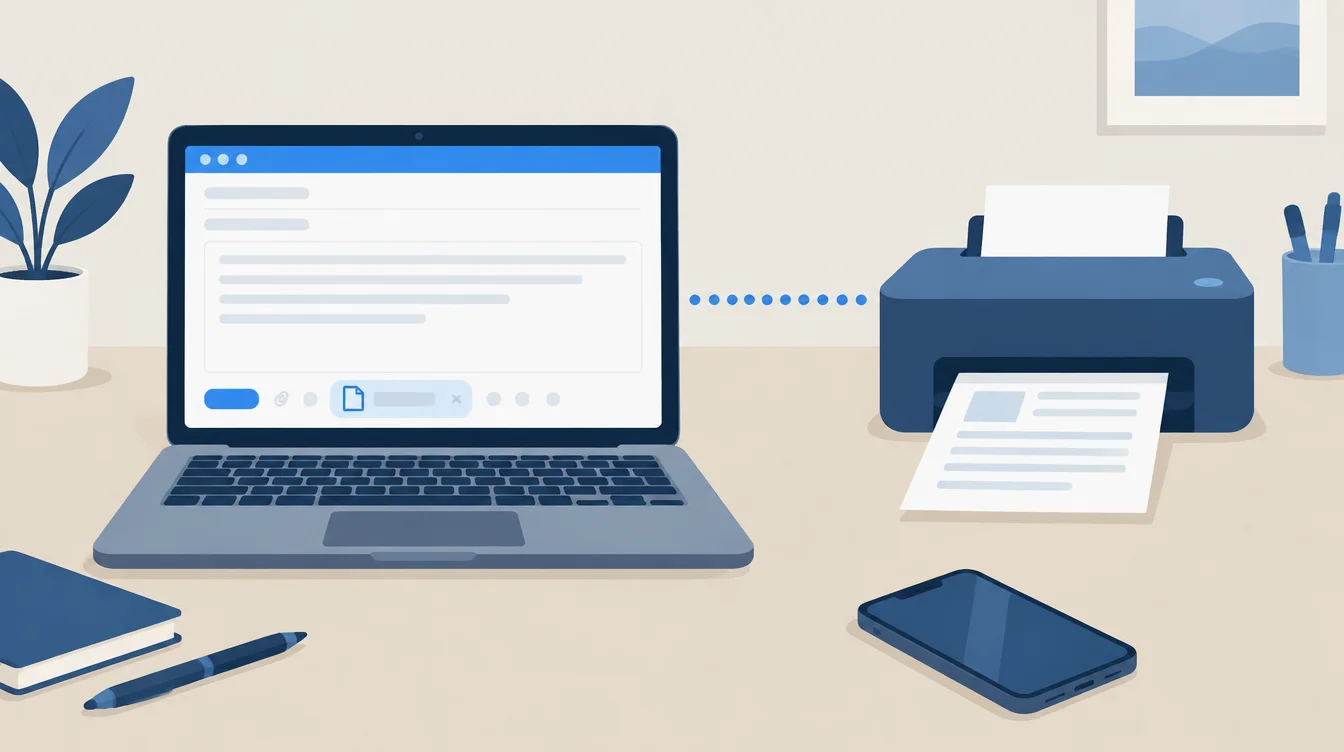
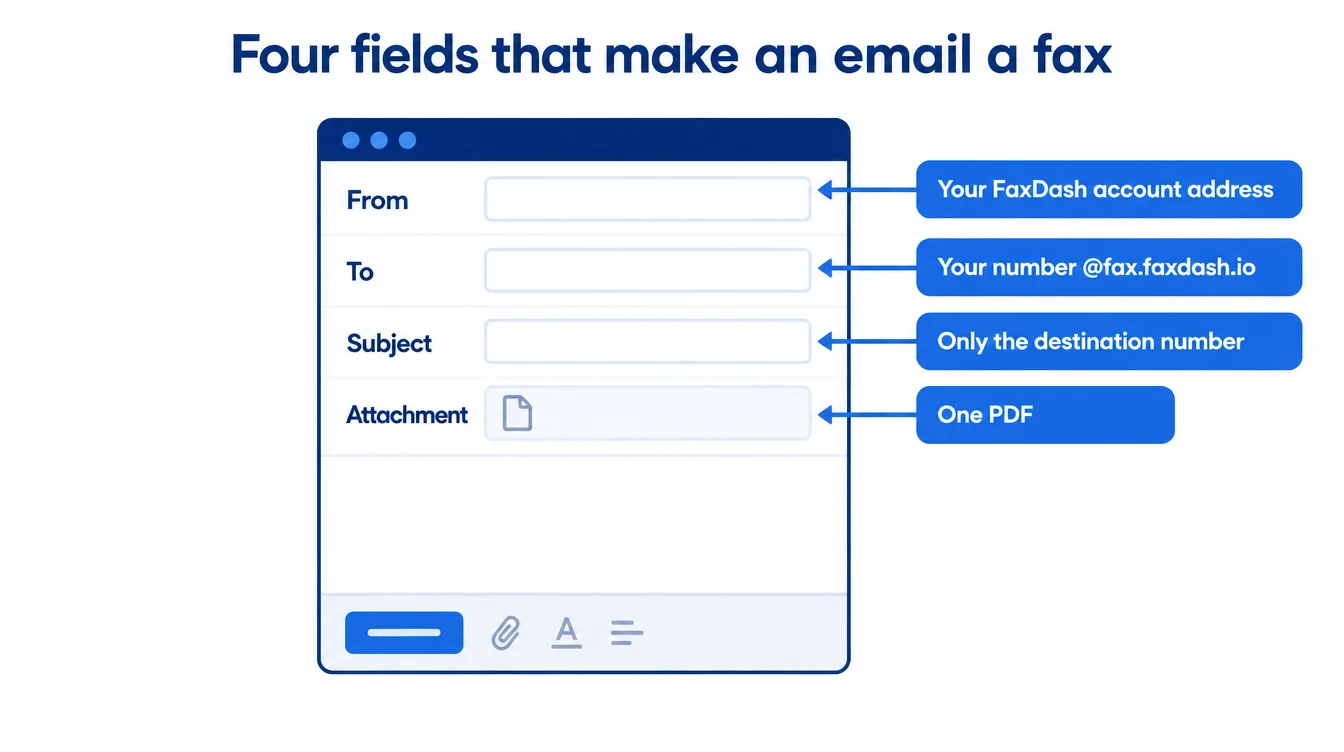
iCloud Mail can't send a fax by itself, but it can send the email that FaxDash turns into one. That works only when four fields are right: From, To, the subject and the attachment. In iCloud Mail, the From field needs the most care, because Apple lets you send from an alias or a Hide My Email address.
This is one route in our guide to how to fax from your computer, phone or email. The subject-line rules are the same as in our guide to faxing from Gmail, which has a table of examples.
Short answer
Write a new email in iCloud Mail from the address on your FaxDash account, send it to your own FaxDash fax number at fax.faxdash.io, put only the destination fax number in the subject, and attach the document as one PDF.
This needs an active FaxDash fax number. FaxDash's sending help says email-to-fax requires one, while the app and web dashboard don't. No number? Use the no-number route further down.
Steps
The fields come from FaxDash's email-to-fax help, and the iCloud steps from Apple's guides to writing email on iCloud.com and adding an attachment. All were checked on October 31, 2026.
- Start a new email at icloud.com/mail, or in Mail on your iPhone, iPad or Mac. Don't reply to or forward an old message.
- Check From. Apple's guide says to select From to choose a different address to send from. Pick the address on your FaxDash account, or your verified contact email. FaxDash refuses mail from any other address.
- Address it to your own number. In To, type your FaxDash fax number, digits only with the country code, then @fax.faxdash.io. FaxDash's example: if your number is +1 202 555 0123, send to 12025550123@fax.faxdash.io.
- Put only the destination number in the subject, such as +14155550142 or (415) 555-0142. A 10-digit number is read as US or Canadian. For any other country, start with + and the country code.
- Attach one PDF. On iCloud.com, Apple says you can attach from iCloud Drive, iCloud Photos or your device. Other file types aren't read, only the first of several PDFs is sent, and the message text isn't faxed.
- Send, then check FaxDash. There's no reply when it goes through. The fax appears in your Sent history with a live status, and you get a push notification and, unless you turned it off, an email when it's delivered.
If FaxDash can't send it, it replies to the address that emailed it and says why: no PDF attached, a number it can't read, an address that isn't allowed, or not enough credits. Nothing is charged.
The From field: aliases and Hide My Email
iCloud Mail gives you more than one address to send from, and FaxDash accepts only two: the email address on your FaxDash account, or the verified contact email you've added in FaxDash.
- iCloud aliases. Apple's guide to email aliases says you can send from an alias on iCloud.com and on your devices, and you can set a default send address. If your default is an alias that isn't on your FaxDash account, choose the right address in From before you send.
- Hide My Email. Apple's Hide My Email guide says you can choose Hide My Email in the From field of a new email. A random address like that won't match your FaxDash account, so FaxDash refuses it.
- Signed in to FaxDash with Hide My Email? Then your FaxDash account email is an Apple relay address. FaxDash's help says to add a contact email first, because the relay address can't send mail. Add it under Settings > Notifications > Contact email in the app, or Settings > General > Notifications in the web dashboard, then send from that address.
Common mistakes in iCloud Mail
- Sending from the wrong address. An alias or Hide My Email address that isn't on your FaxDash account is refused. See the From section above.
- A large file sent with Mail Drop. Apple says that when attachments are too large, Mail offers to deliver them with Mail Drop, and Apple's iCloud.com guide to adding an attachment says recipients see "an attachment or a Mail Drop link in the email." If FaxDash receives a link instead of a PDF, there's nothing to fax. Shrink the PDF, or send it from the dashboard.
- Forwarding the email with the PDF. The subject then holds the old subject line. Delete all of it and type only the destination number.
- Attaching a photo or a Word file. Only a PDF is read. Export or save the document as a PDF first.
- Several PDFs in one email. Only the first is sent. Combine them first, or use the dashboard, which merges several files into one fax.
No number? Send the PDF from the dashboard
If the PDF is in your iCloud Mail but you don't have a FaxDash number, download the attachment (Apple's download steps for iCloud.com), then open Send Fax in the FaxDash web dashboard, add the PDF, type the fax number and send. The dashboard shows the credit cost before you send; Help doesn't describe a cost check for email-to-fax, so count the pages first.
Cost
Email-to-fax uses credits like any other fax: 1 credit per page to US (+1) numbers, including Canada, and more credits per page elsewhere.
- Credits: packs from 5 pages for $0.99 to 150 pages for $9.99 ($0.07 a page), per FaxDash's pricing help. Purchased credits never expire.
- The number: a receive plan from $3.99/month (Starter).
- Free start: FaxDash offers 2 free pages when you sign up. Use them from the app or dashboard.
FAQ
Does it work from the Mail app as well as iCloud.com?
The rules are about the email, not the app, and FaxDash's homepage says email-to-fax works from Apple Mail. Check the From address in whichever app you use.
Can I use an iCloud alias?
Only if that alias is the address on your FaxDash account or your verified contact email. Any other address is refused.
What does the recipient see?
A fax sent from your FaxDash number. Only the attached PDF is faxed; the subject and the email text aren't.
Can I test it first?
Yes. Send a one-page PDF with nothing sensitive to a fax number you can check, and confirm it reaches Delivered and reads clearly.