
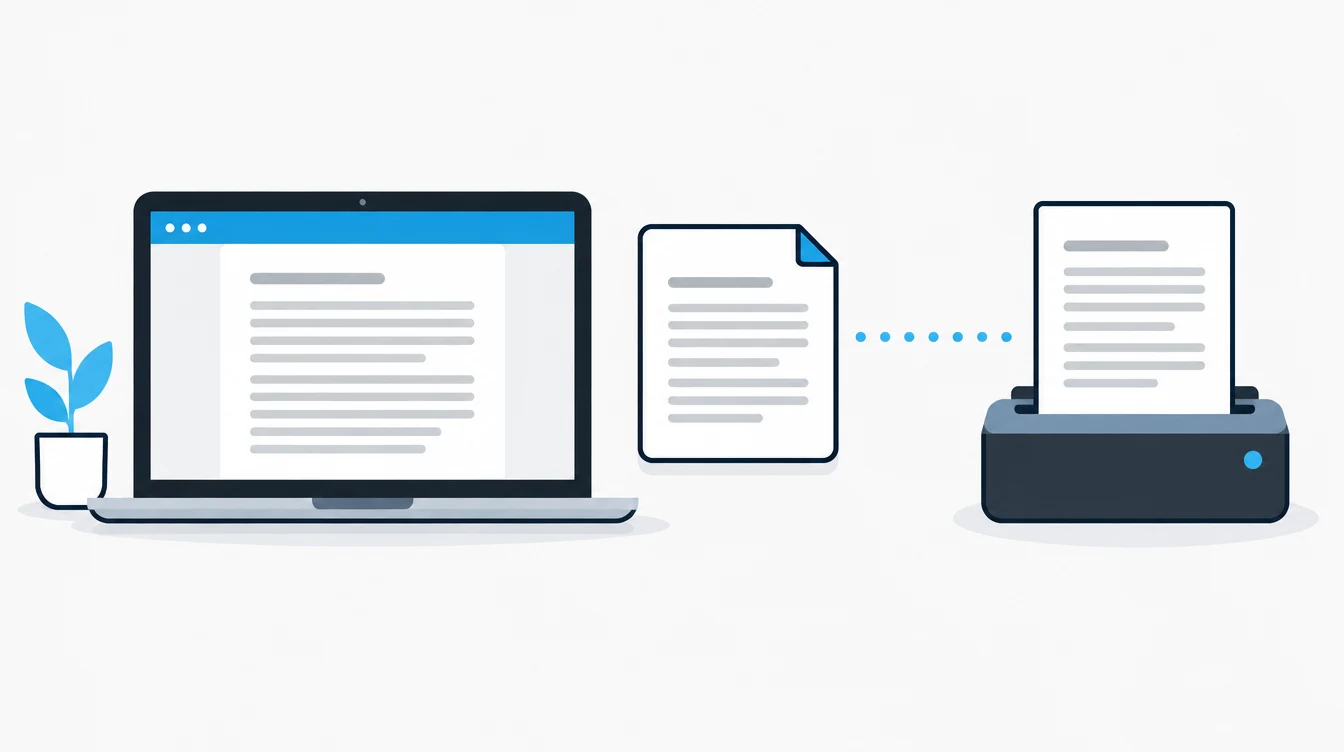
A Word document can't go to a fax line as it is. FaxDash's dashboard takes a PDF or images, so the real job is turning the .docx into a PDF that looks right, then sending that file. The conversion is where most problems start: comments that print, pages you didn't expect, or a password you forgot you set.
This is one of the file-type guides under our main guide to how to fax from your computer, phone or email.
Short answer
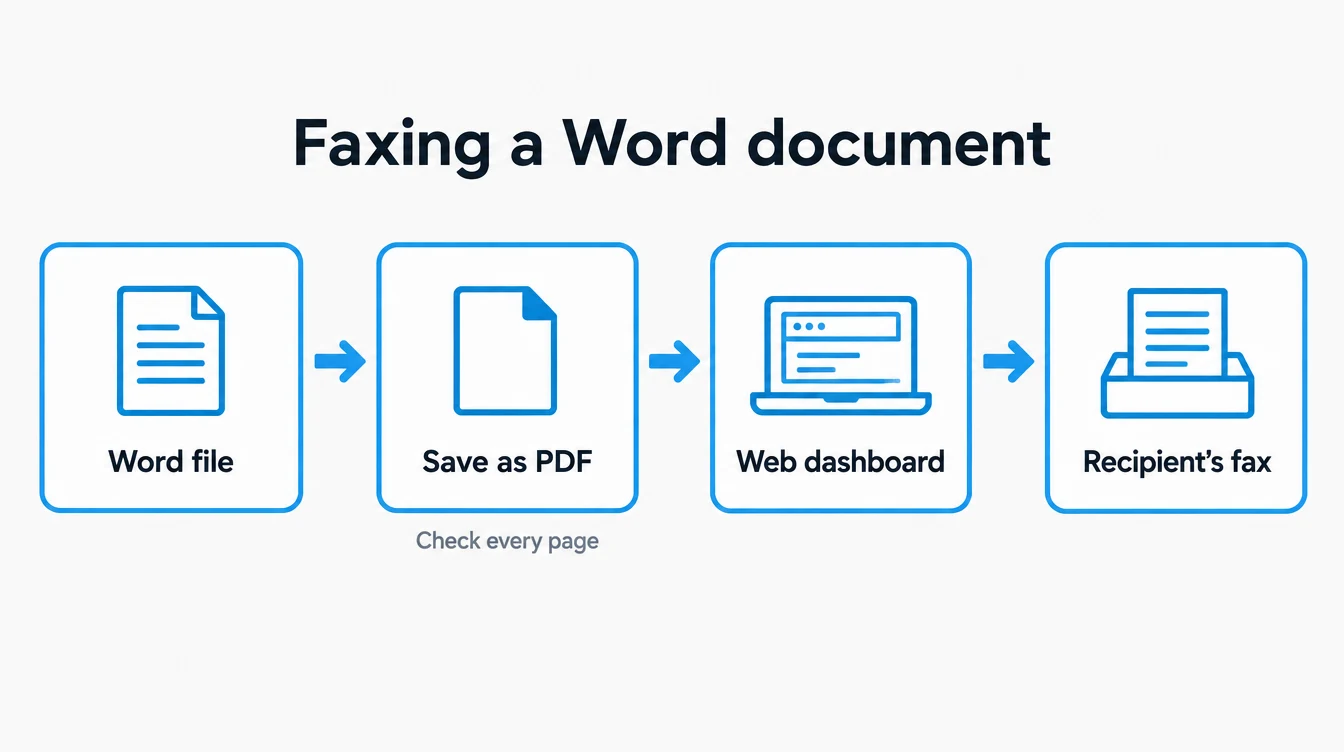
Save the Word document as a PDF, open the PDF to check every page, then upload it on the Send Fax page of the FaxDash web dashboard, enter the fax number and send. You don't need a fax number of your own for this route.
Step 1: Save the Word document as a PDF
These steps are from Microsoft's support page on saving or converting to PDF in Office, checked on October 30, 2026.
- Word for Windows: select File > Save a Copy (or Save As if the file has never been saved), choose a location, select PDF in the drop-down list, then Save. More Options > Options lets you choose a page range and what to publish.
- Word for Mac (Microsoft 365): select File > Save As or Save a Copy, choose PDF under File Format, name the file and Save.
- Word for the web: select File > Print, choose Save as PDF under Printer, then Save.
- Word on iPhone or iPad: tap File, choose Export, then PDF.
If Word's own option isn't available on a Windows PC, Microsoft's Outlook help describes Microsoft Print to PDF, a print-to-file printer included in Windows 10 and 11.
Step 2: Check the PDF, then send it from the dashboard
- Open the PDF, not the Word file, and scroll every page. This is the version the recipient will get.
- In the FaxDash web dashboard, open Send Fax and drop in the PDF. Several files are merged into one fax (sending help).
- Type the fax number or pick a contact. Help recommends international format: + and the country code, then the number (+1 for the US and Canada).
- Add a signature or watermark under Finishing touches, or a cover page with the cover page builder, if you need one. A cover page has no feature fee but uses 1 send credit, because it's a page.
- Check the document, recipients and credit cost, then click Send Fax, or schedule it.
On a phone, you can pick the exported PDF in the FaxDash app instead. Email-to-fax also works if you have a FaxDash number, but it reads only a PDF attachment: a .docx attached to the email isn't read (integrations help).
Fonts and layout that fax cleanly
A fax arrives in black and white at fax resolution, so a document that looks fine on screen can lose detail. These are general habits, not FaxDash requirements:
- Use plain, dark text. Very small print, light gray text and thin decorative fonts are the hardest to read on a fax.
- Don't rely on color. Colored highlights, shading behind text and colored table fills may not reproduce well in black and white. Use bold or underline for emphasis instead.
- Keep content away from the page edges. Headers, footers and page numbers set close to the edge are the easiest to lose. Check them in the PDF.
- Use the paper size your recipient expects. In the US that is usually Letter. Check the page count after you export.
Microsoft also notes that if fonts can't be embedded in the PDF, a PDF reader might substitute another font, and Word for Windows has a "Bitmap text when fonts may not be embedded" option for that case. If the text in your PDF looks different from the Word file, try that option. For more on readability and page order, see our checklist for preparing a document so it faxes cleanly.
Common mistakes with Word files
- Comments and tracked changes in the fax. In Word for Windows' PDF options, "Document showing markup" includes tracked changes. Make sure Document is selected instead, or accept the changes first.
- A password on the PDF. Word's PDF options include "Encrypt the document with a password." Leave it off for a fax copy: FaxDash's troubleshooting help lists a password-protected document as something to rule out when a fax keeps failing.
- Extra pages. A stray blank page at the end, or the whole file when you meant to send two pages, costs credits. Use the page range option or delete the pages, then compare the PDF's page count with what you expect.
- Sending the .docx itself. The dashboard takes a PDF or images, and email-to-fax reads only a PDF. Export first.
- Faxing the draft. Export after the final edits and signature, and name the PDF so you can tell it apart from earlier versions.
Cost
A Word document costs what its PDF pages cost: 1 credit per page to US (+1) numbers, including Canada, and more credits per page elsewhere. A cover page has no feature fee but uses 1 send credit. The dashboard shows the cost before you send.
FaxDash's pricing help lists credit packs from 5 pages for $0.99 to 150 pages for $9.99 ($0.07 a page). No subscription is needed to send, and purchased credits never expire. FaxDash offers 2 free pages when you sign up.
FAQ
Can I upload a .docx file directly?
FaxDash's sending help describes uploading a PDF or images in the dashboard and picking a PDF in the app, and email-to-fax reads only PDFs. Save the document as a PDF first.
Can I fax a Word document from my phone?
Yes. Export it as a PDF in Word on your phone (File > Export > PDF), then pick that PDF in the FaxDash app. Help doesn't say which folders the app's PDF picker shows, so if the file isn't listed, upload it in the web dashboard instead.
Do I need a fax number?
Not to send from the dashboard or the app. You need one only to receive faxes or to send by email-to-fax.