
If you already work inside ChatGPT or Claude, asking it to "fax the signed lease to Dr. Lee" sounds like a small convenience. The useful question is what the assistant actually does when you ask, and which details you should confirm before a fax goes out under your account and spends your credits.
This article shows how to send a fax from ChatGPT or Claude with FaxDash's fax MCP server: the setup steps for each assistant, what the connector can and cannot reach, where a person still needs to check, and what happens when it can't send for lack of credits.
This article is general information, not legal, tax or compliance advice. Agency rules and fax numbers change, so confirm with the agency or a qualified professional before you send.
What a fax MCP server is, and what it is not
MCP (Model Context Protocol) is an open way for an AI assistant to call tools in another service. FaxDash runs an MCP server at https://api.faxdash.io/mcp. According to FaxDash's connection guide, you add that address to your assistant yourself, over streamable HTTP, and then sign in to FaxDash and approve permissions.
So this is a custom connector that you add to your assistant. It is not a listing in ChatGPT's or Claude's app directory, and this article does not describe it as an official ChatGPT or Claude integration. The /ai page has setup notes for Claude, ChatGPT, Grok and several command-line clients. For Claude it also offers an "Add FaxDash to Claude" button, which, in the page's words, "Opens Claude with the connector details filled in. You still sign in and approve."
Whether you can add a custom connector can depend on your assistant's plan, so check your assistant's plan before you start. The menus below belong to the companies that make the assistants and can change. If a step doesn't match what you see, follow FaxDash's current steps on the /ai page and in the integrations help, both checked November 3, 2026.
How to send a fax from ChatGPT: setup steps
FaxDash's integrations help gives these steps for ChatGPT:
- In ChatGPT, open Settings → Plugins. The /ai page describes it as "the page that manages plugins, skills and MCPs."
- Click Add, then Add MCP server.
- Name it FaxDash and set the type to Streamable HTTP, not STDIO.
- Paste
https://api.faxdash.io/mcpinto the URL field and connect. - Sign in to FaxDash, enter your second factor if you use one, and approve the permissions.
How to send a fax from Claude: setup steps
FaxDash's integrations help gives these steps for Claude:
- In Claude, open Settings → Connectors.
- Click Add, then Add custom connector.
- Name it FaxDash and paste
https://api.faxdash.io/mcpinto the URL field. - Click Continue, then Connect. Claude sends you to the FaxDash sign-in page.
- Sign in as you would in the app, enter your second factor if you use one, and approve the permissions.
There are two shortcuts. The "Add FaxDash to Claude" button on the /ai page opens Claude with the form already filled in. In the FaxDash app, Settings → Connected apps → Connect to AI has an Add to Claude button and a button that copies the address.
Once either assistant is connected, the /ai page says "ordinary requests work," and gives three examples: "Fax this signed lease to (415) 555-0142.", "Did that fax go through?" and "How many fax credits do I have left?"
The connector uses your own FaxDash account. The /ai page says it "uses your own FaxDash account, your own credits, and your own fax history." Sign-in uses OAuth 2.0, the standard where you log in on FaxDash's own page and the assistant receives limited access instead of your password. If your account has two-factor authentication, you enter the code as you would in the app.
What the assistant can do once connected
The /ai page lists every tool the assistant can call. Nothing outside this list is reachable:
| Tool | What FaxDash documents it as doing |
|---|---|
send_fax | Sends a PDF or photo to a fax number, inline, from a URL, or by document id, with an optional cover sheet (your default or any from the library), signature or watermark. Spends credits. |
list_templates | Lists the cover sheet library and the forms the server can fill in and send. |
list_cover_sheets | Lists the cover sheets with your default cover and the details you saved for it, so the assistant asks only for what is missing. |
fill_cover_sheet | Fills in a cover sheet and returns a 5-minute link to the PDF, to download or check before sending. Sends nothing and spends no credits. |
list_contacts | Finds a saved contact by name, so a fax can go to "Dr. Lee" instead of a number. |
create_contact | Saves a name and fax number to your contacts. If the number is already saved, nothing is duplicated. |
get_upload_url | Gets an upload link for a large PDF, to send by document id. |
get_fax_status | Checks whether a fax was delivered. |
list_faxes | Lists your recent faxes. |
check_inbox | Lists faxes you have received and how many are unread. |
get_received_fax | Reads one received fax: summary, text, and a download link. |
get_credits | Reads your credit balance. |
buy_credits | Returns a checkout link for you to open. The assistant never pays. |
Each capability sits behind a permission you approve on FaxDash's consent screen: send faxes, view fax history, read faxes you receive, view contacts, add to your contacts, view your credit balance and start a credit purchase. The /ai page says "The approval screen lists exactly these before anything is granted." The integrations help adds three tools every connected assistant is offered whatever you approve: checking whether your email address is verified, sending the verification email, and confirming the six-digit code from it.
The signature send_fax can add is the one you saved. Signing is done in the FaxDash web dashboard: on the Send Fax page, click Add signature under Finishing touches, draw it, and save it to your account to reuse it (scan, sign & enhance help).
The documented limits matter as much as the tools:
- It cannot spend money.
buy_creditsreturns a Stripe checkout link that you open and complete yourself. - Reading is separate from sending. Reading received faxes, looking up saved contacts and adding contacts are separate permissions. Reading is read-only: the assistant cannot mark faxes read, delete them, or edit or delete contacts. The most it can write is a new contact, and only if you grant that permission.
- Some things are refused outright. The /ai page says stored documents, phone numbers and settings are refused.
The requirements for sending are short. The /ai page says: "You need a PDF the assistant can read, and enough credits." Sending costs 1 credit per page to US (+1) numbers, and international numbers use more credits per page, per FaxDash's sending help.
Why a request still needs a confirmation step
The mechanism is simple. You write a request in plain language. The assistant turns it into a tool call, such as send_fax with a document, a destination and options. FaxDash then handles that fax "exactly like any other fax you send," as the Privacy Policy puts it.
The weak point is the translation step. The assistant has to pick a contact, a file and a set of options from your wording. FaxDash checks that the connection has permission to send. It does not know whether "Dr. Lee" meant the contact you had in mind. Whether your assistant pauses to show you a tool call before running it depends on the assistant and how you have set it up. FaxDash's pages do not describe that behavior, so do not count on it. What FaxDash does describe is a notice afterwards: for an assistant you connect by signing in, the integrations help says "Each fax it sends or schedules also triggers a push notification," and the first time it uses your account you get a push notification and an email saying which assistant it was and what it can do.
A fax also can't be pulled back once it has gone out. The /ai page notes that faxes already sent stay in your history. That makes a confirmation before sending cheaper than any correction afterwards.
Before the assistant sends, ask it to show you these four things and check each one:
- Recipient number. If it resolved a name through
list_contacts, check the number it picked, not just the name. Two contacts can share a surname. - Document. Confirm which file it is about to send, and that it is the final version, signed if it needs to be. Signing is done in the FaxDash web dashboard, so sign there first.
- Pages. Ask for the total page count, and whether it is adding a cover sheet, signature or watermark. If it adds a cover sheet, it can fill one in first with
fill_cover_sheetand give you a link to check. - Cost. Work it out from the documented rate: 1 credit per page to US (+1) numbers, and more per page for international numbers. A cover page has no feature fee but uses 1 send credit. If it matters, ask the assistant to read your balance with
get_creditsfirst.
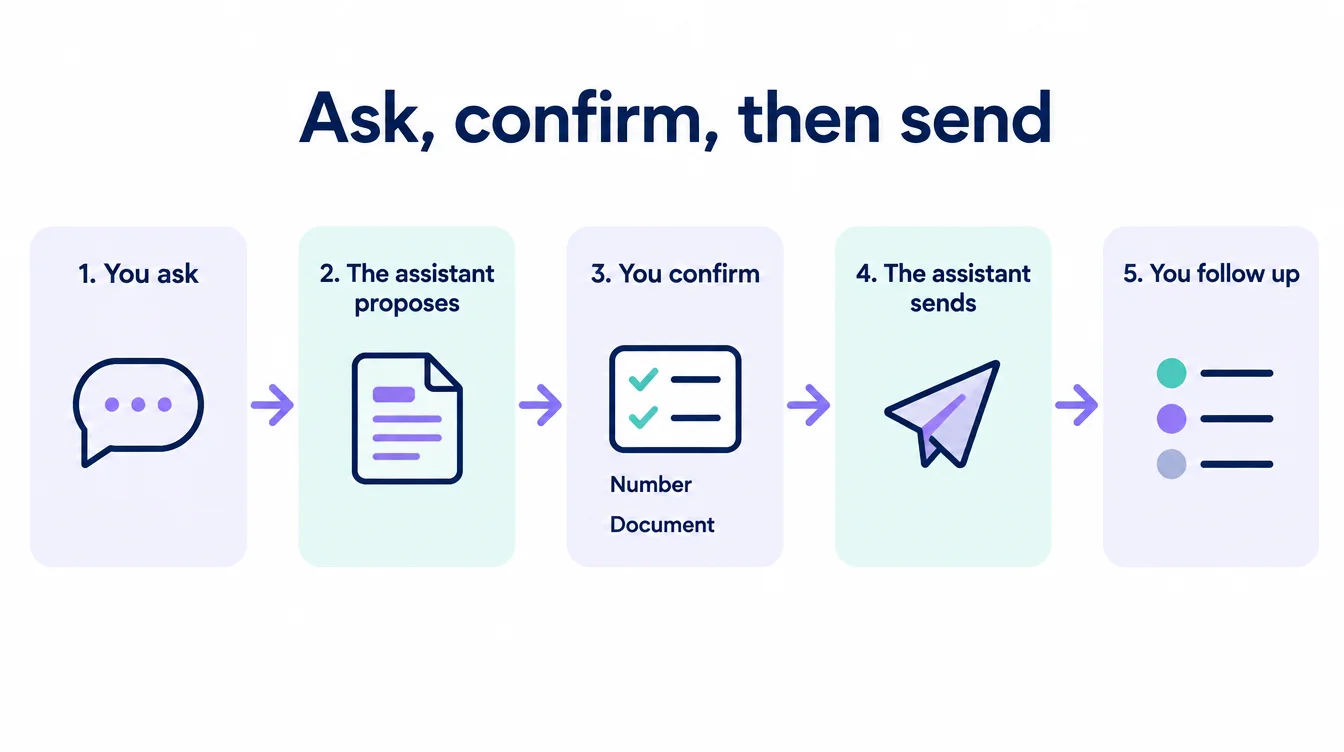
A practical rule: confirm every time the fax goes to a new number, the document is signed or binding, or the cost is more than you would shrug off. Routine resends of the same document to a number you have used before carry less risk, but the check is short, so it is worth keeping as a habit.
A hypothetical request, traced from prompt to delivery
Hypothetical example. The names, numbers and document below are synthetic, and this article does not show real assistant or FaxDash output.
You ask your assistant: "Fax the signed lease to Dr. Lee and let me know when it arrives."
- The assistant searches your contacts and finds two entries: Dr. Amy Lee and Dr. Daniel Lee. It should ask which one you meant. If it does not, this is where your check catches it.
- It has two lease files in the conversation: an unsigned draft and the signed copy. You confirm the signed copy.
- It reports six pages to a US number. At 1 credit per page, that is six credits under the documented rate. A cover sheet would be one more page, and one more credit.
- You approve, and it calls
send_fax. - Later you ask, "Did that fax go through?" and it calls
get_fax_status. A Delivered status means the fax transmission completed.
Steps 1 to 3 are the confirmation. Step 5 is the follow-up. If the final status is a failure, FaxDash's guide to failed faxes explains what to check before you resend. FaxDash retries many failures automatically, and credits for a fax that finally fails are returned to your balance.
When the assistant can't send for lack of credits
The /ai page's troubleshooting note covers this case: "Sending fails for lack of credits. Ask for a purchase link, or buy credits in the app." If you approved the permission to start a credit purchase, buy_credits returns a checkout link. You open it and complete the purchase yourself. Nothing is paid on your behalf.
Whether the assistant is allowed to buy comes from the permissions you approve. The integrations help says "a tool for sending, reading or buying is not offered unless you granted it," and the buying permission "only creates the link."
One destination rule applies to every route, the connector included. FaxDash's sending help says countries under comprehensive U.S. sanctions, "currently Cuba, Iran and North Korea," can't be faxed, and a send to one of them "is refused before any credits are used."
Where your documents go when an assistant handles them
This part decides whether the connector suits your documents at all. FaxDash's pages are explicit that the assistant's provider sees what the assistant handles.
The /ai page says: "A fax you ask it to read, and any document it passes to us, goes through the company that runs the assistant, under that company's terms rather than ours." The HIPAA page adds that this "applies to sending as much as to reading." A document the assistant hands to FaxDash passes through the assistant, and a link it passes along is itself access to the document. The HIPAA page says only a document you uploaded yourself and referred to by id stays out of the assistant, "and even then, what you type to the assistant about it may carry PHI."
On health information, the HIPAA page says consumer and Team plans of ChatGPT and Claude are not covered by a BAA (Business Associate Agreement). If HIPAA applies to you, the page says to get a BAA with the assistant's provider first, and to confirm which of its surfaces that agreement covers.
There is a second AI system to account for. When you ask the assistant to read a received fax, get_received_fax returns the summary FaxDash created for it. That summary comes from FaxDash's own AI analysis of received faxes, which is separate from your assistant.
FaxDash's receiving help says AI analysis "is on unless you turn it off; accounts with a signed BAA start with it off and can turn it on." It also says: "Analysis runs on Amazon Bedrock, inside our AWS BAA." To change it, use "Summarize received faxes with AI" in Settings, in the app or the web dashboard.
Our article on AI fax summaries covers what the analysis produces and how to check it. If you handle health information or other regulated documents, decide with whoever owns compliance in your business. FaxDash signs a BAA on the Business plan only. To request one, email FaxDash support at support@faxdash.io. This article is not compliance advice.
If you never connect an assistant, the HIPAA page says, "no fax content reaches any AI provider through this route."
How to disconnect
You can remove the connector inside the assistant itself, or revoke it in the FaxDash web dashboard under Settings → Security, where the Connected assistants card lists every assistant you have approved. Per the integrations help, a revoked assistant "stops getting new access," and "any access token it already holds stops working within five minutes at the latest." To refuse every assistant at once, switch off Allow AI assistants in the same card.
Disconnecting does not undo anything. Faxes already sent stay in your history, and spent credits are not refunded.
When the connector is worth using, and when the app is simpler
The connector is most useful when:
- You already have the document in your assistant's conversation, and switching apps is the main cost.
- You send to a small set of saved contacts, so the name lookup has little room for error.
- You want quick follow-ups, such as delivery status, recent faxes or your balance, without opening FaxDash.
Sending from the FaxDash app, on your phone or in a browser, may be the better route when:
- The document contains health information, and you do not have a BAA with the assistant's provider that covers the surface you use.
- You would have to check every detail the assistant proposes anyway, so the conversation adds a step instead of saving one.
- The fax goes to a new or international number, where the cost and destination rules deserve a direct look.
To decide, run a small trial with non-sensitive documents. Each permission is approved individually on the consent screen, so approve only the ones the trial needs, such as sending faxes, and leave reading received faxes off unless you need it. Send a blank test page to a fax number you control, including one request that is deliberately ambiguous, such as a name that matches two saved contacts. Note whether the assistant asks before sending, what you had to correct and how long the confirmation took. If it reliably shows you the number, document, pages and cost before sending, it can earn a place in your routine. If you keep catching wrong guesses, use the app for sending and keep the assistant for status checks.
How another fax service handles AI assistants
Here's how Fax.Plus describes its own MCP server, checked November 3, 2026.
Fax.Plus's MCP server documentation lists its server at https://mcp.fax.plus/mcp and says it "is available on all paid plans." Its pricing page lists the Basic plan at $6.99 a month billed annually ($83.99 a year), as of November 3, 2026. FaxDash's integrations help says connecting an assistant by signing in to FaxDash "works on every plan."
Next step
If several people in your office send and receive faxes, the FaxDash business page explains how a Business plan with team seats, a shared inbox and a dedicated number fits that workflow. Check the details against your own volume before you choose a plan.