
The short answer
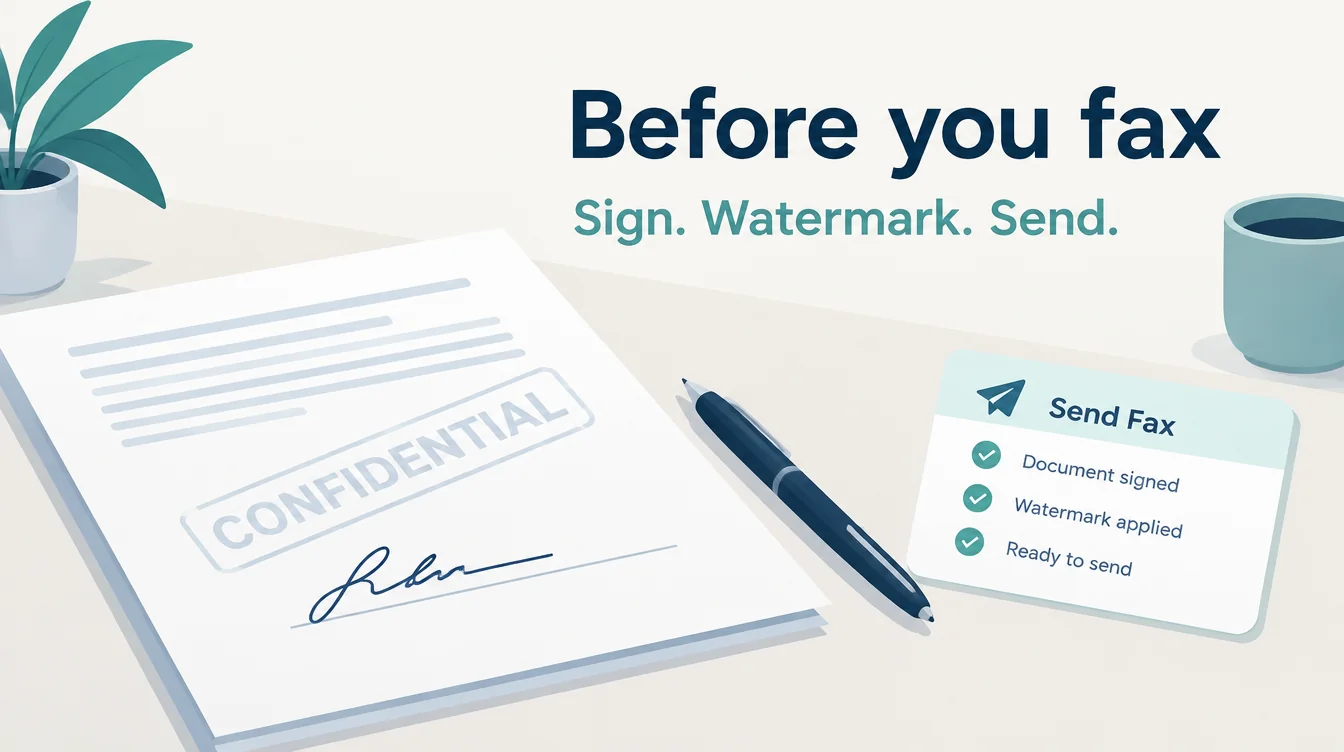
Finish the pages before you send. On the Send Fax page, under Finishing touches, you can draw a signature and place it on the document, and you can add an opt-in watermark such as CONFIDENTIAL or DRAFT. Document redaction is also available, so you can black out what the recipient should not see. Then send once.
This article is general information, not legal, tax or compliance advice. Agency rules and fax numbers change, so confirm with the agency or a qualified professional before you send.
These steps label, complete or obscure parts of the pages you are about to fax. They do not change who you dial, and they are not a substitute for checking the destination number.
This guide follows the live FaxDash Help Center topics Scanning, signing & enhancing and Sending faxes, checked November 16, 2026. Product pages describe redaction as a way to black out what they should not see; the Help Center does not yet publish click-by-click redaction steps.
Related reading: How to prepare a document so it faxes cleanly, Best mobile fax apps: scan to fax from your phone, and Secure online fax: watermarks, AI summaries, and who can see your documents.
When each finishing step helps
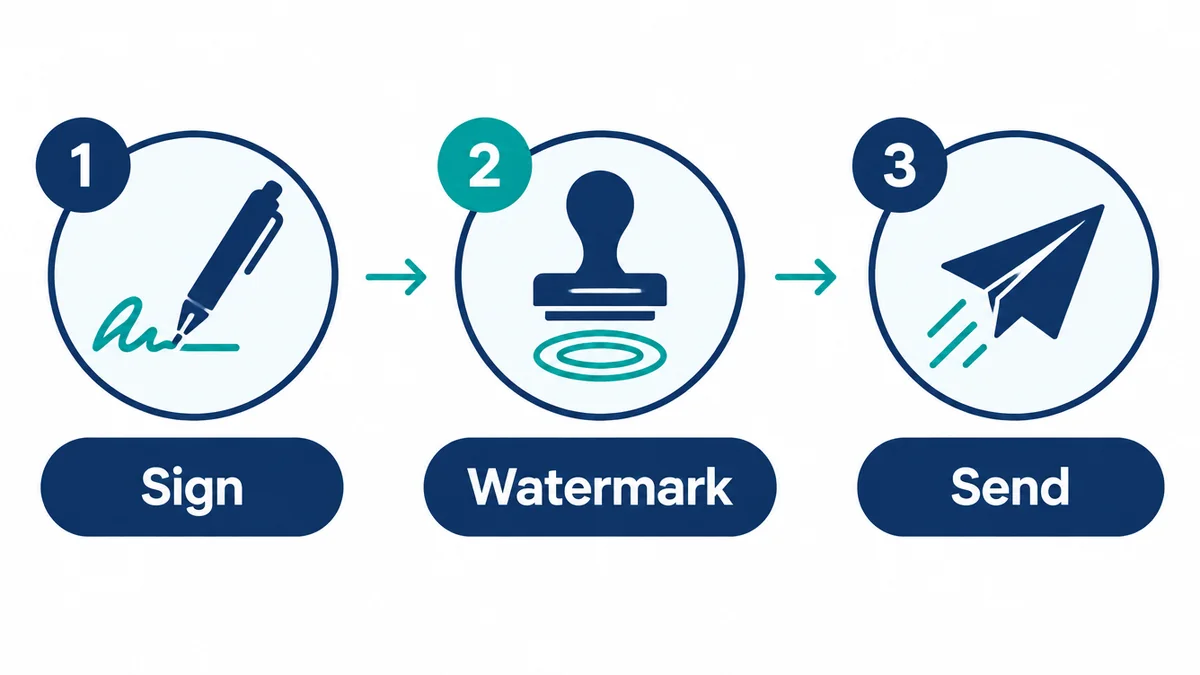
Signature. Use it when you need a mark on the page without printing, signing on paper, and scanning the packet back in. Draw once, place it, and save it to reuse. Help documents these steps on the web dashboard Send Fax page, under Finishing touches.
Watermark. Use it when the office wants a visible label on the faxed pages (for example CONFIDENTIAL or DRAFT). Watermarks are opt-in and have no feature fee. Nothing is stamped unless you add one.
Redaction. Use it when a field or line should not be visible to the recipient. Document redaction is live in FaxDash. The product describes it as a way to black out what the recipient should not see. A watermark is not a substitute for redacting sensitive fields.
Phone-camera enhance. Help documents one-tap enhancement for pages you capture with the phone camera: it converts the page to high-contrast, fax-optimized output and removes shadows and noise.
Cover page (optional). The Help Center describes a built-in cover page builder (name, number, recipient, subject, short message). Count a cover page in the page total. A fax to a U.S. or Canadian (+1) number uses 1 credit per page, including that cover. A cover page uses 1 send credit.
Add a signature (Help steps)
From How do I add my signature?:
- On the web dashboard, add your document on the Send Fax page.
- Under Finishing touches, click Add signature.
- Draw your signature.
- Choose the page and position.
- Click Apply signature.
- Save it to your account if you want to reuse it next time.
Help documents these signature steps in the web dashboard. Check the live product for the file type you have open.
Add a watermark (Help steps)
From Can I add a watermark?:
- On the Send Fax page, under Finishing touches, click Add watermark.
- Pick CONFIDENTIAL, DRAFT, URGENT or COPY, or type your own text.
- Click Apply watermark.
Watermarks have no feature fee. They do not replace redacting sensitive fields on their own, and they do not prove the recipient will treat the page as confidential.
Redaction
Document redaction is available in FaxDash, so you can black out what the recipient should not see before you send. Because the Help Center does not yet publish click-by-click redaction steps, follow the controls you see in the product and email support@faxdash.io if a step is unclear. Leave private document contents out of the email.
Wet-ink exception (Forms 2848 and 8821)
If you are faxing or mailing IRS Form 2848 or 8821, the IRS requires a handwritten signature for those routes. A drawn on-screen signature is not a valid signature for Forms 2848 or 8821 filed by mail or by fax. Use ink on a printed form for that path, then fax the signed pages.
See How to fax IRS Form 2848 or 8821 (and where to fax it) and A fax workflow for small tax offices: Forms 2848 and 8821, signatures and handoffs. This note is not tax or legal advice.
How a few other services document signing
Checked November 16, 2026, on each service's own pages. This is a short feature read, not a plan or price comparison. Check what each service offers for signing, watermarks and redaction.
- eFax features lists Electronic Fax Signing. The eFax Electronic Signature page says you can sign with your finger or take a picture of your signature, then drag and drop it onto the document and save it for future use.
- iFax Annotate & eSign documents a built-in eSignature integration. You can add a signature to a fax, and you can request a signature from someone else.
- FaxBurner documents stored signatures so you can sign incoming faxes and send them back, and it documents photographing a page to send.
FaxDash's documented finishing path is an optional signature and a watermark on the Send Fax page, plus document redaction to black out sensitive fields. Credits for the send itself still apply: 1 credit per page to +1 numbers. Destinations outside +1 use more credits per page, with the exact cost shown before you confirm.
After finishing touches
- Confirm the destination number.
- Check the page count, including a cover page if you added one.
- Send once. Wait for the final status.
- If the fax shows Delivered, save the confirmation when you need a record (web: Download Receipt on Sent Faxes).
Delivered means the transmission completed. It does not mean someone has read the pages.
If your office shares one send history so a teammate can see who already finished and sent a packet, team seats are available on Standard and above. Teams Help states everyone works from one shared inbox and sent history, and every fax in the sent history shows who sent it.
When to stop and ask
- Whether an electronic mark is enough for your document type: your counsel or the recipient's rules. This article is not legal advice.
- IRS authorization forms that require ink for fax or mail: follow the IRS instructions and the linked FaxDash IRS guides above.
- Product steps that do not match what you see: email support@faxdash.io with the screen you are on and what you expected. Leave private document contents out of the email.