
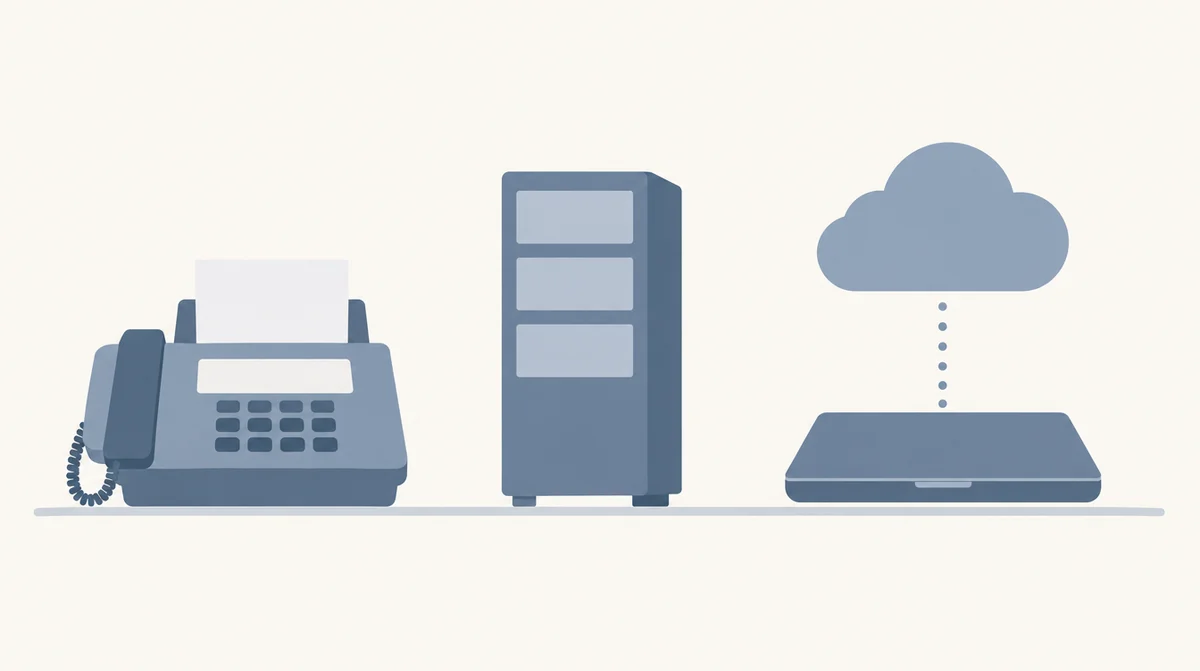
A small office that still needs fax has three ways to set it up: a fax machine on a phone line, a fax server that you run yourself, or a cloud fax service that someone else runs. They differ mostly in what you have to look after. This guide lays out what each one involves, what FaxDash's cloud setup includes, and a short checklist for choosing.
If your fax machine's phone line is going away, our guide to what happens to the office fax machine when the copper landline goes covers that case in detail. This guide is a wider comparison of the three setups.
Short answer
Pick the setup by what you are willing to maintain. A fax machine needs a line, paper, toner and upkeep. A fax server, according to iFax's guide, needs a computer with fax software, a fax modem and a connection to your network, plus an internet connection or a phone line. A cloud fax service moves that work to the provider: with FaxDash you send from the app or the web dashboard, and add a dedicated number only if you need to receive.
The three setups
A fax machine on a phone line
This is the traditional setup. FaxDash's guide to the copper landline change, checked November 22, 2026, describes what you keep paying for with a machine: a line just for fax, plus paper, toner and machine upkeep. iFax's guide notes that with a machine, people walk to it to send and receive.
A fax server you run yourself
iFax's fax server guide, checked November 22, 2026, describes a fax server as a computer or network device that sends and receives faxes through a computer network. It says a fax server needs three basics: a computer with a fax program, a fax modem and an internet connection, or alternatively a traditional telephone line, connected to the local network. Sending is typically from an email program. Incoming faxes can be routed to email and stored in a folder on the local network, and a printer can be connected to the network for paper copies.
A cloud fax service
With a cloud service, the sending and receiving equipment is the provider's. For FaxDash, per its help center, you send from the iPhone or Android app or from the web dashboard, and sending doesn't need a number of your own. To receive, you choose a dedicated local or toll-free number in the web dashboard, on a receive plan.
What each setup asks of you
| Fax machine | Fax server you run | FaxDash cloud fax | |
|---|---|---|---|
| Equipment | The machine and a phone line | A computer with fax software, a fax modem, a connection to your network, and an internet connection or phone line | A phone, computer or browser |
| Where faxes arrive | Printed by the machine | By email, or in a folder on your network | In the inbox in the app and the web dashboard, with a push notification |
| Paper copies | The machine prints them | A printer connected to your network | FaxDash Connect prints each fax you receive on the printer you choose |
| Who sends | Whoever stands at the machine | People with access to the server's fax program or email | Anyone signed in, with shared credits on a team |
Sources: FaxDash's copper landline guide, iFax's fax server guide, and FaxDash's receiving help, FaxDash Connect help and teams help.
What FaxDash includes for a small office
All of the following comes from FaxDash's Help, checked November 22, 2026.
- One inbox. Received faxes appear in your inbox in the app and the web dashboard, with a push notification. You also get an email for each new fax with who sent it, when it arrived and a link to open it in FaxDash. The fax itself isn't attached.
- Paper when staff want it. FaxDash Connect is a small desktop app for Mac and Windows that prints each fax you receive, once, on the printer you choose. It needs a FaxDash fax number, and it can't send faxes. On a team it prints the team's shared inbox, and Help says to run it on one computer only, because every copy prints every fax.
- A team. Teams are on the Standard and Business plans and are managed in the web dashboard, not the mobile app. Admins and members send from the team's credits and share one inbox and sent history. Business includes 2 seats, so it starts as you plus 2 people, and extra seats are $2.99/month each. Standard includes none, so the owner adds each seat.
- Sending without a number. Help says sending from the app or web dashboard doesn't require your own number. Email-to-fax is the exception: it sends from your own FaxDash number.
A short checklist for choosing
- List who sends and who receives. One person at a desk is a different job from a front desk and a back office.
- Decide whether you need to receive. Sending from FaxDash is pay as you go. Receiving needs a dedicated number on a receive plan.
- Decide whether staff want paper. If they do, a printer on the network works for a fax server, and FaxDash Connect covers received faxes for a cloud setup.
- Count who needs to work in the inbox. More than one person points to a team plan.
- Ask who will look after the setup. If the answer is nobody, that favors a service where the provider does it.
- Plan for sending abroad. FaxDash sends to most countries, uses more credits per page outside the US and Canada, and can't send to Cuba, Iran or North Korea.
Cost
For FaxDash, sending is pay as you go with no subscription: 1 credit per page to US (+1) numbers, including Canada, and more credits per page elsewhere. A cover page has no feature fee but uses 1 send credit. FaxDash's pricing help, checked November 22, 2026, lists credit packs from 5 pages for $0.99 to 150 pages for $9.99. Receiving uses a monthly plan tied to your number: Starter at $3.99/month with 50 received pages and 10 send credits, Standard at $6.99/month with 200 pages and 25 send credits, and Business at $12.99/month with 500 pages and 60 send credits. Help says each received page beyond a plan's monthly allowance uses one send credit from your balance.
FaxDash offers 2 free pages when you sign up.
How iFax describes online faxing, checked November 22, 2026
If you are weighing a cloud service against a server, here is what iFax's own fax server guide said about online faxing on November 22, 2026, compared on features only.
| FaxDash | iFax | |
|---|---|---|
| Equipment | Apps for iPhone and Android, and the web dashboard | Online faxing that needs no additional hardware or equipment |
| Getting started | Sign in and send; sending needs no fax number and no subscription | Sign up with an online fax provider and send |
| Needing more capacity | Choose a receive plan with a larger monthly page allowance | Upgrade your plan to increase your faxing limit |
Sources: FaxDash's sending help and pricing help, and iFax's fax server guide.
Both describe a cloud route with no equipment of your own to maintain. With FaxDash, a team can share one inbox and one set of credits, and FaxDash Connect prints received faxes for anyone who wants paper.
FAQ
What is the difference between a fax server and cloud fax?
A fax server is a system that sends and receives faxes through your network, and iFax's guide says it needs a computer with fax software, a fax modem and a network connection, plus an internet connection or phone line. A cloud fax service runs that equipment for you, and you use an app or browser.
Do I need a fax number to send with FaxDash?
No. Sending from the app or web dashboard doesn't need one. You need a number to receive faxes or to use email-to-fax.
Can my staff get faxes on paper?
Yes. FaxDash Connect prints each fax you receive on the printer you choose. It runs on a Mac or Windows computer and needs a FaxDash fax number.
Can a team share one FaxDash account?
Yes, on Standard and Business. Teams are managed in the web dashboard, and members share one inbox and the team's credits.
What does Delivered mean in FaxDash?
Delivered means the transmission completed. On the web dashboard, open the fax on the Sent Faxes page and choose Download Receipt to save a record of the destination number, page count and when it was sent and completed.