
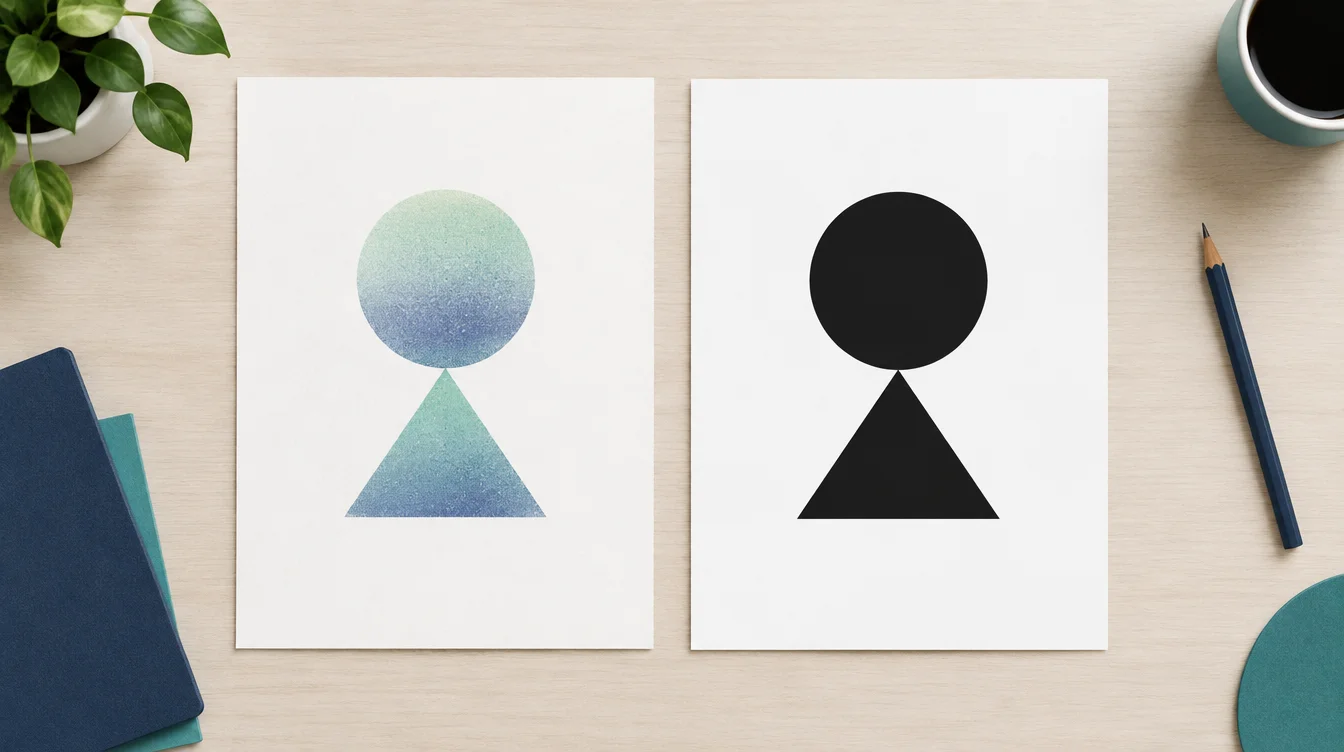
Your logo looks sharp on screen, then the fax arrives with a gray smudge where the logo should be. Nothing is broken. A fax is black and white at low resolution, and most logos are designed for color screens and print.
The fix happens before you send: give the fax a version of the logo it can actually reproduce, check it in a fax-style preview, and test it once.
Why logos fade or break up on a fax
FaxDash's cover sheet maker puts it plainly: "A fax is black and white, at about 200 dots per inch. Color bands, gray fills and pale logos come out as speckles or disappear."
That one sentence explains most bad fax logos:
- Color becomes black or white. There's no gray on most fax pages. A light blue or yellow mark can drop out entirely, and a mid-tone color can turn into a field of dots.
- Gradients and shadows turn to speckles. A smooth fade from dark to light has nothing smooth to land on, so it breaks into a grainy pattern.
- Thin lines break. At about 200 dots per inch, a hairline outline or a fine tagline has very few dots to work with, so it can come out broken or vanish.
The Business Fax Cover Sheet with Logo page gives the same advice in short form: "use a logo with solid shapes and clear lettering. Pale colors and thin lines fade or break up."
How to fix it: five steps
1. Start from a solid black version
If your brand has a one-color or black version of the logo, use that. If it doesn't, ask whoever made the logo for one, or simplify a copy yourself: fill every shape with solid black on a white background.
The maker converts any logo you add for you. Its logo field says: "Add a PNG or JPEG, up to 1 MB. It is turned black and white, as a fax prints it." Starting from a black version means you decide what stays dark, instead of leaving it to the conversion.
2. Drop gradients, shadows and thin lines
Remove anything that depends on shades of gray: gradients, drop shadows, glows and tinted backgrounds. Thicken hairline outlines, or remove them. If the logo includes a small tagline, leave it off the fax version. The company name can sit beside the logo as plain text instead.
3. Keep it large enough to survive
FaxDash's cover sheet pages don't state a minimum logo size. As general fax guidance, work from the resolution: at about 200 dots per inch, a logo printed 1 inch wide has roughly 200 dots across. Small details inside it, like letters in a monogram, get only a fraction of that. If a detail is hard to read when you print the cover sheet at actual size, it will be harder to read on the fax.
Use a logo file that is large and sharp to begin with, so it isn't stretched up from a tiny image. The maker accepts PNG or JPEG files up to 1 MB.
4. Check the Fax preview in the maker
Open the maker with the business logo sheet selected and add your logo. The preview has two settings: PDF and Fax (black and white). Switch it to Fax. The maker page says this shows "exactly what the person you are faxing gets, including how an accent color comes out."
If the logo looks muddy or broken in the Fax preview, go back to steps 1 to 3 before you download anything. The maker runs in your browser, and its FAQ says "what you type and any logo you add stay on your device."
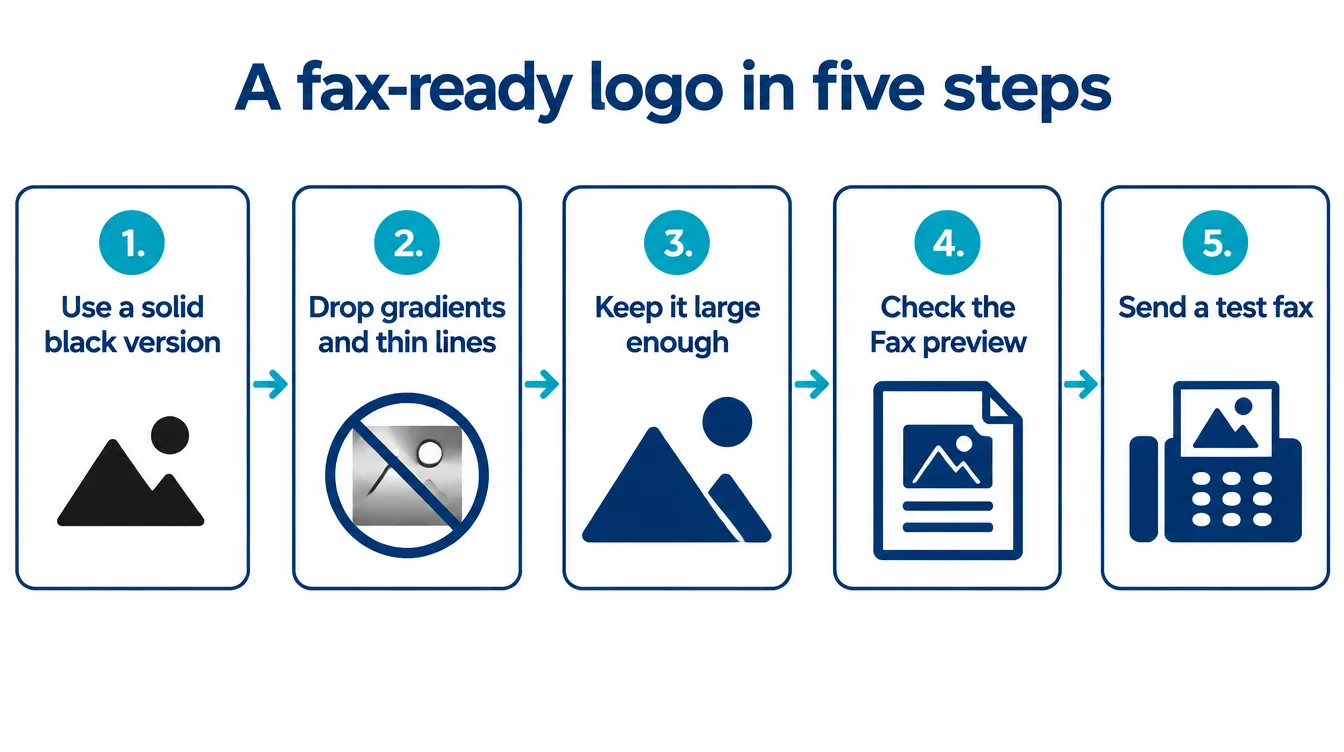
5. Send one test fax to a number you can check
A preview is a good check, but the real page is the final one. Send the cover sheet alone, as a one-page fax, to a fax number where you can see the result, such as your own receive number or a colleague's fax machine. Look at the logo, the company name and the small print.
The maker and the cover sheets are free to use, with no feature fee. When you send through FaxDash, the sending help says to count the cover page with the rest, so a cover uses 1 send credit to a +1 number (US and Canada), like any other page.
How FaxDash compares on logos and reusable covers
If you're choosing a tool for a branded cover, here is how five services describe the options on their own pages, checked November 7, 2026. We make FaxDash; this is a feature comparison, not a test of transmitted image quality.
| Service | Add your branding | Reuse and account requirements |
|---|---|---|
| FaxDash maker | PNG or JPEG logo, black-and-white preview, PDF download | Free without an account; save the finished PDF to reuse |
| Fax.Plus maker | PNG, JPG or SVG logo; PDF, PNG or Word export | Public maker needs no account. Its separate in-app company-logo feature is documented for Business and Enterprise |
| eFax templates | Downloadable covers you can edit with your logo and colors | Templates; sending through the service is a separate step |
| iFax custom covers | Add Logo in the dashboard cover editor | Documents saved defaults for accounts, numbers and teams; confirm your plan includes the controls you need |
| MyFax | Custom cover pages for company branding | Documents automatically adding the custom cover to outgoing faxes |
Our advice: Fax.Plus is worth a look if you need an editable Word export, while iFax documents defaults for different numbers and teams. FaxDash suits making a PDF with a black-and-white preview before sending. Whichever you choose, keep the one-color logo and test-fax steps above. A preview cannot establish how every receiving machine will print it.
Pick the right sheet
The business logo sheet is built for faxes that should look like they came from your company, such as quotes, purchase orders and contracts. For everyday sends, the Basic Fax Cover Sheet may be enough. If you're re-sending or chasing something you already faxed, the Follow-up Fax Cover Sheet fits better.
The rest of the document matters too. Our guide to preparing a document to fax cleanly covers dark ink, small print and checking pages before you send.
FAQ
Why does my logo look fine in the PDF but bad on the fax?
The PDF keeps your colors and fine detail. The fax doesn't. Switch the maker's preview from PDF to Fax to see the black-and-white version before you send.
What file type should my logo be?
The maker accepts PNG or JPEG, up to 1 MB.
Does the maker remember my logo?
The maker offers to remember your name, phone and company on your device. It doesn't say it remembers the logo, so keep the downloaded PDF and reuse it.
Can my whole office use the same cover sheet?
Yes. Save the finished PDF and share it. If the office faxes together, FaxDash Business is you + 2 team seats on one plan. Teams are Business-only and are managed in the web dashboard, not the mobile app (teams help).