
Suppose your office needs to tell six vendors that your holiday hours have changed. You have one PDF notice and six fax numbers. You don't have to send the same fax six times. FaxDash can send one document to several numbers in one go.
The short answer
Open Send Fax in the web dashboard, drop in your document, then add more than one fax number on the Recipients step. FaxDash sends it as a batch: one document to up to 50 fax numbers at once. The FaxDash app can do the same. Each recipient is billed separately by page count.
That last part is the main cost to plan for. A 3-page notice to 4 US numbers uses 12 credits at 1 credit per page, because it's 3 pages for each of 4 recipients. A cover page would add to it. FaxDash offers 2 free pages when you sign up.
What to have ready
- Your final document. Open it and check the page count first, since the count is multiplied by the number of recipients.
- A confirmed list of fax numbers. Check each one against what the recipient gave you. A typo in a batch is a wrong number you sent a document to.
- Enough credits. The Review step shows the estimated credits before you send.
- The web dashboard or the app. Both can send to several numbers; the steps below use the dashboard. Email-to-fax isn't a batch route: the subject line holds one destination number.
Steps
- Save the numbers as contacts (optional). In the web dashboard, open Contacts and click Add Contact. Enter a name and the fax number with its country code. Saved contacts can be searched from the Send Fax page.
- Add your document. Open Send Fax and drop in your PDF or images. If you add several files, they're merged into one fax.
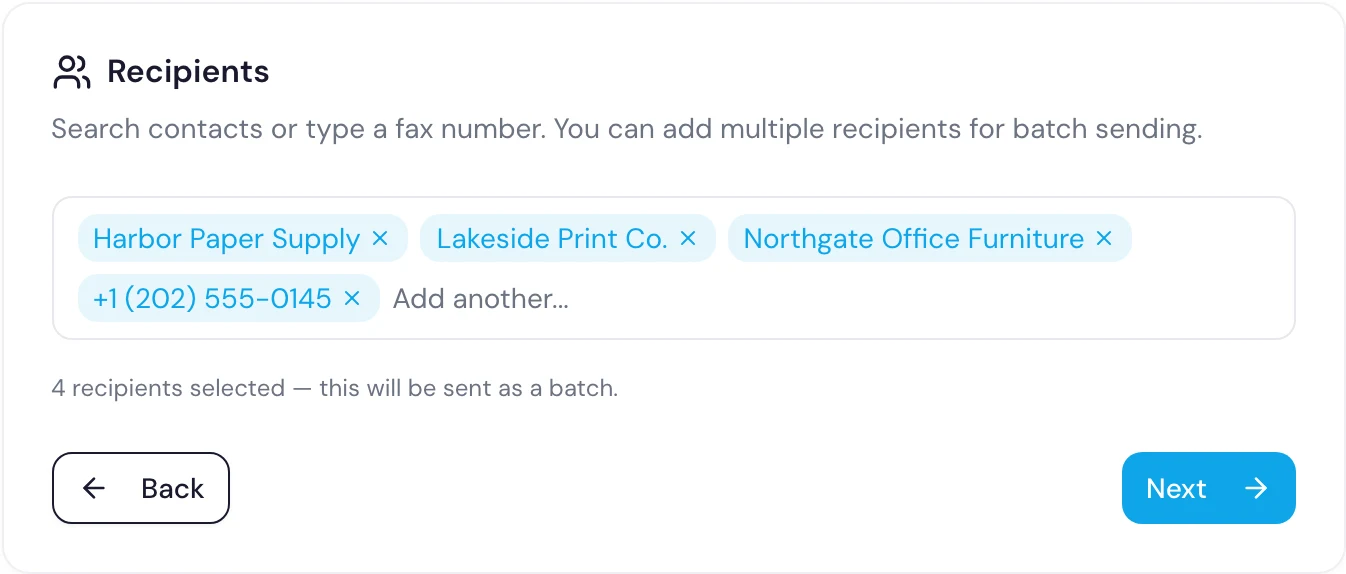
- Add the recipients. On the Recipients step, type a fax number or start typing a contact's name, press Enter, then keep adding. Once there's more than one, the page tells you how many recipients are selected and that the fax will be sent as a batch. Use international format, a + sign and the country code, for any number outside the US.
- Read the review. The Review & Send step lists the document, its page count, every recipient and the estimated credits, worked out as pages times recipients. If the total is higher than you expected, look for an extra number or an extra page.
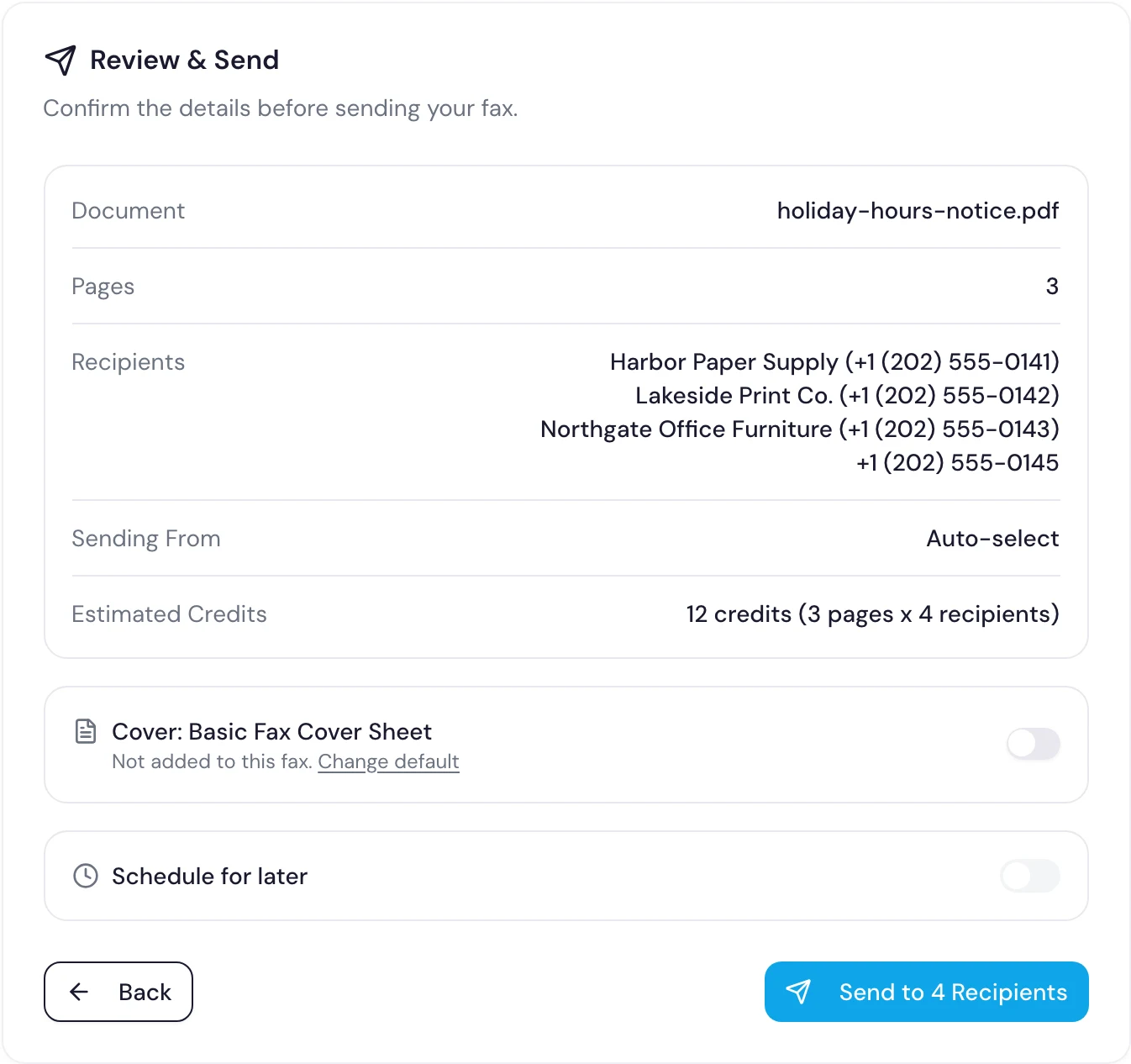
- Send, then check the results. Click the send button, which names the count, such as Send to 4 Recipients. Each recipient becomes its own fax in your Sent list, with its own status, so you can see which numbers went through. A fax ends as Delivered or Failed, and a failed fax's credits go back to your balance automatically.
The honest catch
Everyone on the list gets the same pages. That's fine for a notice or an announcement. It's the wrong tool when each person needs a different attachment, or when the document contains information only one of them should see. Send those individually.
A cover page is a page like any other. It has no feature fee but uses 1 send credit per recipient, so check how it changes the total on the Review step before you confirm. If each recipient needs their own name on a cover page, send separately.
Delivered means the transmission completed. It doesn't mean a person at that number has read the notice. If one number fails, check that it's a fax line and not a voice line, then resend to that number only. Why a fax fails to connect lists the checks.
Sending to other destinations costs more credits per page, and the exact cost is shown before you confirm. See the pricing page for details.
How FaxDash compares on sending to many numbers
If you send to the same list often, features matter more than the first send. Here is how FaxDash's batch sending lines up with Fax.Plus's fax broadcasting, as Fax.Plus describes it today. This compares features, not a hands-on test of Fax.Plus.
| Feature | FaxDash | Fax.Plus |
|---|---|---|
| Send one document to many numbers | Yes, from the web dashboard or the app | Yes, from Send Fax in the web app |
| Recipient limit per send | Up to 50 | Up to 500 recipients per fax |
| Saved recipients | Contacts, searchable from the Send page | Saved contacts and groups, with Excel import |
| Usage counted | Separately for each recipient | Separately for each recipient |
| Each recipient's result | Each number is its own fax in Sent, with its own status | Per-recipient delivery status in the account |
A fair read: for a list of up to 50 numbers, FaxDash's batch send covers the job. If you regularly fax hundreds of numbers, or want saved recipient groups and spreadsheet import, Fax.Plus documents more tooling for that. Fax.Plus's own help article is here.
FAQ
Can I send one fax to many numbers from my phone? Yes. On the FaxDash app's Send Fax screen, enter the first number, then keep adding them in the Add another number field, up to 50.
Is there a limit on how many numbers I can add? Up to 50 per send. For a longer list, split it into several sends.
What does a batch cost? Each recipient is billed separately by page count. To a US (+1) number, including Canada, that's 1 credit per page.
Can I schedule a batch for later? Yes. The Review step has a Schedule for later switch for a batch too. See how to schedule a fax.
Do I need a fax number of my own? No. Sending from the web dashboard or the app doesn't require one. Only email-to-fax does.