
Picture a Tuesday at a small property management office. A rental verification form arrives addressed to "the office," a vendor's certificate of insurance is due before a repair can start, and an owner's lender wants a form back by fax. Each of those lands somewhere, and the trouble starts when nobody is sure where.
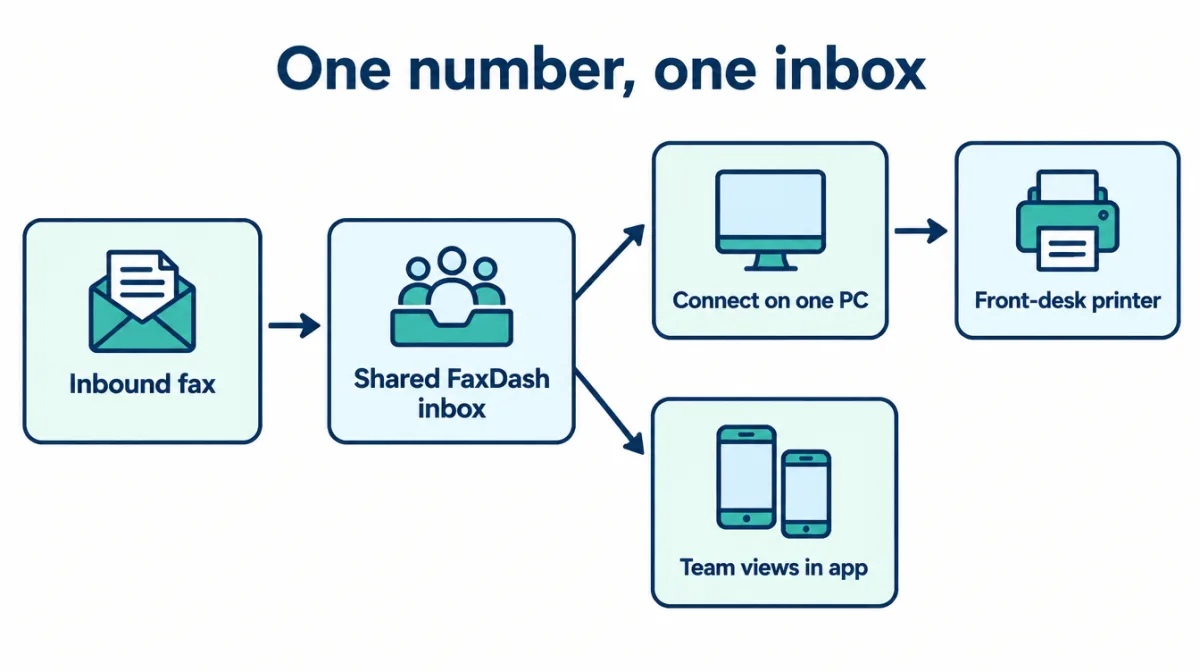
If your partners still send fax, the setup that works is simple: one fax number for the whole office, one shared inbox where everyone can see what arrived, and an automatic printout at the front desk for whoever still likes paper. You don't need a landline or a fax machine for any of it.
This guide walks through that setup, what it costs, and where it stops being the right tool.
Where fax still shows up in a property management office
Not every office gets much fax. It depends on who you work with. These are the documents that tend to arrive or go out by fax when partners still use it:
- Rental verification requests. Another landlord or a screening company asks you to confirm a former tenant's dates and payment history, and some of these forms ask to be returned by fax.
- Landlord references for your own applicants, going the other direction.
- HOA resale or estoppel requests for owners who are selling. These rules are set by each state, so follow the association's and your state's instructions rather than a general timeline.
- Insurance paperwork and vendor certificates of insurance (COIs), plus vendor W-9s.
- Lender forms for owners who are refinancing, and the occasional utility or city form.
If most of your partners already email or use a portal, you may only need fax for the stragglers. That's fine. The goal is that the stragglers don't get lost.
Step 1: Give the office one fax number
Pick one number and put it everywhere a partner might look: rental applications, your verification request forms, owner packets and your website's contact page. One number means one place to check.
With FaxDash, receiving needs a receive plan tied to a dedicated number. You can choose a local number or a toll-free one (toll-free numbers are US (+1) numbers). If the office already has a fax number you want to keep, contact us at support@faxdash.io before you print anything new.
Sending is separate. It's pay-as-you-go with credits that never expire, so an office that mostly receives isn't paying a monthly fee for sending.
Step 2: Set up a shared inbox with clear owners
A shared number only helps if the right person sees each fax. On the Business plan, you can create a team so everyone signs in as themselves and works from the same inbox and sent history. Business includes you + 2 team seats, and extra seats are $2.99 a month each.
Teams are created and managed in the web dashboard at dash.faxdash.io, not in the mobile app. Once someone has joined, they can send, receive and view faxes from the app too.
A simple way to split the work:
- Leasing owns rental verifications, references and applications.
- Accounting gets the finance role. Finance can see the team's faxes, inbox, credits and billing, but can't send faxes or manage people.
- Maintenance coordination owns vendor COIs and W-9s.
The sent history shows who sent each fax, which helps when someone asks, "Did we already send that verification?" An admin can also set a monthly page limit for any member. Limits count pages sent, not received.
Received faxes also trigger an email notice by default. The email tells you who sent the fax and when, with a link to open it in FaxDash. The fax itself isn't attached. You can add a shared address such as leasing@ so the notice lands where your team already looks, or turn the email off in Settings if push notifications are enough.
Step 3: Keep paper at the front desk with FaxDash Connect
Some offices still want a printout on the desk. Maybe a leasing agent works from paper, or the office manager likes a physical in-tray. FaxDash Connect covers that.
Connect is a free desktop app for Mac and Windows. It prints each newly received fax once, on the printer you choose, with no print dialog. It sits in the menu bar on a Mac or the system tray on Windows. It can also stamp the sender's number and arrival time on each page, like the header a fax machine used to print.
A few details that matter for an office:
- Run it on one computer only. On a team, Connect prints the shared inbox, and every running copy prints every fax. Two computers running it means two copies of every page.
- No backlog on day one. Faxes already in your inbox when you first sign in don't print.
- Offline catch-up. If that computer is off, faxes that arrive in the meantime print the next time Connect starts.
- It needs a receive number. Connect only prints faxes you receive. It can't send.
Step 4: Send verifications back without a machine
When you need to return a completed rental verification or reference, you have two easy routes:
- From your phone. Scan the signed form, check every page is readable and upright, and send it from the app. If you're comparing phone apps for scanning and signing, see best fax apps for your phone.
- From email. Email the PDF to your FaxDash number at fax.faxdash.io with only the destination fax number in the subject line. The fax-to-email and email-to-fax workflow guide covers the details.
Either way, check the result in your sent history for Delivered or Failed. Delivered means the transmission completed. It doesn't prove anyone has read the form, so call if the verification is holding up an application.
Handle applicant paperwork with care
Verification requests and references carry personal details about applicants and former tenants. Treat them like any other private file:
- Share only what the form actually asks for.
- Don't leave printouts on the front counter. If Connect prints at the desk, put the printer where visitors can't read the tray.
- File or shred printed copies once the request is done, following your office's records policy.
This guide stays out of screening decisions and fair housing rules. For those, follow your state's requirements and HUD's fair housing guidance, and check with your own counsel.
A note on AI analysis: FaxDash makes AI summaries of received faxes, and AI analysis is on by default; accounts with a signed BAA start with it off and can turn it on. If you'd rather not have applicant documents analyzed, turn off "Summarize received faxes with AI" in Settings.
Money documents: verify before you act
Owner payouts, vendor bank details and payoff letters are where a fake fax or email can cost real money. A new set of wire instructions should never be trusted just because it arrived on your fax number. Call back on a number you found yourself, not one printed on the document. The wire and payoff verification checklist walks through it step by step.
What it costs
- Sending: pay-as-you-go credit packs, from 5 pages for $0.99 to 150 pages for $9.99 (about $0.07 a page). Credits never expire. Pages to +1 numbers use 1 credit each.
- Receiving, solo: Starter is $3.99 a month for 50 received pages and 10 send credits.
- Receiving, with a team: Business is $12.99 a month for 500 received pages and 60 send credits, with you + 2 team seats. Extra seats are $2.99 a month.
If you go over your received-page allowance, faxes keep arriving. Each extra page uses one send credit, and you get alerts at 80% and 100% of the allowance. For more on keeping the monthly bill small, see online fax with a real receiving number, without a big monthly bill.
How a few other options compare
If you're weighing alternatives, the main difference is how the number is billed and shared. Checked October 29, 2026, on each provider's own pages:
| FaxDash | Ooma Office | HumbleFax | |
|---|---|---|---|
| What you pay for | Credits to send (never expire); receive plan from $3.99/mo | A phone-system user extension from $19.95/mo, which includes Virtual Fax | $10/mo unlimited plan; its terms describe unlimited accounts as for individual, non-commercial use |
| Fax number | Local or toll-free, with a receive plan | Comes with the user's extension | Dedicated local number |
| Sharing | Business: you + 2 team seats, one shared inbox | Fax is linked to a user's extension; Ooma says a shared line is possible | Its homepage lists 10 additional users; received faxes go to email as a PDF |
| Paper at the desk | Free Connect app auto-prints | Print from email or the portal | Print from email |
Ooma makes the most sense if you're already replacing the office phone system. HumbleFax's flat $10 price is simple, but its terms describe unlimited accounts as being for individual, non-commercial use and also mention tiered and metered accounts, so ask which account type fits an office before you sign up.
Sources: Ooma Office pricing chart, Ooma online fax, HumbleFax FAQ, HumbleFax terms. Prices can change, so check before you buy.
The honest catch
FaxDash gives you a number, a shared inbox and a printout. It doesn't chase a landlord who never returns a verification, and it doesn't decide who should see what. Someone still has to own the inbox each day. If your partners have all moved to email or portals, you may not need a fax number at all.
FAQ
Can we keep our existing fax number? Contact us at support@faxdash.io.
Can owners and vendors email documents instead? Yes, if your office accepts email. Fax is for partners who still send it. You can accept both and route them to the same people.
Do we need a fax machine for Connect? No. Connect sends received faxes to an ordinary printer on one computer.
Can a team member manage the team from the app? No. Team members can send, receive and view faxes in the app, but inviting people and changing roles happens in the web dashboard.
Your next step
Pick the one number you'll print on your next batch of applications and verification forms, then decide who owns the inbox. When you're ready to set up the team, start with FaxDash Business.
This guide is general information, not legal or tax advice. Fax numbers, forms and agency rules change, so check the agency's official page before you send. FaxDash isn't responsible for decisions made or actions taken based on this guide. For advice about your situation, talk to a qualified tax professional or attorney.