
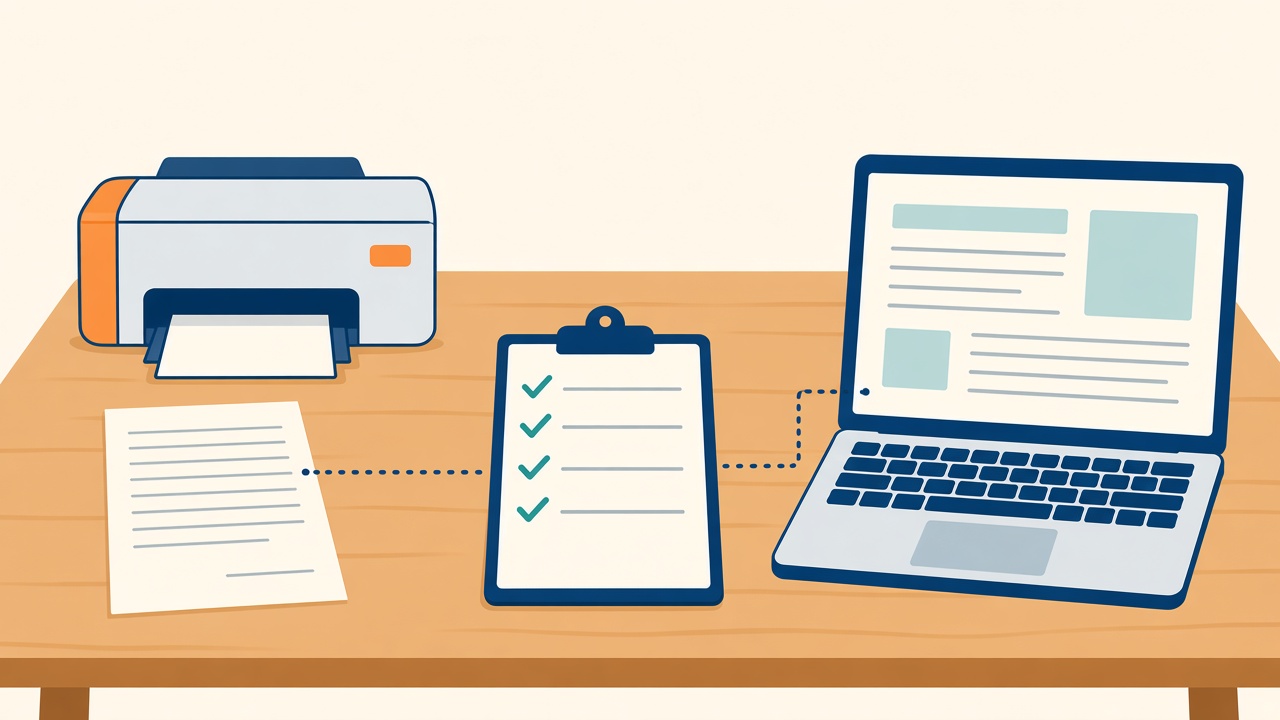
A fax arrives, someone opens it on a phone, and a printed copy lands beside the office printer. A colleague picks up the paper and starts working. The person who opened the digital copy starts the same task later.
Both people are being helpful. The office is missing one shared answer to a basic question: who is handling this fax?
Paper can remain useful without becoming a second work queue. The practical fix is a small shared work log, a clear handoff and a few minutes of reconciliation before the next shift takes over.
This article is general information, not legal, tax or compliance advice. Agency rules and fax numbers change, so confirm with the agency or a qualified professional before you send.
Give each fax one owner
Choose where your team records the work: an existing ticket system, a shared spreadsheet or another approved business tool. Use something everyone involved can actually access during the day.
Keep the received fax in FaxDash as the document reference. Track responsibility and progress in that separate log. These stages belong to your office procedure. They are separate from whether a fax is marked read in FaxDash.
Agree on a few plain-language stages:
- Unclaimed: nobody has accepted responsibility.
- In review: a named person is checking the document.
- Waiting: progress depends on a specific missing item or answer.
- Completed: the required business action is finished, with a short record of what happened.
Opening a fax does not establish which of those stages applies. Someone might open it to identify the sender, check a page count or decide who should handle it.
Know what Connect contributes
FaxDash Connect automatically prints incoming faxes on a selected printer. It is a free desktop app for macOS 12 or later and 64-bit Windows 10 or 11; receiving still requires a FaxDash number and receive plan. Its access is receive-only, without sending, billing or settings access. See the FaxDash Connect help guide.
New faxes print even if someone already opened them digitally. Existing inbox items do not print at initial sign-in. Faxes received while Connect is closed, offline or paused can print when it resumes. On a team, run one copy: each running copy prints the shared inbox.
These behaviors make the handoff important. Reading a fax on a phone will not stop its paper copy arriving later. Connect prints received documents; it does not decide which ones need work or turn an AI-generated checklist into a print job.
Keep the shared log short
A useful row needs enough information to find the original and understand the next action:
- Fax reference or ID, when available.
- Received date and time, sender and page count.
- Named owner and current work stage.
- Required action and any deadline verified against the original.
- Paper location, if a copy is in use.
- Latest update, including who made it and when.
Use the fax ID when your workflow exposes it. Otherwise, record enough details to match the correct inbox item without confusing two faxes from the same sender. Avoid copying entire fax contents into the log when a reference and short task description are enough.
Give one person responsibility for checking that new arrivals get a row. Name a backup for breaks and absences. Responsibility for intake can change by shift without changing the rule that every active item has one owner.
Make the paper handoff visible
Handwritten initials help people standing beside the document. They do not tell a remote coworker what happened.
When someone takes a paper copy, have them claim the log entry first. If they write a correction or receive an answer by phone, they should update the shared log before handing off the task. Include the substance: “Confirmed the revised quantity with the sender at 11:20; awaiting replacement page,” rather than “Called.”
Keep paper in a known, appropriately restricted location. A sheet moved to someone's desk should not disappear from the team's view of the work. The log can say where it is without exposing document contents to people who do not need them.
Fictional worked example: an equipment repair office
This example uses invented people and documents. It is a proposed operating procedure, not a tested integration.
A three-page parts authorization arrives for repair job R-104. Elena opens it in FaxDash and creates a log entry. She assigns herself as owner and records “Check requested parts against estimate.” Connect prints the same fax at the service desk.
Marcus picks up the paper, sees the matching log entry and brings it to Elena instead of starting another review. Elena notices a handwritten quantity change on page two. She checks the original, calls the sender and records the confirmed quantity in the log.
At handoff, the row says “Waiting for revised authorization; Elena owns follow-up.” The printed copy stays in the designated pending folder. Neither opening the fax nor writing initials on the paper closes the task.
Give AI a bounded role
An AI assistant can help summarize available digital information or prepare a proposed action list. It cannot see the physical output tray, handwritten initials or a conversation that nobody recorded. If its only input is the received fax, it cannot know that a colleague already acted on the paper copy.
FaxDash's built-in AI summaries cover received faxes up to five pages. Longer faxes arrive without one, and analysis can be disabled. Signed-BAA accounts start with analysis off. The receiving-faxes guide explains these limits.
A missing summary should go through ordinary document review rather than disappearing from the log. Require the owner to check the original before relying on an amount, instruction or deadline. If you ask an assistant to compare the fax with your log, first confirm that it has authorized access to both. Label its suggested changes for review rather than treating a summary as proof of completion.
How other fax services handle shared work, checked November 12, 2026
A shared log works with any fax service, but the service decides how many people can open the inbox, what AI help comes with received faxes and what the desktop app does. This is what each company's own pages said on November 12, 2026.
| FaxDash | Fax.Plus | eFax | |
|---|---|---|---|
| People on one account | Team seats on Standard and above; Business includes you plus 2 seats | Teams need Business (five members included) or Enterprise | Personal has 1 user license; Business has 5 user licenses, with extra users for a monthly fee |
| AI help on received faxes | A summary, category, key details and searchable text for faxes up to 5 pages, unless you turn it off | AI Text Transcript and AI Data Extraction, with a monthly AI credit allowance on Enterprise | Searchable faxes on every plan; eFax Clarity data extraction is sold as an enterprise and healthcare product |
| Desktop app | FaxDash Connect prints each received fax on a printer you choose, on Mac or Windows | Print to Fax sends a fax from any app's print dialog on Windows or macOS | A desktop app for sending faxes from any PC |
Current prices are on each company's pricing page: Fax.Plus and eFax. FaxDash's are on Pricing, credits and billing. FaxDash offers 2 free pages when you sign up.
Treat printing exceptions as work to reconcile
A restored printer or resumed computer may produce several documents after staff already reviewed them online. Match those pages to existing log entries before anyone begins again.
For a missing print, check Connect's status and recent activity, the printer and the digital original. If someone prints manually, record that fact so a later automatic copy is recognizable. Follow your document-handling policy for duplicate paper rather than leaving it in an open tray.
At initial rollout, review older inbox items separately. Connect's first sign-in does not clear an existing backlog by printing it.
Finish the shift with one shared view
Before handoff:
- Compare the shift's received faxes with the log, including opened items.
- Match remaining paper to its entry and owner.
- Move useful handwritten updates into the approved shared record.
- Identify waiting items, deadlines and the next responsible person.
- Investigate unmatched pages or inbox items before calling the queue clear.
Start with one team and an agreed intake owner. If coworkers can answer “who has this, what happens next, and where is the original?” without searching two piles, the paper and digital parts of the workflow are working together.