
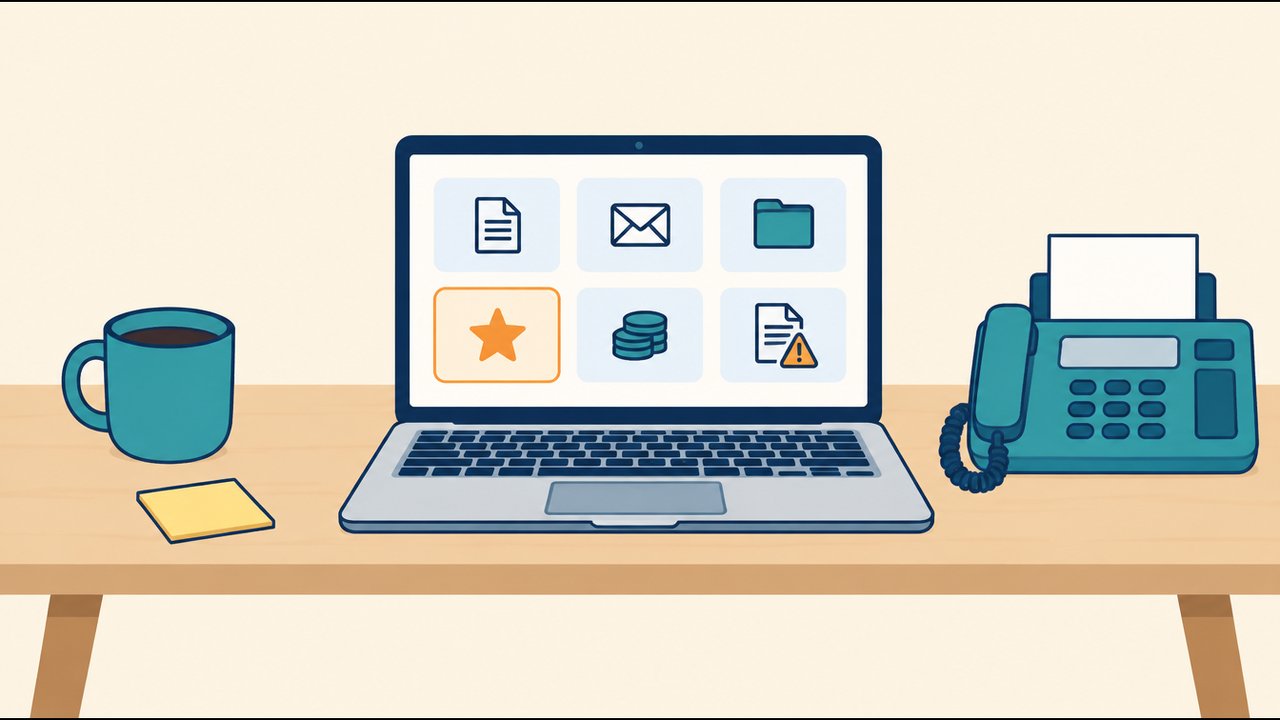
Suppose your office gets a few faxes a day, and checking them means opening the inbox, then sent history, then the credits screen. It works, but it's three stops for one question: is anything waiting on me? The FaxDash web dashboard has a page built for that question, and you only need to arrange it once.
The short answer
The Overview is the first page of the FaxDash web dashboard. It's a grid of widgets you can add, move and remove. Put the widgets you check every day at the top, remove the rest, and click Done. Your layout is saved to your sign-in, so it looks the same on any computer.
FaxDash offers 2 free pages when you sign up. You can try sending before you set anything up.
Pick your daily-check widgets first
Decide what a "nothing waiting" morning looks like for you, then choose widgets that answer it. Some useful ones from FaxDash Help:
- Unread faxes: received faxes you haven't opened.
- Inbox: unread faxes you can open, mark read or archive.
- Failed faxes: failures in the last 7 days, with a Retry option.
- Credits: send credits and receive pages left.
- Favourites: your most-faxed numbers, one tap to send.
- Recent faxes: sent and received faxes, newest first.
If you only send, start smaller. Accounts without a plan start with a send widget, Credits and Recent faxes. Accounts with a receive plan start with the full set.
Steps to set up your Overview
- Open the Overview in the web dashboard and click Customize at the top right.
- Remove what you skip. Each widget gets a dashed outline, a handle at its top left and an X at its top right. Click X to remove one. You can add it back any time.
- Add what's missing. Click Add widget and pick one from the panel. It lists only the widgets that aren't on your Overview yet, and a new one goes at the end.
- Put the daily checks first. Drag a widget by its handle to move it. With a keyboard, focus the handle, press Space, move it with the arrow keys and press Space again.
- Click Done to save. Cancel throws your changes away, and Reset to default puts back the starting layout once you click Done.
The honest catch
The Overview lives in the web dashboard only. The mobile app doesn't have it, so if you check faxes on your phone, the app's inbox and history are still your daily stops.
Widgets have a fixed size and fill the grid in order. You can't resize them, and moving one changes the order of everything after it. Expect a little shuffling before it looks right.
On a team, each person has their own layout, and a person only sees the widgets their role allows. Finance can't add the sending widgets or Failed faxes, because finance can't send, and members can't add Fax volume. Teams come with Standard and above.
A tidy Overview tells you what has arrived and what has failed. It doesn't tell you anyone acted on it. Delivered means the transmission completed, not that a person read the fax, so a fax that matters still needs a call or a reply. Before you use Retry on a failed fax, check why it failed. A wrong number fails again.
How FaxDash compares on the dashboard
eFax describes its web account area on its own features page. This compares documented features, not hands-on tests.
| Feature | FaxDash | eFax |
|---|---|---|
| Web account area | Overview page of widgets in the web dashboard | MyAccount web portal to manage and track documents from any device |
| Rearrange the layout | Add, move and remove widgets, saved to your sign-in | Not stated on that page |
| Activity view | Fax volume and Recent activity widgets | Usage reporting dashboard to track activity and trends |
| Per person view | Each team member has their own layout | Admin portal to manage user accounts and document history |
A fair read: eFax puts more weight on company-level admin and usage reporting. FaxDash's Overview is about arranging your own daily check. If admin reporting across many users is your main need, compare that first.
Your next step
Open the Overview, click Customize and move the one widget you'd check first to the top-left spot. The rest can wait until you notice what you keep scrolling for.